Alibaba Cloud GPU physical machines cannot be accessed directly from the public internet; an ECS reverse proxy is required. This document guides users on how to set up the proxy server.
1. Identify IP Addresses
Users should first confirm the following IP addresses: the ECS public IP (not disclosed here, represented as XXX.XXX.XXX.XXX) and private IP (used in this experiment as 10.10.10.10); and the GPU physical machine’s private IP (used in this experiment as 10.239.23.4).
2. Log in to the ECS Bastion Host
Users can log in to the ECS using PUTTY (Windows environment) or the SSH command (Linux environment). Note that you must use the ECS public IP to log in.
ssh -l login_name XXX.XXX.XXX.XXX (ECS Public IP)
After successful login, you can use the SSH command to log in to the GPU physical machine from the ECS bastion host:
ssh -l root 10.239.23.4 (GPU Physical Machine Private IP)
3. Deploy the Proxy Server on the ECS Bastion Host
Here we choose Tengine, an open-source web server project initiated by Taobao based on NGINX. Users should note that NGINX does not support HTTPS connections when used as a forward proxy, so clients can only access HTTP services.
3.1 Install Tengine
Open a new terminal and log in to the ECS bastion host. Obtain the Tengine source code:
wget http://tengine.taobao.org/download/tengine-2.1.1.tar.gz
Extract the archive:
tar zxvf tengine-2.1.1.tar.gz
cd tengine-2.1.1/
Configure and compile:
./configure
make
sudo make install
By default, the installation location is /usr/local/nginx/. For testing purposes, we also need to install Tengine on the GPU physical machine. The steps are basically the same as on the ECS, with the installation path also being /usr/local/nginx/.
3.2 Edit the ECS Tengine Configuration File
Log in to the ECS bastion host and open the /usr/local/nginx/conf/nginx.conf file with root privileges. Add a server block to listen on local port 10000 and forward all requests to the GPU physical machine (10.239.23.4:10000). The configuration content is as follows: (“//” indicates comments, which should be removed in the actual conf file)
server {
        listen       10000;   // Listen on local port 10000
        server_name  localhost;

        #charset koi8-r;

        #access_log  logs/host.access.log  main;

        location / {
            proxy_pass http://10.239.23.4:10000;
          // 10.239.23.4 is the private IP of the physical machine in this experiment; modify as needed.
          // This forwards requests from the public internet to the physical machine.
        }

        #error_page  404              /404.html;

        # redirect server error pages to the static page /50x.html
        #
        error_page   500 502 503 504  /50x.html;
        location = /50x.html {
            root   html;
        }
    }
Save the file.
3.3 Edit the GPU Physical Machine Tengine Configuration File and Homepage
Log in to the GPU physical machine and edit /usr/local/nginx/conf/nginx.conf with root privileges:
server {
        listen       10000;
          // In this experiment, the default port 80 is changed to 10000; users can modify as needed.
        server_name  localhost;

        #charset koi8-r;

        #access_log  logs/host.access.log  main;

        location / {
            root   html;
            index  index.html index.htm;
        }
        ..........omitted.............
    }
To distinguish the homepage content between the GPU physical machine and the ECS bastion host, we modify the physical machine’s homepage (/usr/local/nginx/html/index.html) with the following code:
<!DOCTYPE html>
<html>
<head>
<title>Welcome to GPU tengine!</title>
<style>
    body {
        width: 35em;
        margin: 0 auto;
        font-family: Tahoma, Verdana, Arial, sans-serif;
    }
</style>
</head>
<body>
<h1>Welcome to GPU tengine!</h1>
<p>If you see this page, the tengine web server is successfully installed and
working. Further configuration is required.</p>

<p>For online documentation and support please refer to
<a href="http://tengine.taobao.org/">tengine.taobao.org</a>.</p>

<p><em>Thank you for using tengine.</em></p>
</body>
</html>
The homepage on the ECS remains unchanged.
3.4 Start Tengine on the GPU Physical Machine
Log in to the GPU physical machine and run sudo /usr/local/nginx/sbin/nginx with root privileges. If an error occurs, modify the nginx.conf configuration file in section 3.2 as necessary based on the error message. Check the NGINX process:
# ps -ef | grep nginx
root     17205     1  0 10:58 ?        00:00:00 nginx: master process /usr/local/nginx/sbin/nginx
nobody   17206 17205  0 10:58 ?        00:00:00 nginx: worker process
root     20108 17042  0 11:54 pts/1    00:00:00 grep --color=auto nginx
You can see that the PID of the NGINX master process is 17205, and the PID of the worker process is 17206. When you need to shut down the web server, you can directly run kill master_pid with root privileges.
3.5 Configure the GPU Physical Machine Firewall
3.5.1 Enable the GPU Physical Machine Firewall
CentOS6: service iptables start
CentOS7: systemctl start firewalld
3.5.2 Add Firewall Rules
The GPU physical machine server needs to use port 10000, so add a firewall exception:
iptables -I INPUT -p TCP --dport 10000 -j ACCEPT
4. Start the ECS Reverse Proxy Service
Return to the ECS bastion host terminal and start the proxy service. Before starting Tengine on the ECS bastion host, we need to ensure that the ECS bastion host can access the web server on the physical machine. Run the following on the ECS bastion host: curl [Physical Machine Private IP]:[Port Number]. Here, the physical machine’s private IP is 10.239.23.4, and the port number configured in section 3.2 is 10000. Therefore, the command is:
# curl 10.239.23.4:10000
<!DOCTYPE html>
<html>
<head>
<title>Welcome to GPU tengine!</title>
<style>
    body {
        width: 35em;
        margin: 0 auto;
        font-family: Tahoma, Verdana, Arial, sans-serif;
    }
</style>
</head>
<body>
<h1>Welcome to GPU tengine!</h1>
<p>If you see this page, the tengine web server is successfully installed and
working. Further configuration is required.</p>

<p>For online documentation and support please refer to
<a href="http://tengine.taobao.org/">tengine.taobao.org</a>.</p>

<p><em>Thank you for using tengine.</em></p>
</body>
</html>
Based on the returned content and comparing it with the homepage modifications in section 3.3, we can confirm that the response comes from the GPU physical machine. After confirming that the ECS bastion host can access the web server on the HPC physical machine, start Tengine on the ECS bastion host: (execute with root privileges) /usr/local/nginx/sbin/nginx. If an error occurs during startup, modify it based on the error message. Check the Tengine process on the ECS bastion host:
# ps -ef | grep nginx
root     16487     1  0 11:33 ?        00:00:00 nginx: master process /usr/local/nginx/sbin/nginx
nobody   16488 16487  0 11:33 ?        00:00:12 nginx: worker process
root     16565 16419  0 12:06 pts/8    00:00:00 grep nginx
You can see the PIDs of the corresponding master and worker processes. Be careful not to confuse them with the PIDs on the physical machine.
5. Testing
5.1 Local Loopback Test on ECS
You can perform a local loopback test directly on the ECS bastion host using curl:
# curl http://localhost:10000
<!DOCTYPE html>
<html>
<head>
<title>Welcome to GPU tengine!</title>
<style>
    body {
        width: 35em;
        margin: 0 auto;
        font-family: Tahoma, Verdana, Arial, sans-serif;
    }
</style>
</head>
<body>
<h1>Welcome to GPU tengine!</h1>
<p>If you see this page, the tengine web server is successfully installed and
working. Further configuration is required.</p>

<p>For online documentation and support please refer to
<a href="http://tengine.taobao.org/">tengine.taobao.org</a>.</p>

<p><em>Thank you for using tengine.</em></p>
</body>
</html>
Comparing with the homepage content in section 3.3, it is evident that the returned content is indeed the web server homepage from the GPU physical machine.
5.2 Remote Web Page Test
Enter the following in your browser’s address bar: http://XXX.XXX.XXX.XXX:10000/ (where XXX.XXX.XXX.XXX is the public IP of the ECS bastion host). The display result is shown in the figure below:
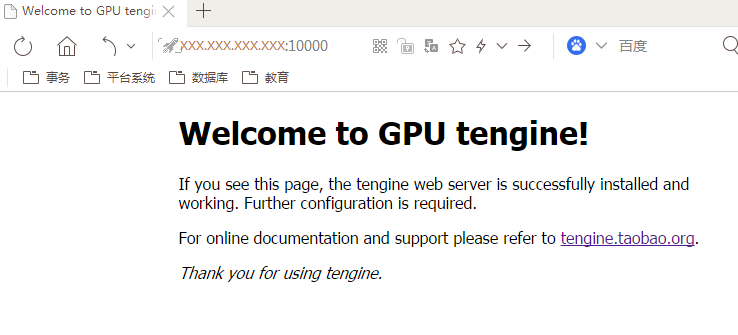
As seen, remote access to the web server on the HPC physical machine has been achieved, verifying the effectiveness of reverse proxying through ECS.