To implement Anycast functionality, you need to use Cross-Region Load Balancing. This feature acts as an HTTP(S) reverse proxy, meaning it can only perform load balancing for HTTP/HTTPS requests.
Overview
The Anycast implementation on GCE is based on Layer 7 network proxying, so its topology looks like this:
User —> Edge Server —> Instance
- Connection between User and Edge Server: Uses HTTP or HTTPS. If using HTTPS, the TLS encryption process occurs at the edge server.
- Connection between Edge Server and Instance: Uses HTTP or HTTPS. The traffic between these points travels over Google’s private backbone network.
Regardless of how many instance locations are configured, the edge servers utilize Google’s entire global edge infrastructure.
Enabling this feature provides you with a dedicated Anycast IP address.
What is Anycast? Anycast allows multiple hosts to share a single IP address. When a user connects to this IP, they are routed to one of those hosts, typically via the fastest available route. This effectively reduces latency, which is why many DNS and CDN providers utilize Anycast.
Additionally, currently, using load balancing is the only method to natively support IPv6. For details, refer to their documentation: IPv6 Termination for HTTP(S), SSL Proxy, and TCP Proxy Load Balancing.
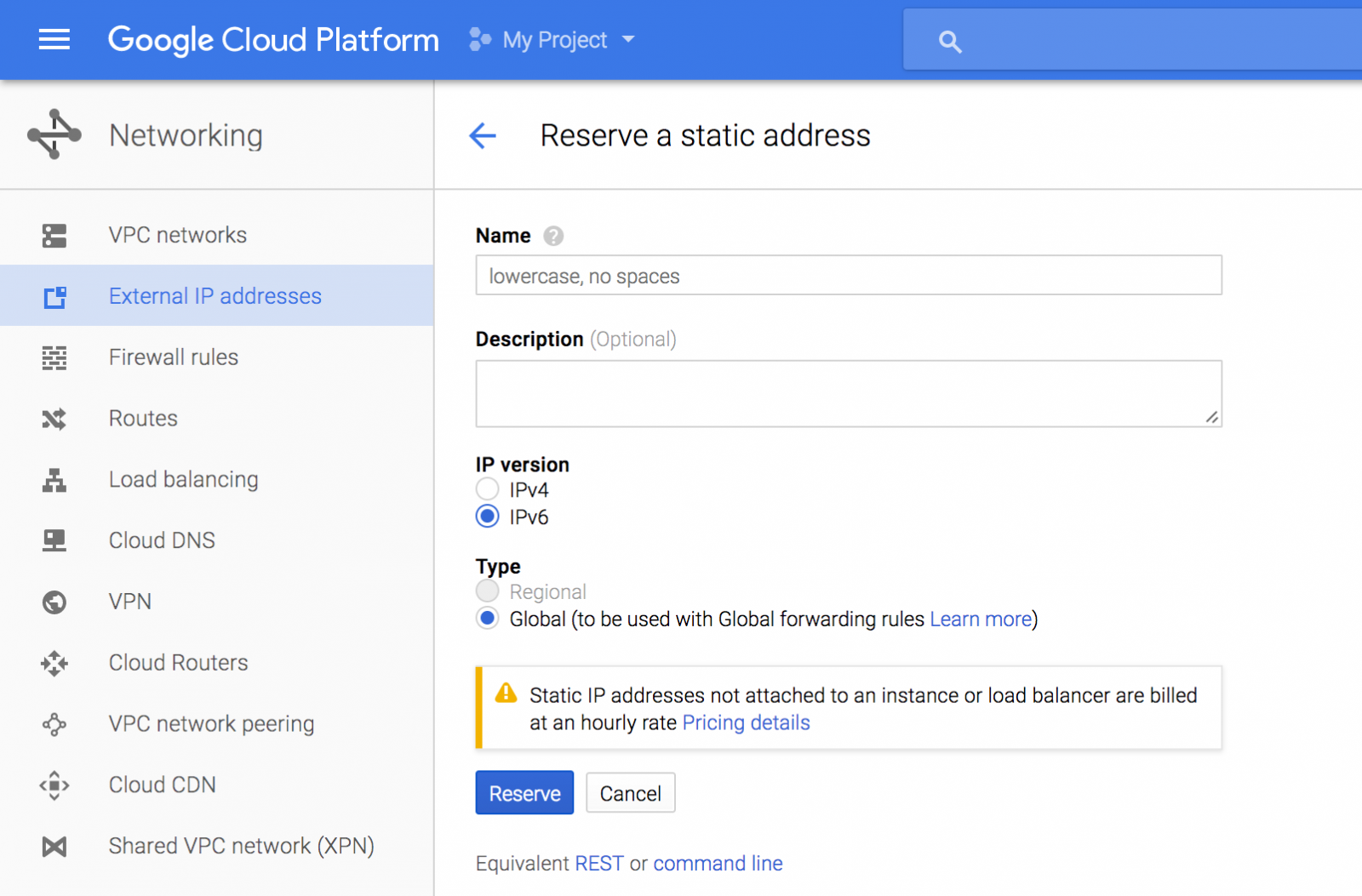
Configuration Steps
Create Instances
First, go to the GCE console and create at least two instances in different regions. I created two new instances specifically to test the Anycast feature:

You can create multiple instances per region to improve availability, but I created only one instance per region. These two instances are named anycast-asia and anycast-us.
Create Instance Groups
Next, you need to create an instance group for the instances in each region:

Instance Group Configuration Page
Note that “Multi-zone” in the location field of the instance group configuration page refers to different Zones within the same Region, not multiple different Regions. Therefore, this is actually a translation error in the UI; it should be called “Multi-Zone” instead.
Newcomers to cloud services might not understand the concept of Availability Zones. You can refer to this AWS article for clarification. Simply put, a “Region” refers to geographically distant areas (e.g., cities like Beijing and Shanghai). All servers in Beijing belong to the Beijing Region, and all servers in Shanghai belong to the Shanghai Region. However, to achieve higher availability, multiple data centers, known as Availability Zones, are usually established within the same Region. Although these zones are within the same region, they may be tens or even hundreds of kilometers apart. Nevertheless, the distance between them is much smaller than the distance between different regions, resulting in very low network latency between availability zones.
The purpose of having multiple availability zones is to increase availability (primarily to avoid external factors such as fires). Although they are distributed across different locations, the distance is close enough that network latency is negligible.
Since I created only one instance per region, I selected “Single-zone.” You need to create an instance group for each region, so I created two instance groups in total: asia-group and us-group.
Create Load Balancer
After completing the previous two steps, you need to create load balancing rules. Select “HTTP(S) Load Balancing” to enable the Anycast feature.

Three Load Balancing Modes
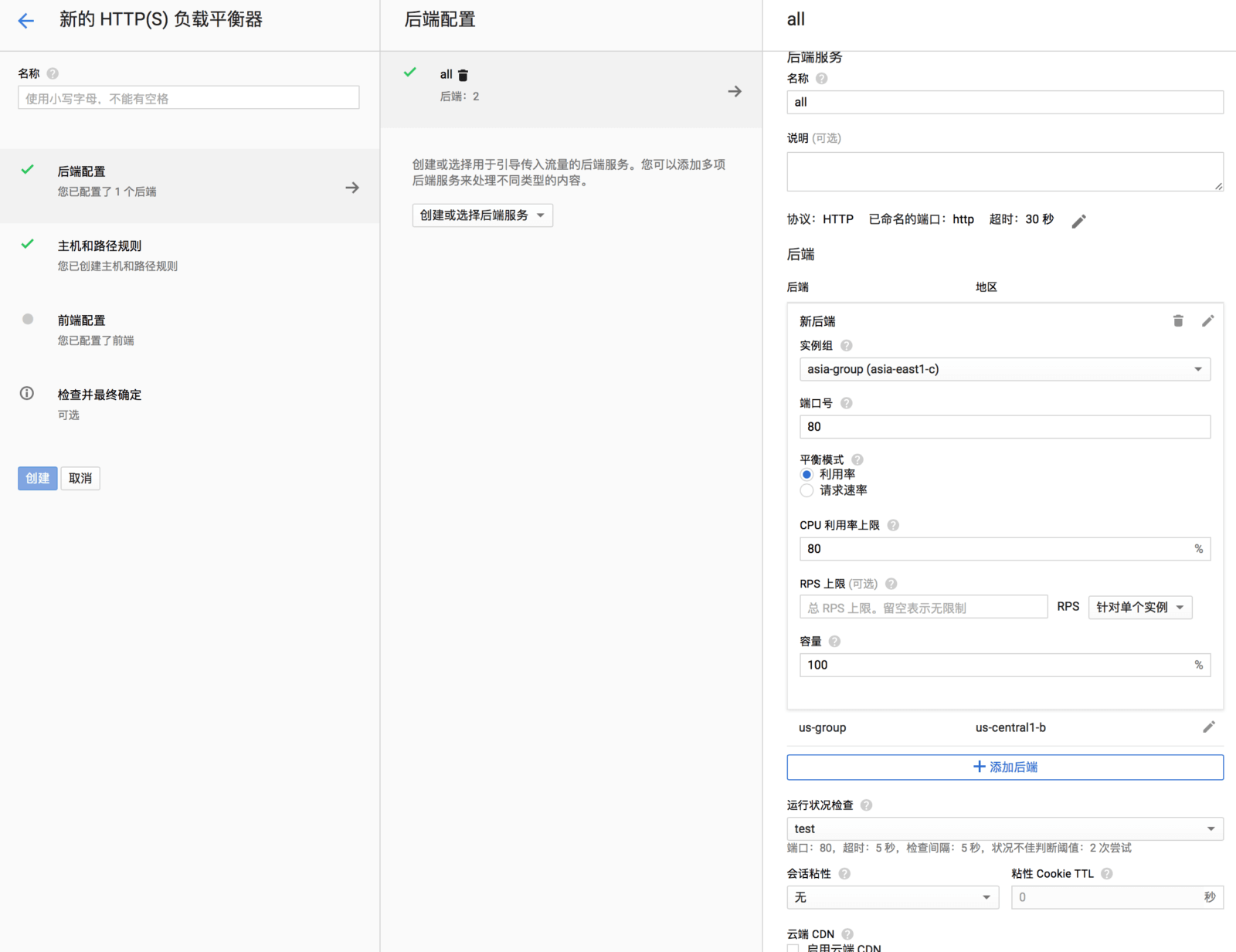
In the load balancer configuration interface, add both instance groups to the “Backend” section.
This feature also requires creating a health check (similar to a monitoring function) to handle failover if a host goes down.
Do not enable the CDN feature yet.
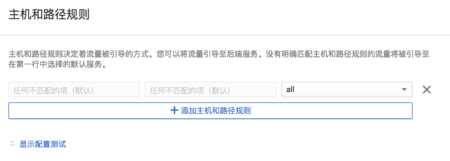
Keep the default “Host and Path Rules”.
This example uses only HTTP. If you need HTTPS, you must specify a certificate.
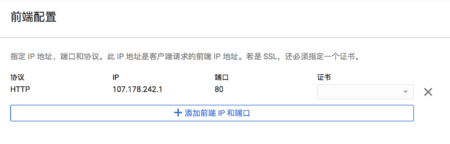
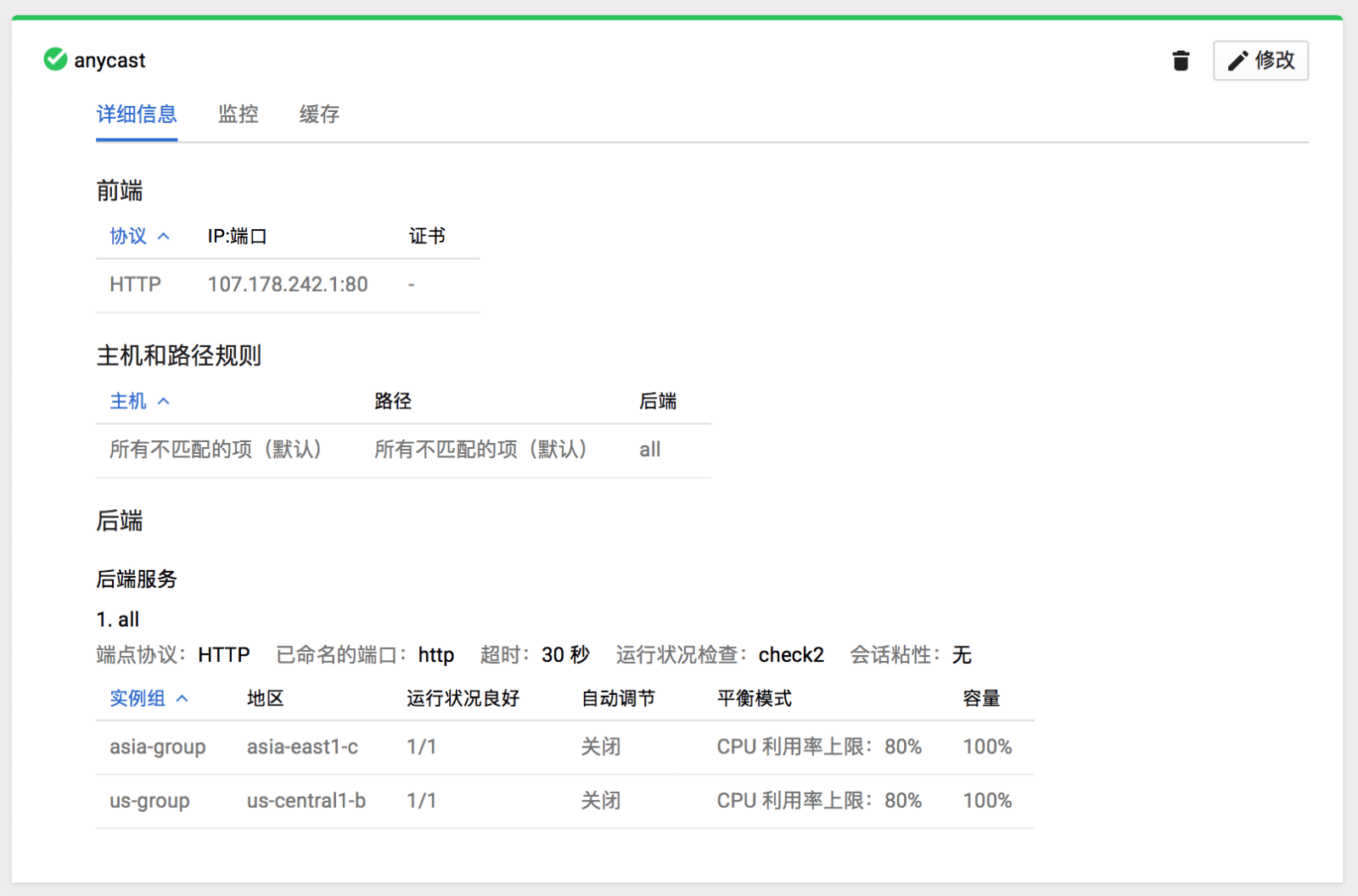
After successful creation, you will see the following interface. The IP address shown is your Anycast IP.
Nginx Configuration
The configuration below is for debugging purposes only; you do not need to modify Nginx configurations for actual usage.
Install Nginx on both hosts and slightly modify the default configuration file by adding two headers, then reload Nginx.
add_header X-Tlo-Hostname $hostname always;
add_header Cache-Control "max-age=36000, public";
Verify Availability
Before testing Anycast, verify that both hosts are functioning correctly. For readability, I replaced the IP addresses with hostnames in the curl commands and omitted header fields identical on both hosts.
$ curl anycast-us -I
HTTP/1.1 200 OK
…
ETag: "57ef2cb9-264"
X-Tlo-Hostname: <strong>anycast-us</strong>

$ curl anycast-asia -I
HTTP/1.1 200 OK
…
ETag: "57ef2b3b-264"
X-Tlo-Hostname: anycast-asia
As seen above, both hosts are working fine. Next, I tested the Anycast IP from my computer:
$ curl anycast-ip -I
HTTP/1.1 200 OK
…
ETag: "57ef2b3b-264"
X-Tlo-Hostname: <strong>anycast-asia</strong>
Accept-Ranges: bytes
Via: 1.1 google
As observed, the response came from the anycast-asia host. Now, I used another host located in the US to test the same Anycast IP:
$ curl anycast-ip -I
HTTP/1.1 200 OK
…
ETag: "57ef2cb9-264"
X-Tlo-Hostname: <strong>anycast-us</strong>
Accept-Ranges: bytes
Via: 1.1 google
In this case, the response came from the anycast-us host because the client was closer to that server.
When accessing via the Anycast IP, you will see the Via: 1.1 google field in the HTTP headers.
Speed Tests
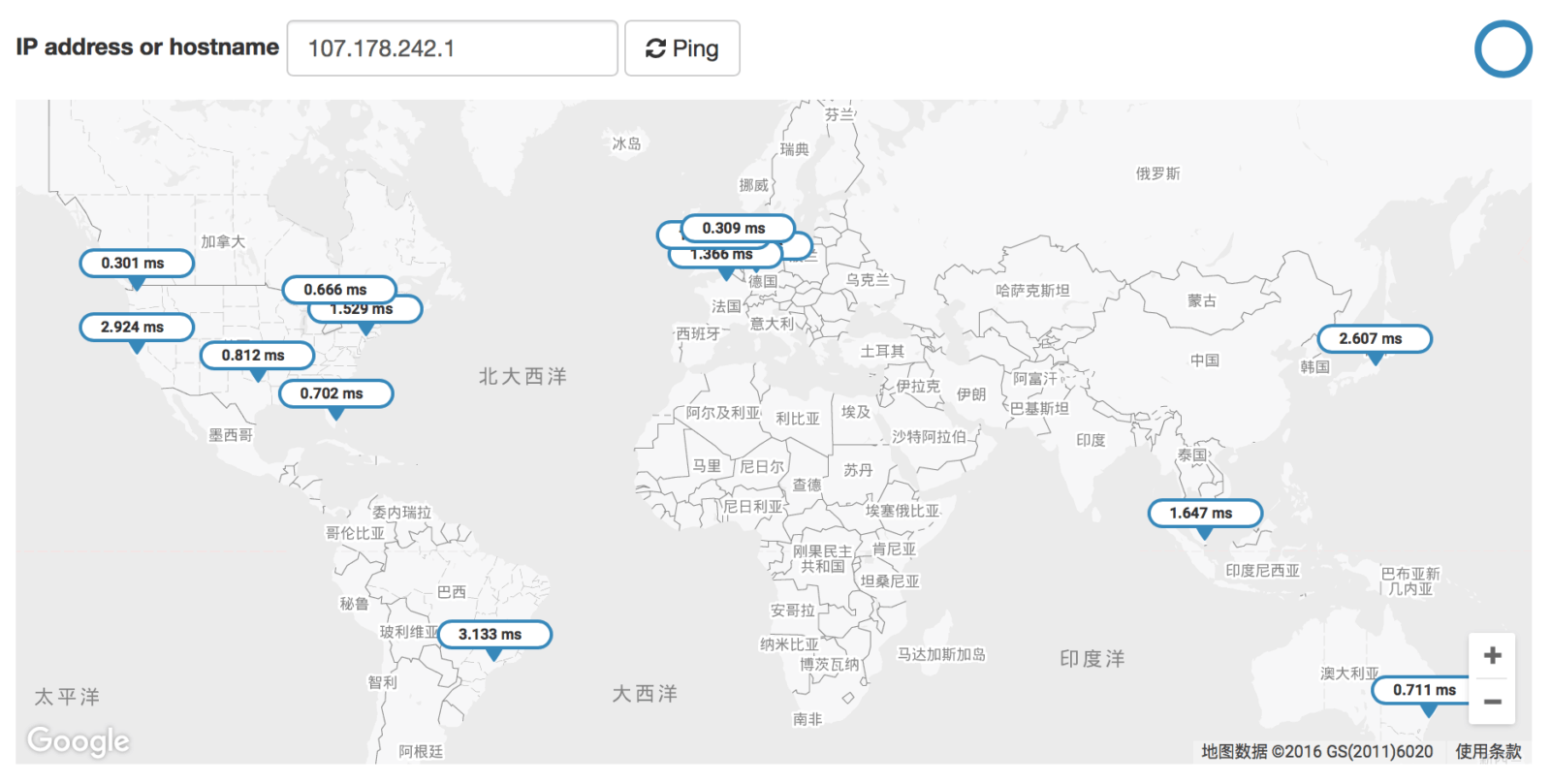
Ping Test
The Ping test results showed very fast speeds, indicating that the reverse proxy operation is handled at Google’s edge servers. The speed rivals Google itself!
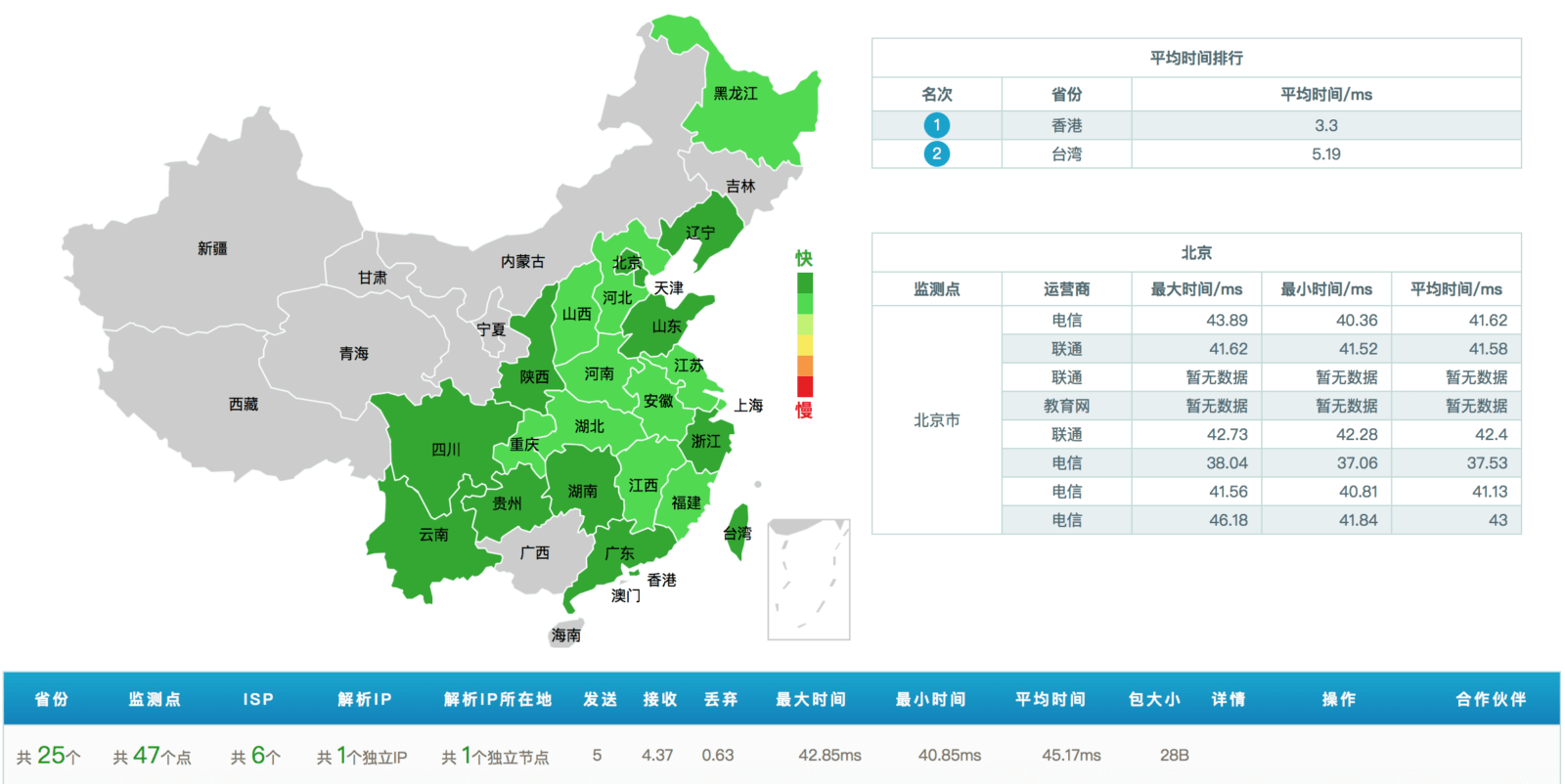
The speed in China is exceptionally fast. Since Google has edge nodes in Hong Kong, traffic mostly routes directly through the Hong Kong node, which is significantly faster than connecting to the Taiwan zone previously. (Only certain IP ranges have direct connections.)
HTTP GET Test
Before enabling the CDN feature, the load balancer does not cache any content. Consequently, while the Connect time is fast, the TTFB (Time To First Byte) latency remains noticeable.
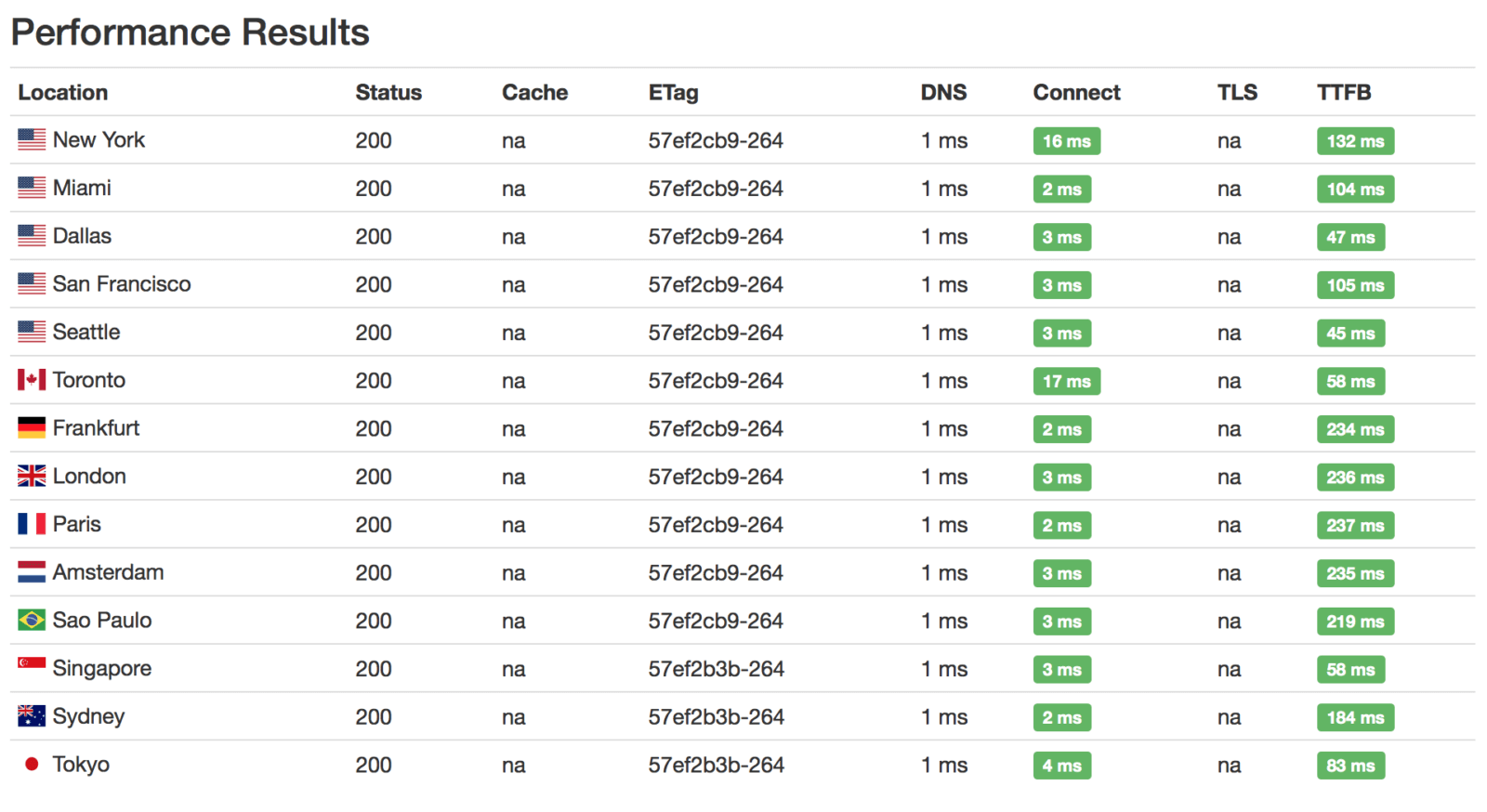
If HTTPS is enabled, we can predict that the TLS handshake wait time will also be short. The TTFB time will remain unchanged, and the total duration will not increase significantly.
HTTP GET Test After Enabling CDN
Once CDN is enabled, the load balancer automatically caches static resources. When a cache hit occurs, the Age header appears, indicating how many seconds ago the content was cached.
curl anycast-ip -I
HTTP/1.1 200 OK
…
Via: 1.1 google
Age: 10
After executing this command multiple times, I noticed that the Age field sometimes disappeared. This likely happens when traffic is routed to different availability zones within the same region. Overall, the cache hit rate is not high, even if the content was accessed previously.
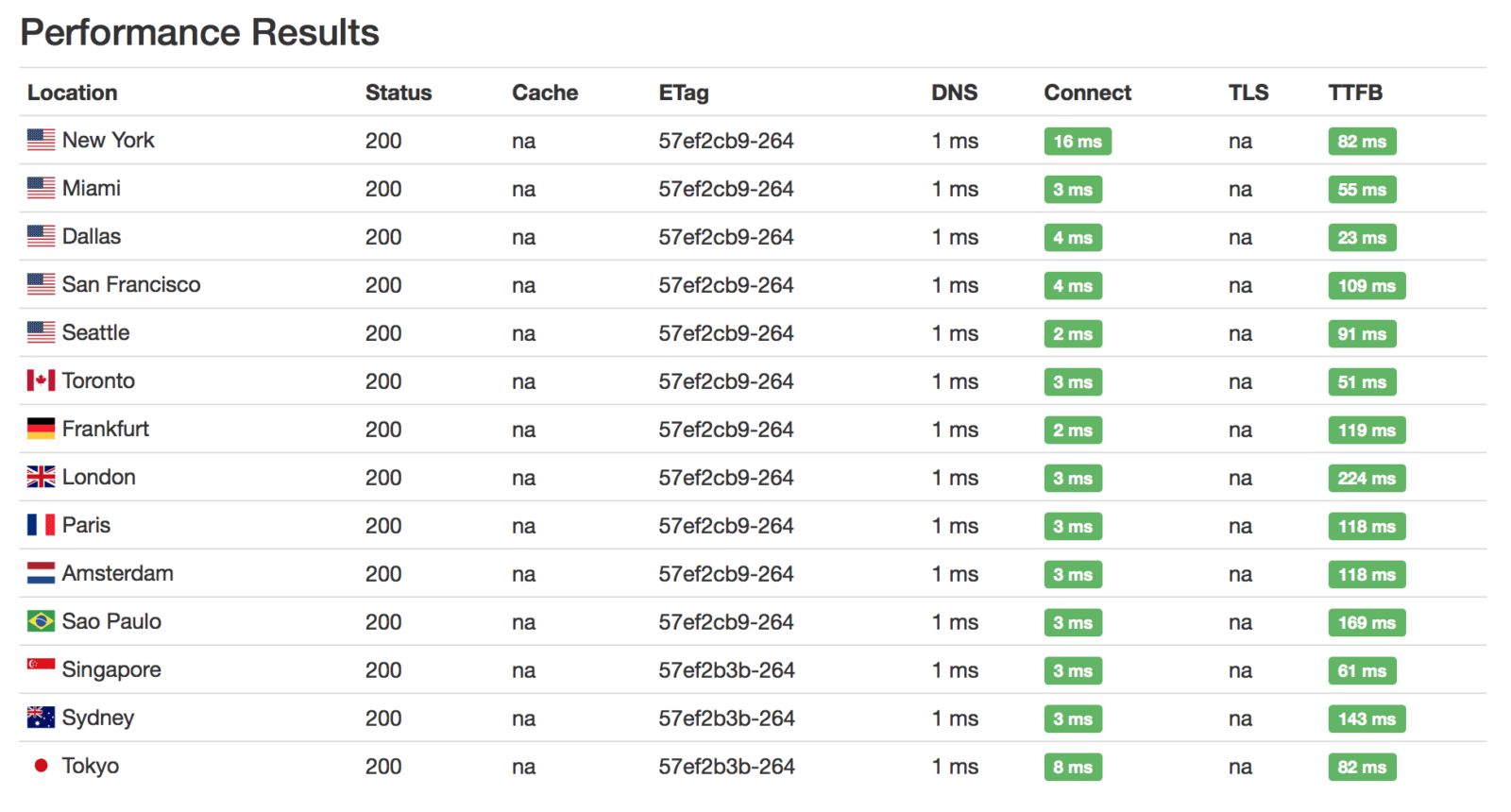
After running tests multiple times to ensure caching occurred, I found that the speed improvement was not very significant. The most noticeable improvement was in Paris and Amsterdam, where TTFB latency dropped from 200ms to 100ms, which is still unsatisfactory. A possible reason is that Google does not cache content at the edge node closest to the visitor, but rather at other nodes.
List of CDN Cache Server Locations

Statistics and Logs
Once Load Balancing is enabled, Google Cloud Platform automatically records some information.
Real-Time Traffic Monitoring
In the web console under Network > Load Balancing > Advanced Menu > Backend Service, you can view real-time traffic statistics:

The graphs look quite nice.
Latency Logs
In the web console under Stackdriver > Trace, you can view latency logs:
4

The latency here includes both network latency and server response latency.
Summary
The Anycast functionality achievable with GCE can only be implemented via HTTP proxy (Layer 7), meaning it can only proxy HTTP requests. Other functions (such as DNS) cannot be implemented this way. Therefore, many features are limited by the load balancer’s capabilities (e.g., certificates and HTTP/2 must be configured on the load balancer). However, since the TLS encryption/decryption process occurs at the edge servers and the service includes built-in CDN capabilities, it is generally faster than pure Anycast implementations (such as those based on the IP layer or TCP/UDP layer).
Pricing
The first five Rules cost $18/month. Traffic costs remain the same as standard GCE, with slight discounts for traffic served from cache.
Comparison
Cloudflare
Anycast can also be achieved using Cloudflare’s services, which is also based on Layer 7 and will soon support Cross-Region Load Balancing. Although Cloudflare cannot adjust weights based on host CPU utilization (since it doesn’t have access to that data), it offers powerful Page Rules and WAF (Web Application Firewall) features.
Cloudflare does not provide dedicated IP addresses, but this is not a major issue.
As a third-party service, it is not restricted by specific service providers, allowing it to provide Anycast functionality for various providers regardless of their native support.
In terms of connection speed, GCE has a clear advantage in China.
BuyVM
BuyVM is a VPS provider that offers free Anycast functionality. Their Anycast is based directly on the IP layer, allowing configuration of services other than HTTP. BuyVM does not have edge servers; it only has three nodes. Ping results are not as fast as the previous two options, and the TLS process occurs on the original host (the closest of the three to the user), introducing some latency.
BuyVM does not offer any Asian hosts, so connection speeds from China are not significantly faster than Cloudflare, and overall speeds across Asia are not very high.