There is often a tension between distributed and centralized control, especially in large organizations. The distributed control model allows teams to move quickly and respond to specialized local needs, while the centralized model provides the appropriate level of oversight for global initiatives and challenges involving all teams.
We have experienced this challenge firsthand when an AWS customer reached a critical growth point, with applications spanning numerous AWS Regions, AWS accounts, development teams, and apps. The customer was very satisfied with how AWS increased their flexibility and responsiveness, allowing them to deploy resources where they were most needed. However, this diversity and scale brought new challenges in terms of security and compliance. The freedom to innovate had to be balanced against the need to protect critical data and respond rapidly to threats.
In recent years, we have provided customers with more protection options, including AWS WAF and AWS Shield. Our customers use these options for various purposes and have requested the ability to manage them from a single central location.
Enter AWS Firewall Manager
AWS Firewall Manager is designed to help these customers! It allows them to freely use multiple AWS accounts and host applications in any Region they choose, while maintaining centralized control over their organization’s security settings and configurations. Developers can focus on development, innovators on innovation, and security teams can make fast, consistent global responses to potential threats and actual attacks.
Through automated policy enforcement across accounts and applications, your security team can be confident that both new and existing applications comply with organizational-level security policies when using Firewall Manager. They can identify unmeasured applications and AWS resources and bring them into compliance quickly.
Firewall Manager revolves around named policies that include WAF rule sets and optional AWS Shield Advanced protection. Each policy applies to a specific set of AWS resources specified by account, resource type, resource identifier, or tags. Policies can be automatically applied to all matching resources or to a subset you select. Policies can include WAF rules obtained from within the organization or rules created by AWS partners (such as Imperva, F5, Trend Micro, and other AWS Marketplace vendors). This allows your security team to replicate their existing on-premises security approaches in the cloud.
Getting Started Wizard
Firewall Manager has three prerequisites:
AWS Organizations – Your organization must use AWS Organizations to manage accounts and must have all features enabled. For more information, read Creating an Organization.
Firewall Administrator – You must designate one AWS account in your organization as the administrator for Firewall Manager. This grants that account permission to deploy AWS WAF rules throughout the organization.
AWS Config – You must enable AWS Config for all accounts in your organization so that Firewall Manager can detect newly created resources (you can use the Enable AWS Config template on the StackSets Sample Templates page to handle this). For more information, read Getting Started with AWS Config.
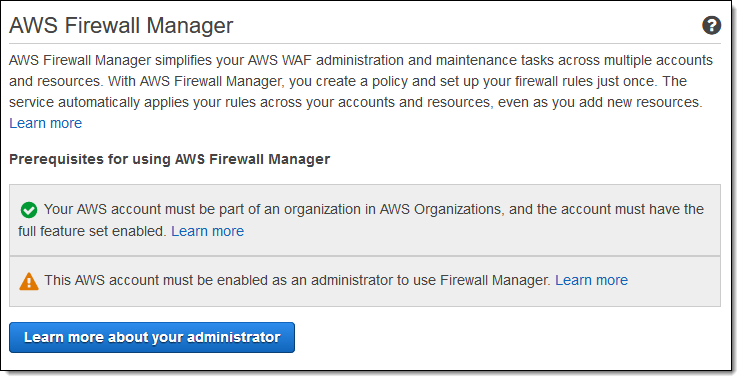
Since I don’t have my own enterprise, my colleague helped me create some test accounts! When I opened the Firewall Manager console in the master account, I could see the status of the first two prerequisites:
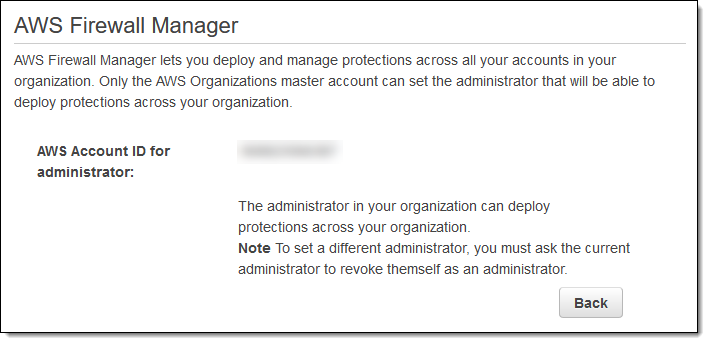
The “Learn More…” button displays the administrator’s account ID:
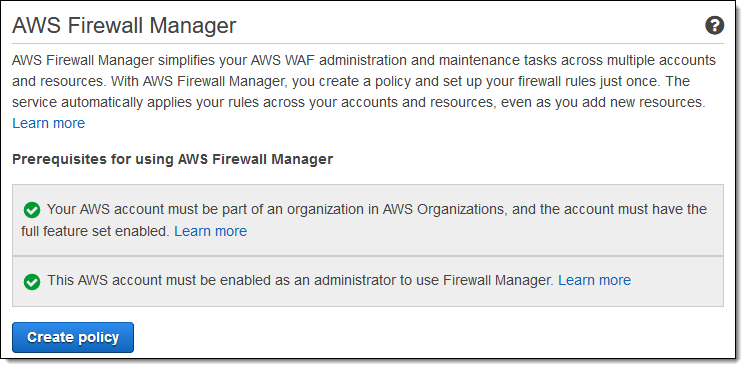
I switched to that account (in a real-world scenario, I would unlikely have access to both the master account and this account), opened the console, and saw that I now met the prerequisites. I clicked “Create Policy” to continue:
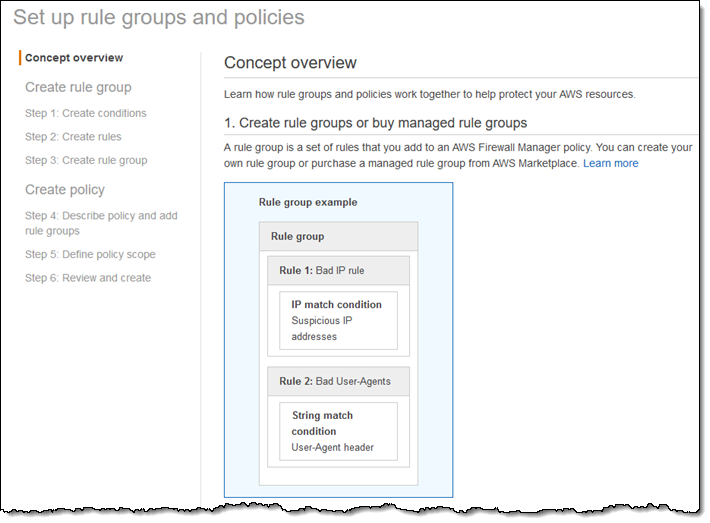
The console provided a workflow summary. I needed to create rules and rule groups, define a policy containing the rule groups, define the policy scope, and then actually create the policy.
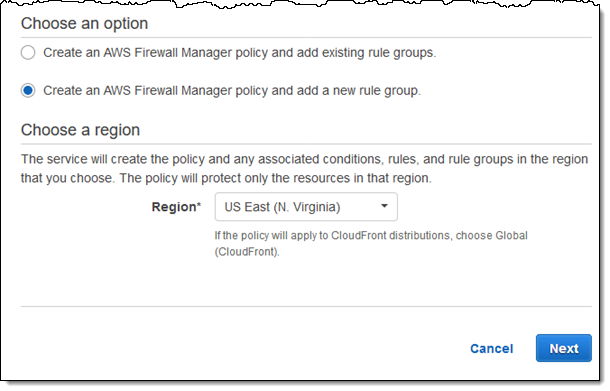
At the bottom of the page, I selected to create a new policy and rule group for the US East (N. Virginia) Region and clicked “Next“:
Then, I specified conditions for my rule, choosing from the following options:
- Cross-site scripting
- Geographic origin
- SQL injection
- IP address or range
- Size constraints
- String or regular expression
For example, I could create a condition to block malicious IP addresses (this AWS solution shows you how to use third-party reputation lists for WAF and its benefits):
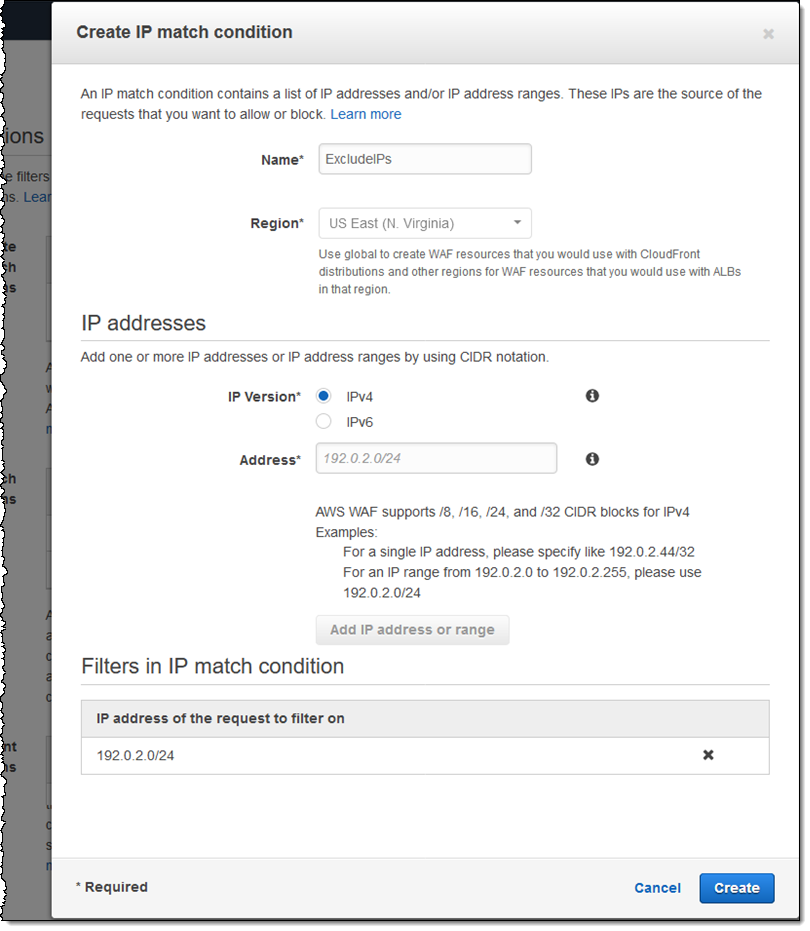
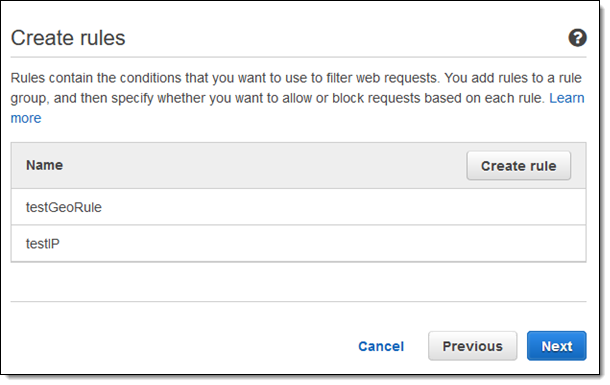
I kept this as a single setting, but rules can contain multiple conditions. After adding everything, I clicked “Next” to continue. Now ready to create my rule, I clicked “Create Rule” (I can add more conditions later as needed):
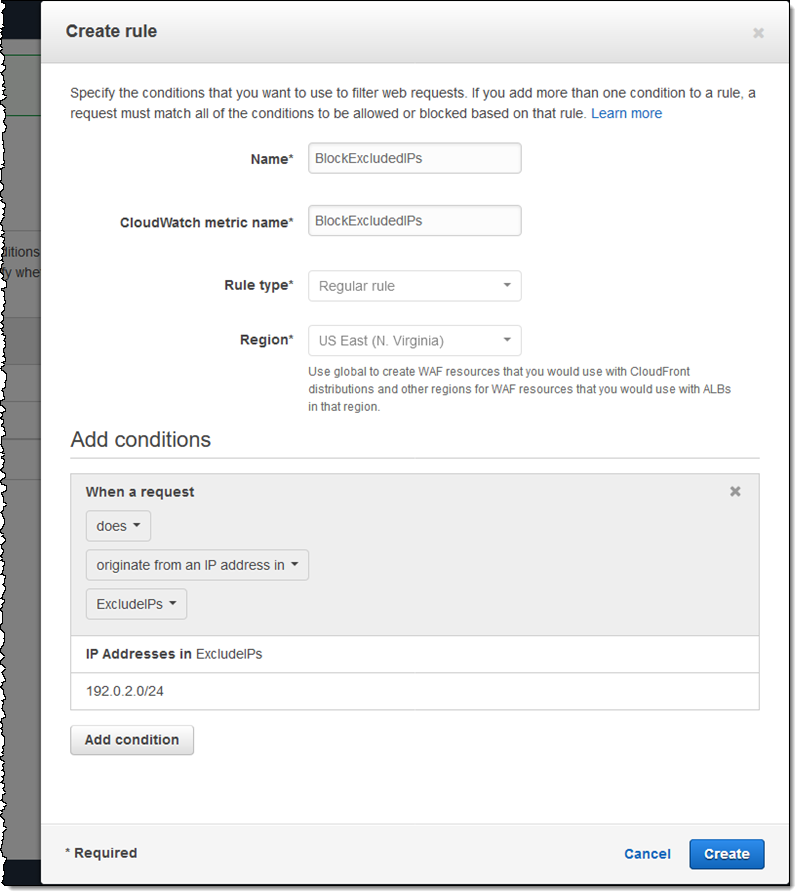
I named my rule (BlockExcludedIPs), entered a CloudWatch metric name, added my condition (ExcludeIPs), and clicked “Create“:
I could create more rules and include them in the same rule group. Similarly, I kept this as a single setting and clicked “Next” to continue:
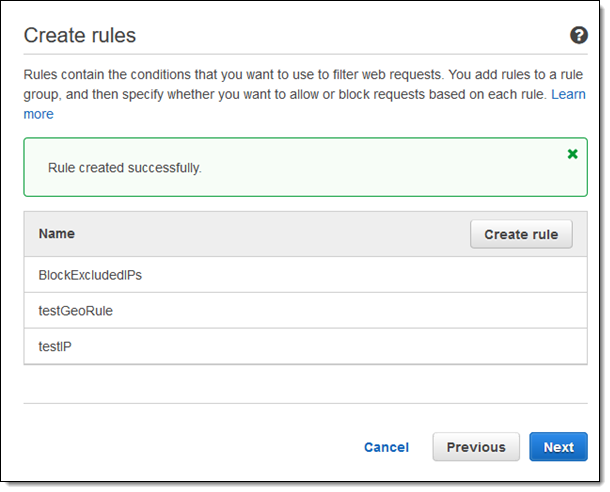
I entered the group name, selected the rules constituting the group, and clicked “Create“:
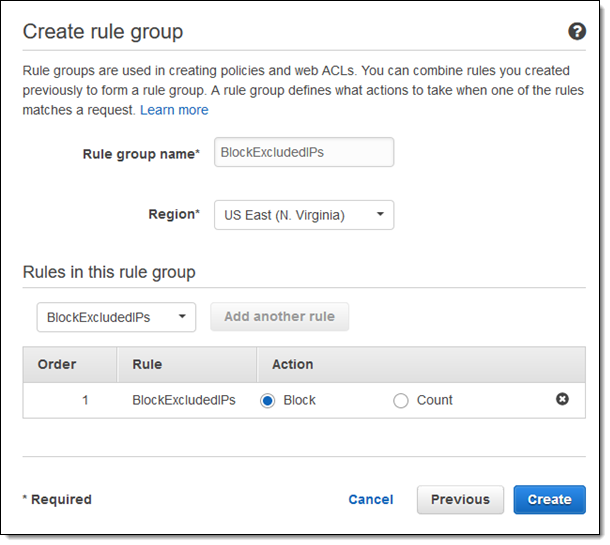
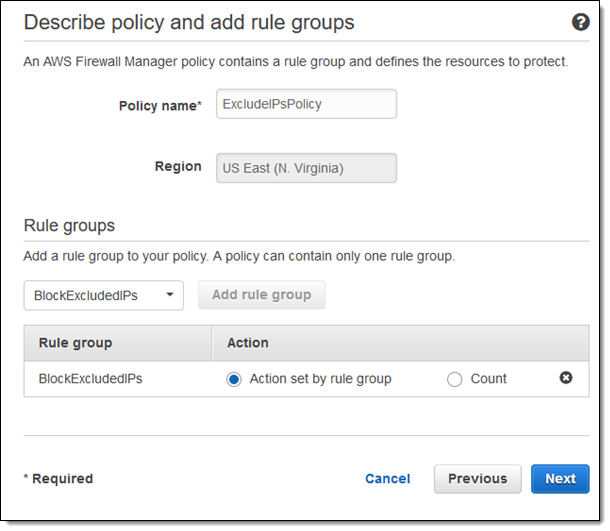
I now have two rule groups (testRuleGroup already existed in the account). I named my policy and clicked “Next” to continue:
Now, I defined my policy scope. I selected the resource types to protect and indicated when the policy should be applied:
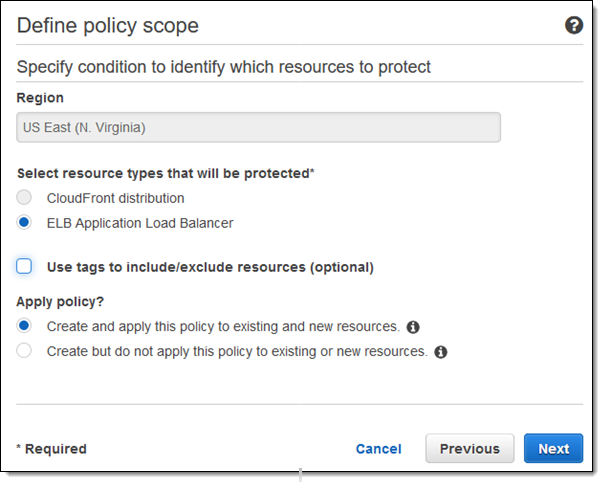
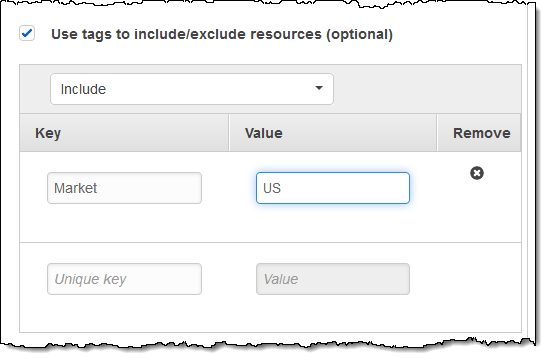
I could also include or exclude resources using tags:
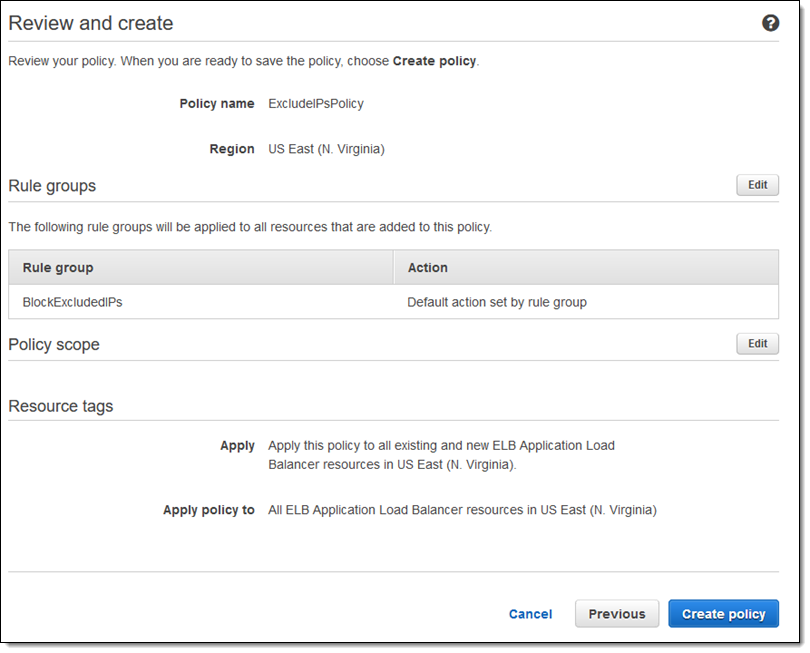
After defining the policy scope, I clicked “Next” to review, and then “Create Policy“:
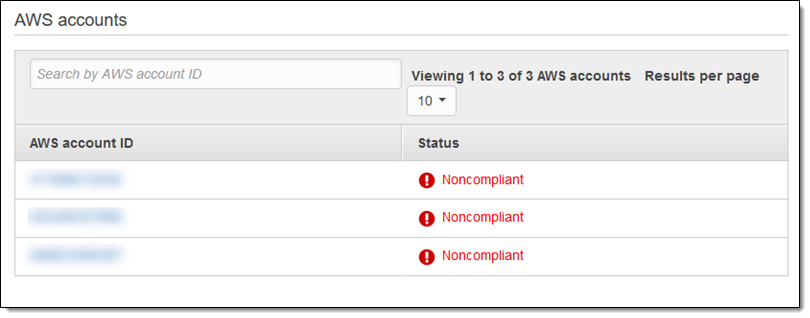
Now that the policy is in effect, ALBs within its scope are initially non-compliant:
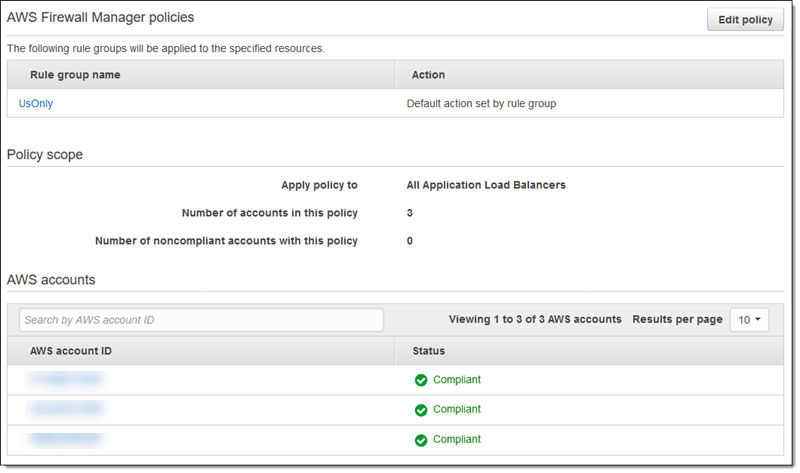
Within minutes, Firewall Manager applies the policy and provides me with a status report:
Start Using AWS Firewall Manager Today
You can now start using AWS Firewall Manager!
If you are using AWS Shield Advanced, you can access AWS Firewall Manager and AWS WAF at no additional cost. Otherwise, there is a monthly charge per policy per Region, plus the standard charges for WAF WebACLs, WAF rules, and AWS Config rules.