When purchasing a Reserved Instance, there is no need to stop your currently running EC2 or RDS instances. Buying a Reserved Instance is similar to purchasing a discount coupon.
It provides a discount on the costs of your existing EC2 and RDS usage. For long-term AWS service users, purchasing Reserved Instances can help save costs.
Process for Purchasing Reserved Instances
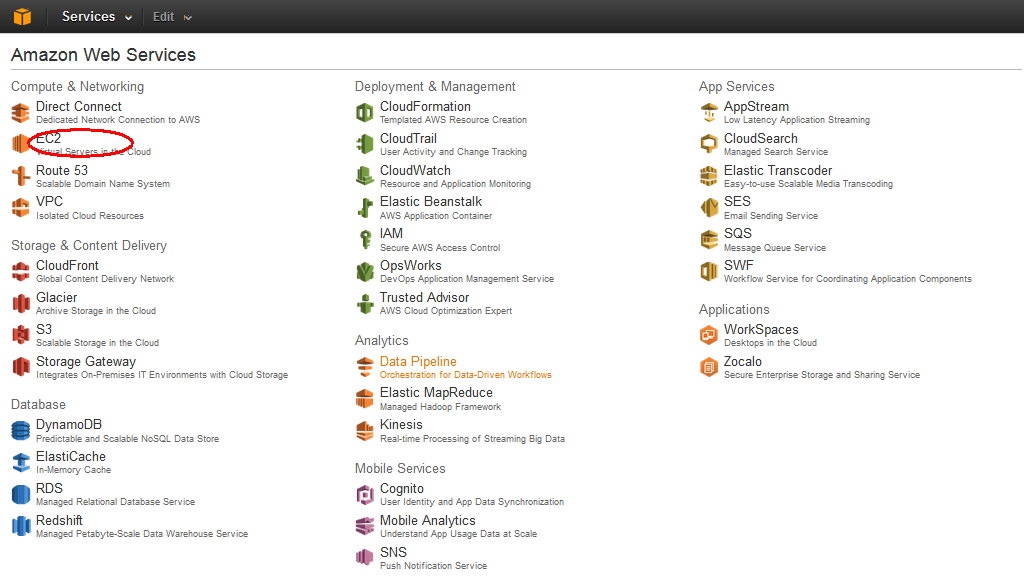
1. Log in to the AWS Management Console and click on EC2.
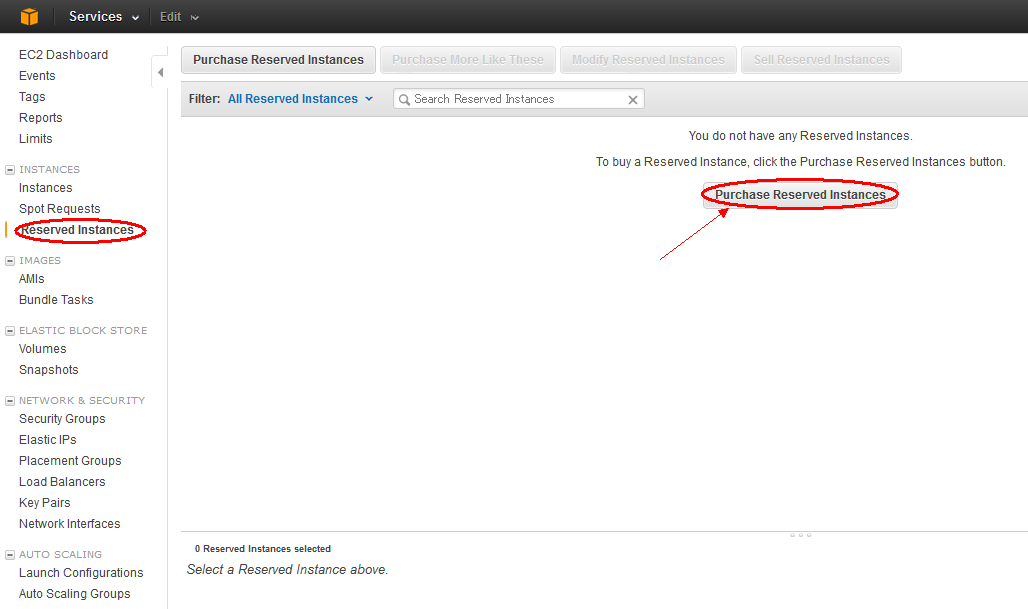
2. Click on “Reserved Instances” and then select “Purchase Reserved Instances”.
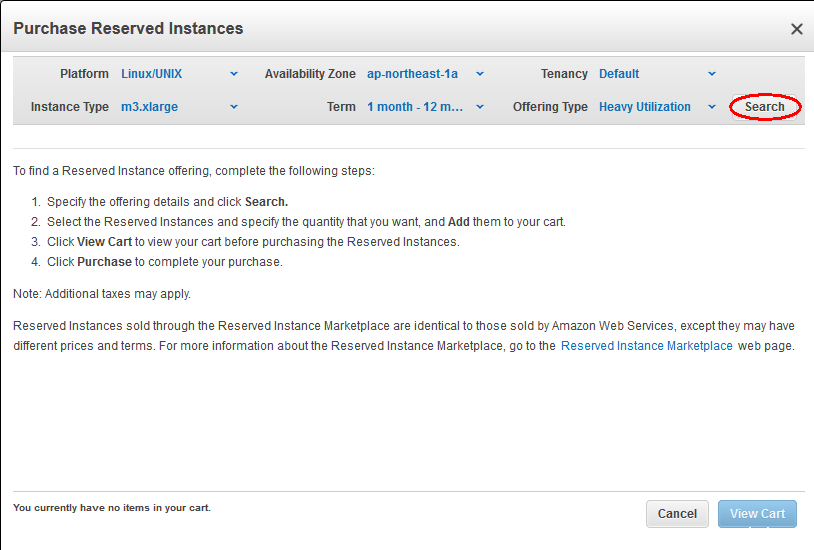
3. Perform a Search
Before searching, you need to select the following information. Please choose carefully.
Platform: Linux/Unix
Instance Type: m3.xlarge
Availability Zone: ap-northeast-1a
Term: 1 month – 12 months
Tenancy: Default
Offering Type: Heavy Utilization
4. Add to Cart
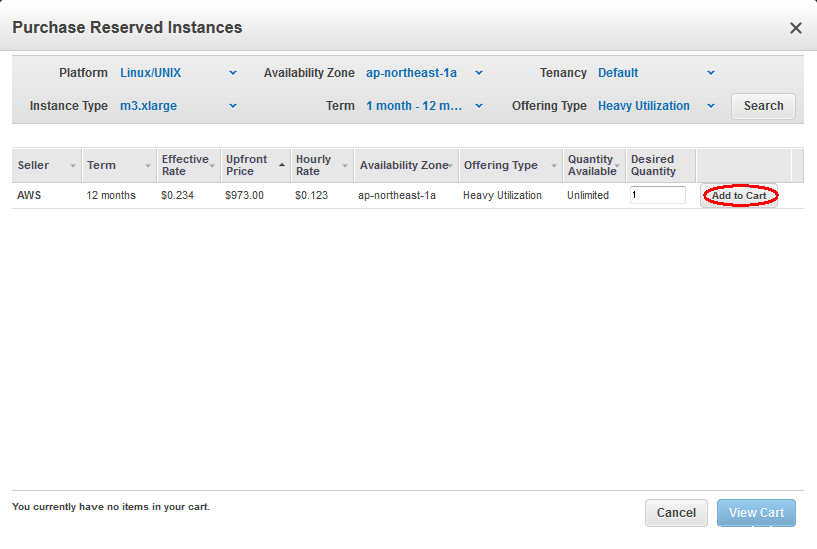
5. After selecting the Reserved Instance to purchase, click Buy
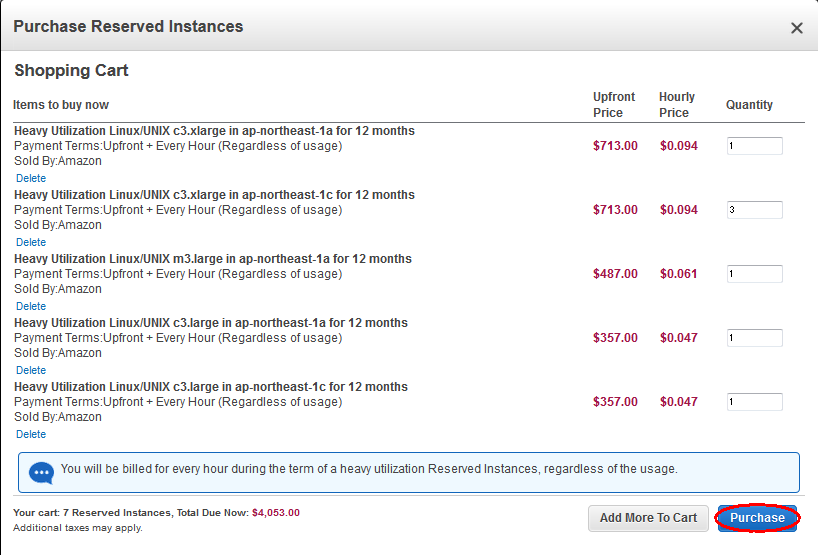
Once the credit card payment is settled, the process of purchasing a Reserved Instance is complete.