Among all AWS services, EC2 is likely the most widely used.
In many EC2-related projects or requirements, there is often a need to configure email sending from EC2 instances. However, this is also a common source of issues. This article primarily explains what preliminary preparations should be made before implementing an EC2 mail server configuration to ensure that emails can be sent normally after the mail server is correctly configured.
Application to Remove Email Sending Restrictions
After AWS assigns public IP addresses, they are provided to various users in the form of Elastic IPs. Therefore, the public IP (Elastic IP) obtained by a user from AWS after purchasing an EC2 instance may very well be an IP address recorded in the RBL (Real-time Blackhole List). That is, due to the previous user of that IP address sending large volumes of spam, it has been added to the RBL blacklist.
Thus, the first step we must take is to apply to AWS to remove the email sending restrictions.
Log in to the URL below, fill in the necessary fields, and submit the application to AWS for removal of restrictions.
Request to Remove Email Sending Limitations
Request to Remove Email Sending Limitations
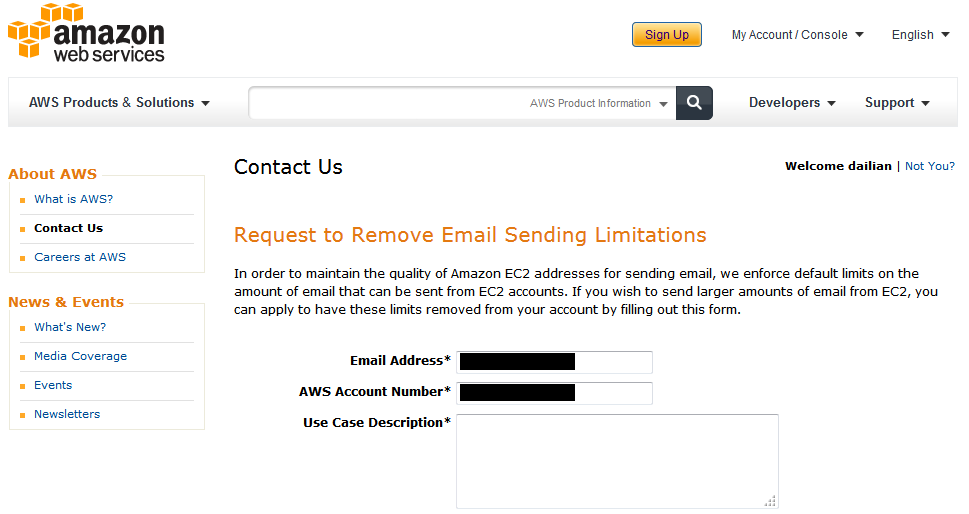
The Email Address and AWS Account Number are automatically filled in after logging into AWS and cannot be changed. What needs to be filled in is the reason for the application.
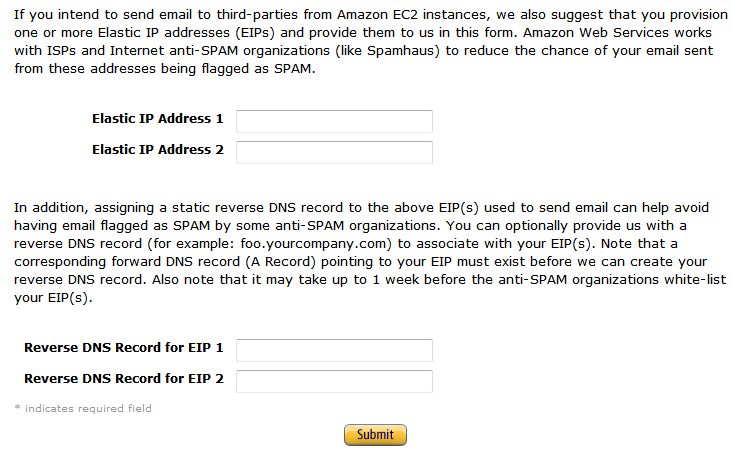
- Note that when filling in the IP addresses for which restrictions need to be removed, you can only enter two Elastic IP addresses at a time. If you need to apply for restriction removal for three or more IP addresses, you must perform the operation again on this page.
- The Reverse DNS Record refers to the DNS reverse resolution (PTR) record. AWS will verify this login. However, the following conditions apply:
- 1) Users must use their own domain names; default domains assigned by AWS, such as ec2-XX-XX-XX-XX.ap-northeast-1.compute.amazonaws.com, cannot be used.
- 2) An A record connecting the hostname and the Elastic IP must be pre-configured in DNS (DNS can use A records other than Route 53).
After waiting a few days, AWS will send the application result to your email. If the application is approved, you will be able to send external emails from EC2 without encountering occasional failures.
DNS Configuration
Theoretically, after applying for the removal of email sending restrictions, normal email sending should be possible. However, when sending emails to multiple users via a mailing list (ML), configuring SPF (Sender Policy Framework) and DKIM (DomainKeys Identified Mail) through DNS can improve the accuracy of email delivery.
SPF
Configuring SPF allows recipients to verify that emails sent from awsok.com are trusted based on the DNS A record.
awsok.com. IN TXT "v=spf1 a:awsok.com -all"
DKIM
Generate DKIM keys using the opendkim-genkey command from OpenDKIM, and then add the generated DKIM key records to DNS.
The EPEL repository already includes OpenDKIM, so you can install it directly via yum after importing the EPEL repository.
OpenDKIM Official Website: OpenDKIM
default._domainkey IN TXT ( "v=DKIM1; k=rsa; "

"p=XXXXXXXXXXXXXXXXXXXXXXXXXX.." ) ; ----- DKIM key default for awsok.com
Notes
If you do not wish to install and configure a mail server yourself, you can use AWS’s Simple Email Service (SES).
Additionally, you can set up a Mail Gateway server to send emails externally. The advantage of this approach is that it can handle Auto Scaling, as it is unpredictable what IP addresses EC2 instances will have after Auto Scaling occurs.
Above are some preparatory steps required before configuring a mail server using EC2, or points to note if email sending issues arise after configuring a mail server on EC2. We hope this provides some small inspiration for readers in their daily work and life.