I. Environment for Installing SSL Certificates
1.1 Overview of SSL Certificate Installation Environment
One Linux server,
An Alibaba Cloud SLB server,
One SSL certificate (Note: This guide uses the domain www.yunwei123.com Yunwei123 for demonstration, but it applies to other certificate versions as well).
1.2 Network Environment Requirements
Please ensure that your site is a legitimate domain address accessible from the public internet and can be normally accessed via http://XXX.
II. Installation of SSL Certificate
2.1 Obtaining the SSL Certificate
After successfully applying for the certificate from WoSign CA, you will receive a password-protected compressed file. After entering the certificate password and extracting it, you will get five files: for Apache, for IIS, for Nginx, and for Other Server. These represent different certificate formats. The ‘for Nginx’ format is required for Nginx servers.
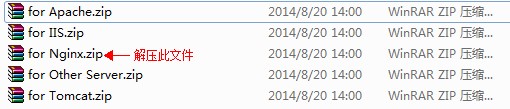
Figure 1
2.2 Combining Certificate Files
Open the ‘for Nginx’ folder to see two files, including the public key and private key, as shown in Figure 1.

Figure 2
2.3 Installing the SSL Certificate
Open the Alibaba Cloud SLB configuration panel.
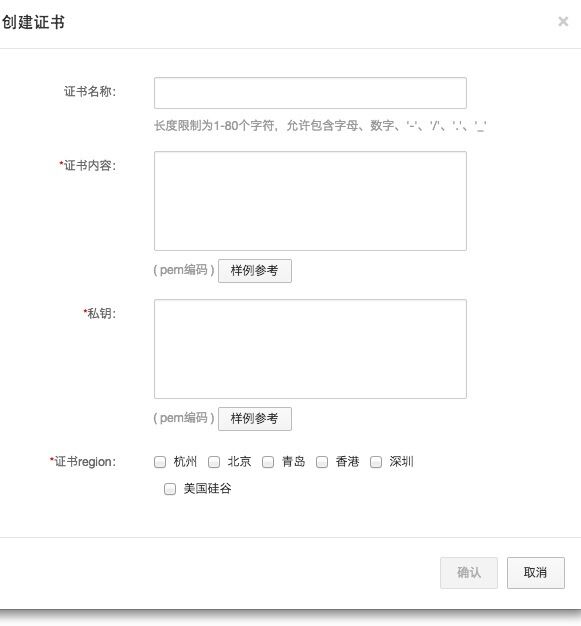
You can see that the certificate requires a PEM format, while the provided certificate package contains CRT files. Below are the steps to export the certificate in PEM format!
Step 1: Copy the 1_domain.com.bundle.crt file from the ‘for nginx’ folder to a Windows environment and open it using the Crypto Shell Extension.
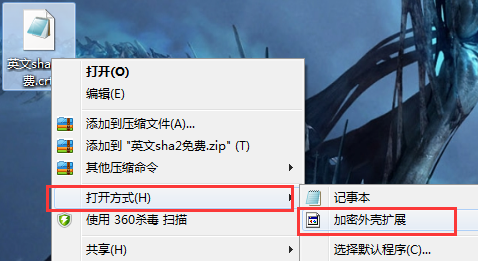
Step 2: After opening with the Crypto Shell Extension, view the certificate path.
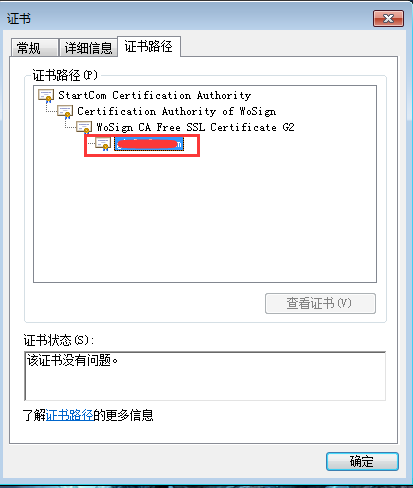
Select the domain, view details, export the certificate, and name it ‘1’.
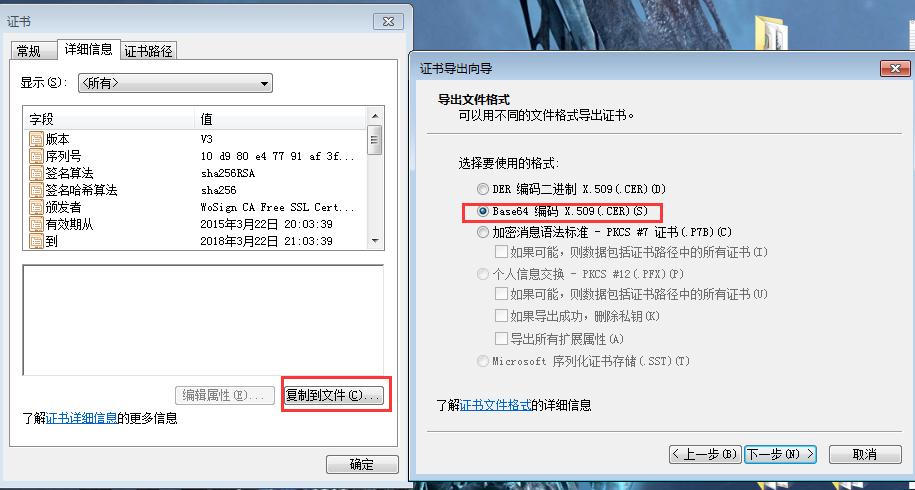
Then return to the certificate path, select the parent certificate, export it, and name it ‘2’.
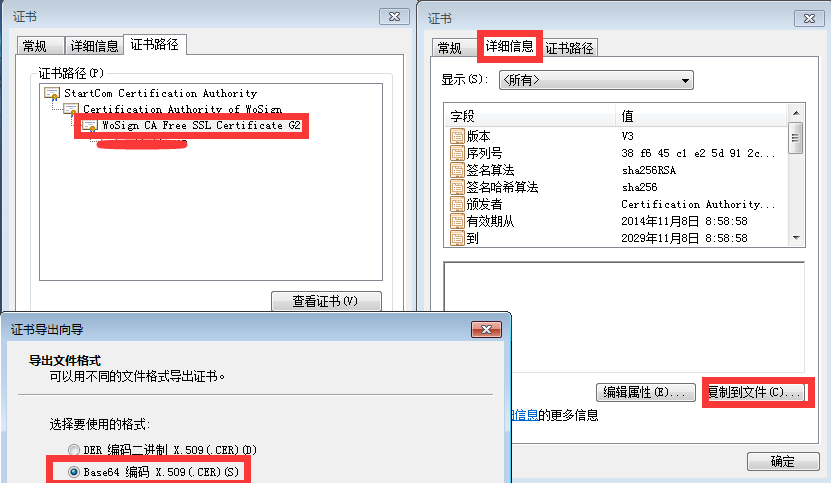
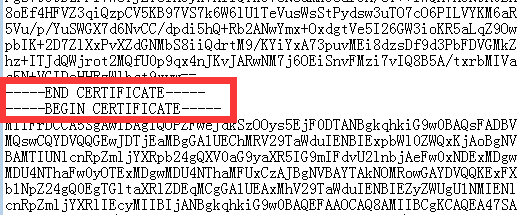
Step 3: Export certificates sequentially upwards until the topmost certificate is also exported, naming them 3, 4, etc. Next, create a new text file and open each .cer file (1.cer, 2.cer, 3.cer, 4.cer) using Notepad, then paste their contents into the new text file. Ensure there are no extra spaces between them (as shown below). Save the text file and rename it to 1_domain.com.bundle.pem (using your domain name, matching the name of the crt certificate in the ‘for nginx’ folder).
Step 4: Import (paste) the newly combined PEM certificate into the certificate content field in the panel. Import (paste) the key file from the ‘for nginx’ folder into the private key field.
Access your site via HTTPS to test the installation and configuration of the site certificate.
2.3.1 Secure Seal Installation
When you purchase a WoSign SSL certificate, you will receive a trusted website security certification badge that intuitively displays your website’s authentication information for free. This significantly enhances user trust online and facilitates more transactions. Therefore, we recommend adding the following code immediately after successfully installing the SSL certificate to dynamically display the trusted website security certification badge on your homepage and other pages:
(Note: Currently, this secure seal only supports OV-level or higher certificates)
<SCRIPT LANGUAGE=”JavaScript” TYPE=”text/javascript” SRC=”http://seal.wosign.com/tws.js”></SCRIPT>

If you wish to display the certification badge on English pages, add the following code to the English pages:
<SCRIPT LANGUAGE=”JavaScript” TYPE=”text/javascript” SRC=”http://seal.wosign.com/tws-en.js”></SCRIPT>

For details, please visit: https://www.wosign.com/support/siteseal.htm
2.4 Testing the SSL Certificate
Enter https://www.yunwei123.com (the domain for which the certificate was applied) in the browser address bar to test if your SSL certificate has been installed successfully. If successful, a security lock icon will appear at the bottom of the browser. Test the installation and configuration of the site certificate.
2.5 Backup of SSL Certificate
Please keep the received certificate compressed file and password safe to prevent loss.
2.6 Restoration of SSL Certificate
Repeat the operations in section 2.3.