Recently, a client wanted to find a VPS with pay-as-you-go billing and fast connectivity to China. After comparison, they ultimately chose Google Compute Engine (hereinafter referred to as GCE) in the Asia region. Although the GCE backend configuration page cannot be accessed from within China, its GCE instances are accessible.
The process of creating a new GCE instance is very simple: just customize the configuration, select the operating system, configure the SSH Key, and click create. The entire process resembles that of a traditional VPS, but offers far more customization options.
Pricing and Configuration
For specific pricing, please refer to the official price list
GCE’s pricing is quite affordable. The lowest tier, 1 shared vCPU – 0.6 GB RAM – 10GB HDD, costs less than $5 per month. Since CPU, memory, and disk sizes are adjustable, you can purchase exactly what you need, avoiding unnecessary expenses.
Regarding bandwidth, for all available regions, connectivity to mainland China is $0.23/GB, while US and EU regions are $0.12/GB. The bandwidth cost is slightly high, but if you are connecting to Google’s own services (including but not limited to Gmail, YouTube), bandwidth is free (however, since traffic is bidirectional, uploading via GCE is completely free, but downloading still incurs the standard charge).
A unique feature of GCE is its per-minute billing. When a service is stopped (equivalent to shutting down, with disk data preserved), no charges are incurred (except for minimal disk usage fees). For uptime calculations, any duration under 10 minutes is billed as 10 minutes; beyond that, it is billed by the minute. Overall, it remains very cost-effective.
Supplement on Shared Core Instances
The f1-micro (0.6 GB) and g1-small (1.7 GB) versions use shared cores (other configurations use dedicated cores). According to Google, 0.60 GB corresponds to 0.2 vCPU, and 1.70 GB corresponds to 0.5 vCPU. However, they support Bursting, meaning they can utilize up to 1.0 vCPU for short periods.
So, how much is 1.0 vCPU? Checking cpuinfo reveals it is an Intel(R) Xeon(R) CPU @ 2.50GHz. This means these two versions can utilize up to 2.5GHz. However, if sustained usage occurs, the speed will throttle down to 0.5GHz and 1.75 GHz respectively.
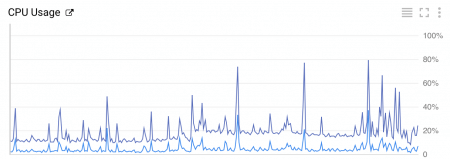
My f1-micro has monitoring software installed. Comparing the CPU utilization reported by GCE (dark blue) with the system’s own monitoring (light blue), I found that the CPU utilization statistic on the GCE chart is exactly 5 times that of the local statistic. In other words, if the local CPU usage is 20%, the GCE chart shows 100%. If local usage is 20~100%, the GCE chart shows 100~500%. This state is considered “Bursting.” Compared to other VPS providers where most also use shared cores but it is hard to determine if overselling occurs (e.g., if 10 users share one core and all are constantly using CPU, your speed might drop below 1/10th of a single core), Google’s shared cores guarantee a minimum speed (0.2 vCPU and 0.5 vCPU). Even if other users consume heavily, your guaranteed speed is maintained.
Usage Process and Configuration Methods
First, go to the Create Instance page and proceed with configuration.
Basic Configuration
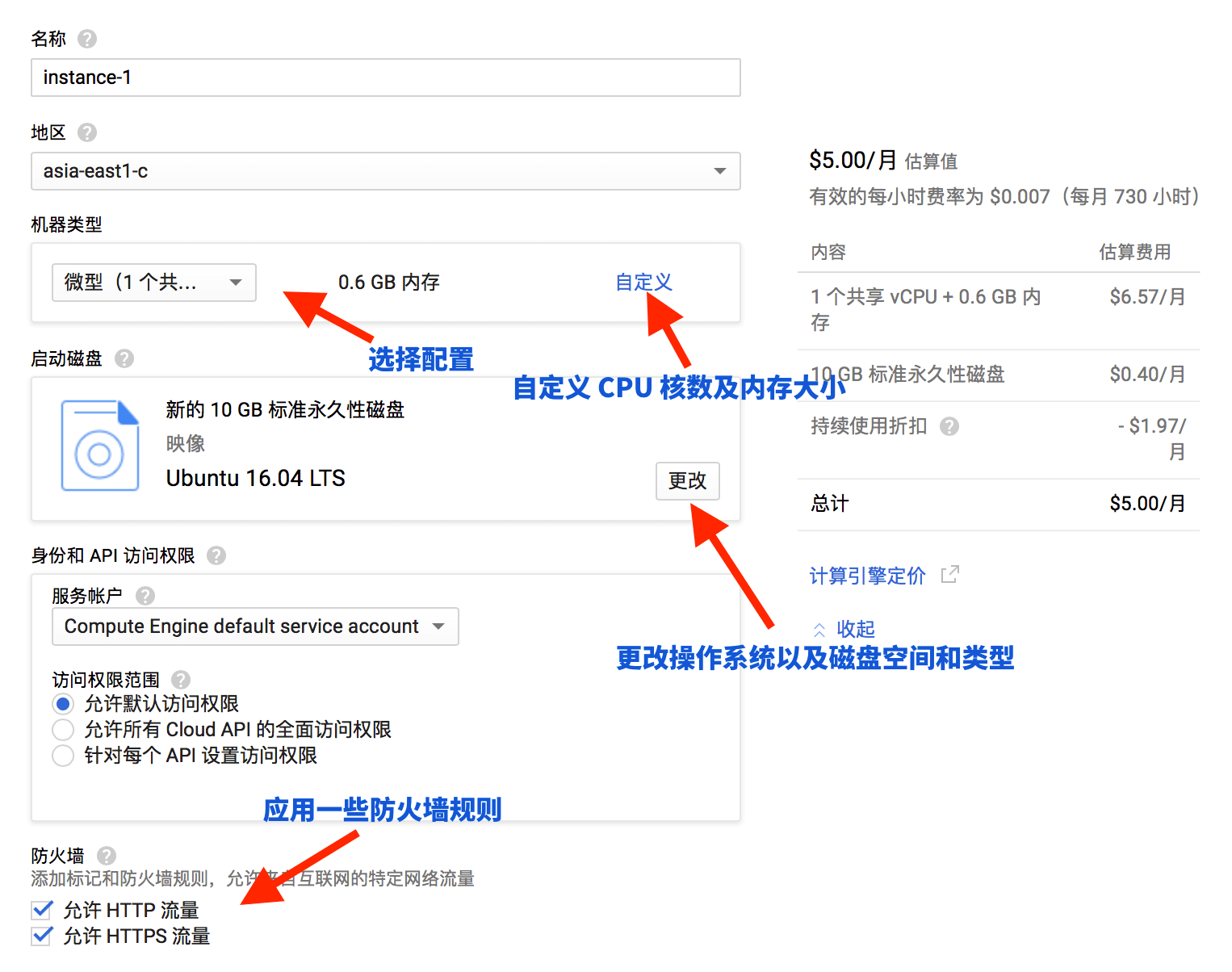
Introduction to Other Option Configurations
- Preemptible: This mode offers lower prices but cannot be used for services requiring long-term online presence (such as Web services). Its maximum usage period is 24 hours, although in my experience, it is sometimes terminated in less than 1 hour. It is only suitable for short-term calculations; stop it after calculation. Do not enable this feature for general daily use.
- Automatic Restart: Recommended to enable, to benefit from cloud features and achieve better Uptime.
- On Host Maintenance: Recommended to select “Migrate,” for the same reasons as above.
- IP Forwarding: Suggested to disable. This feature is rarely needed, and disabling it helps improve security.
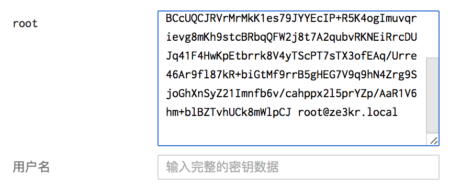
- SSH: This may differ from some other VPS providers. It does not automatically generate user passwords by default, so public/private key pairs must be configured for remote login. Moreover, the username at the end of the entered public key is significant; the entered username is the one required for login. Root login is not supported by default unless you set the username to root.
Firewall Configuration
GCE has firewall enabled by default and it cannot be disabled; you can only allow traffic for protocols and ports specified by yourself. Through my own practical testing, GCE can automatically filter a significant amount of DDoS attack traffic.
Since the firewall cannot be disabled, you cannot configure services like IPv6 Tunnel, which currently means GCE does not support IPv6. However, I believe Google will enable IPv6 support in the future.
In the “Network” section, you can find Firewall Rules and add firewall rules.
By default, SSH and ICMP (those starting with “default”) are allowed.

List of all rules I have enabled

SNMP Monitoring Configuration
I only need another host to access SNMP monitoring and do not need to expose it to the internet, so I restricted the IP.

Configuration for Use as Authoritative DNS Server
Some DNS requests are sent via TCP, so TCP requests need to be enabled as well.
If a target tag is configured, the firewall rule is not applied to all instances by default; you must also configure the same tag on the instance.

Adding the Same Tag
Network – As Good as Google Itself
Since GCE belongs to Google, its network is essentially Google’s AS15169. Without needing to guess, connecting to Google’s own services will be fast. However, actual usage revealed it was much faster than I imagined. Connecting to Google services via GCE feels like being on an intranet.
$ ping google.com
PING google.com (74.125.203.102) 56(84) bytes of data.
64 bytes from th-in-f102.1e100.net (74.125.203.102): icmp_seq=1 ttl=53 time=0.631 ms
64 bytes from th-in-f102.1e100.net (74.125.203.102): icmp_seq=2 ttl=53 time=0.433 ms
64 bytes from th-in-f102.1e100.net (74.125.203.102): icmp_seq=3 ttl=53 time=0.330 ms
64 bytes from th-in-f102.1e100.net (74.125.203.102): icmp_seq=4 ttl=53 time=0.378 ms
64 bytes from th-in-f102.1e100.net (74.125.203.102): icmp_seq=5 ttl=53 time=0.413 ms
^C
--- google.com ping statistics ---
5 packets transmitted, 5 received, 0% packet loss, time 3999ms
rtt min/avg/max/mdev = 0.330/0.437/0.631/0.103 ms
If you run traceroute, it gets even more amazing:
$ traceroute google.com
traceroute to google.com (64.233.189.113), 64 hops max
  1   64.233.189.113  0.826ms  0.313ms  0.435ms
Currently, connectivity from China to GCE Asia region is quite good. With pay-as-you-go billing, actual tests show speeds exceeding 100 Mbps. The Asia region location is in Taiwan. Connections from China usually route through Hong Kong, and the route from Hong Kong to Taiwan uses Google’s own backbone network. Therefore, the final result is only about ten milliseconds slower than servers in Hong Kong.
For connections from other countries, the advantage is even more obvious. Google’s network is incredibly powerful. Whether in Asia or Europe/Americas, traffic almost immediately jumps into Google’s backbone network without leaving the city/country. Google’s internal backbone routing is generally better than ISP routing, and detours are rare.
Configuring Anycast
You can obtain a dedicated IPv4 address through Load Balancing, along with native IPv6 support, CDN, and HTTPS. How fast is Google’s Anycast? As fast as Google itself.
Internal Network Interconnectivity
Each instance has its corresponding internal IP, facilitating direct connections between two hosts. The magic of this internal IP is that it can be used across availability zones, including across continents. Practical tests show that connections established using internal IPs are slightly faster, and there are discounts on pricing (especially for cross-region transfers).
Features
Statistics Features
In the GCE backend, you can view data such as CPU utilization, disk bytes, disk operation bytes, network bytes, and network packet counts for up to 30 days. These records are precise to the minute and update in real-time.
Snapshots
You can add snapshots to your hosts, making it easy to restore snapshots in other instances or use them for backup purposes. GCE snapshots are incremental backups, meaning if you have two snapshots, the second one only backs up the differences from the first snapshot. Use this script to achieve automatic backups and automatically delete old backups upon expiration.
Attached Disks
You can easily add disks of any size (greater than 10 GB), with multiple disk types available. Through my testing, if performing long-term high I/O operations, disk read/write speeds decrease significantly. Also, SSDs are not necessarily faster than HDDs; disk size is positively correlated with throughput limits and random IOPS limits. This means a 40GB HDD performs similarly to a 10GB SSD.
Applicable Scenarios
Low-tier configurations are excellent for building websites or acting as proxies, with the monthly $5 price point being very attractive. The highly polished web control panel significantly lowers the barrier to entry for usage and learning.
High-tier configurations offer dedicated CPUs and great scalability. Combined with various Google Cloud features, you can build large-scale websites or game servers.
Some Pitfalls of GCE
Below, I will discuss some pitfalls, especially issues encountered when transitioning from traditional VPS to GCE. Since GCE is cloud-based, many things are different.
The Host’s External IP Is Not Directly Assigned
Although GCE provides independent IPs, when you execute ifconfig -a, you will see that the default assigned IP is an internal reserved IP (like 10.123.0.1). This is for convenient inter-instance communication. When configuring services that require binding to a specific external IP, you only need to bind to this internal IP; the allocated external IP will automatically forward traffic to this internal IP. Furthermore, your host does not know that the external IP belongs to itself, so all traffic destined for the host’s external IP passes through a router and returns, applying firewall policies. Therefore, for local communication, it is recommended to use loopback addresses (such as 127.0.0.1, ::1) or the internal address as much as possible.
Firewall
The non-disableable firewall might feel uncomfortable for beginners, but once accustomed, you will appreciate it. This router-based firewall functionality is more convenient than restricting via iptables. It is strongly recommended to make good use of the firewall function and not allow all ports by default. For example, if your website traffic goes entirely through Cloudflare, you can use the firewall to allow only Cloudflare IPs to connect to your host.
Support for Multiple IPs and IPv6
You cannot purchase multiple IPv4 addresses on GCE by paying extra, so each instance can only have one IPv4 address. If you need multiple IPv4 addresses, try using multiple instances (or achieve this through Load Balancing).
At the same time, GCE currently does not support IPv6, which is a pity. IPv6 can now be implemented via load balancers.