A deep learning and HPC toolkit suite customized for Alibaba Cloud GPU physical machines, published on Alibaba Cloud Docker Hub.
1 Alibaba Cloud Official Docker Hub Address
http://dev.aliyun.com/search.html
2 New Users
For first-time users of Alibaba Cloud Docker services, you must first register as a developer by following these steps:
Open the Alibaba Cloud Docker Hub link above. If not logged in, log in using your cloud account (Login/Register is located in the top-left corner); click “Management Center” in the top-right corner, as shown below:

A page prompting new users to register as developers will appear:
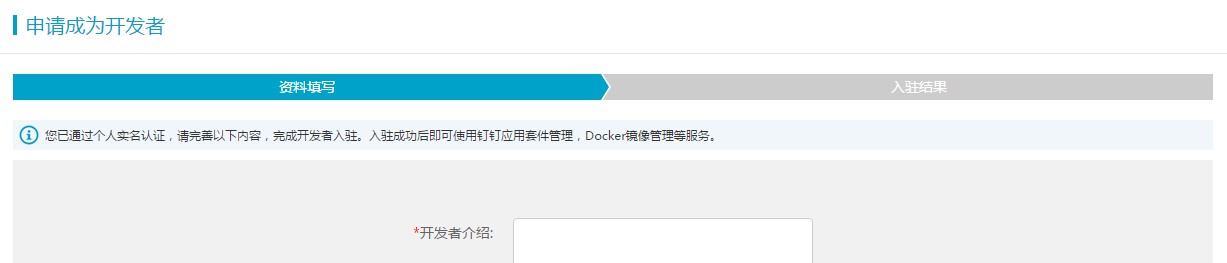
After successful registration, click “Enter Management Console.” You can also access it next time by clicking “Management Center” in the top-right corner of the Docker Hub page. The interface is shown below:
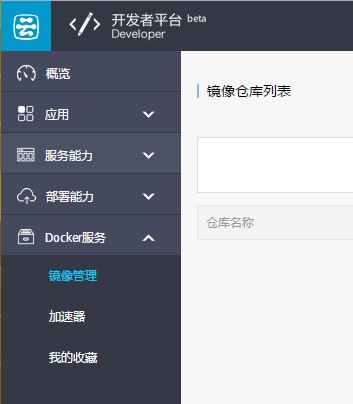
Select the “Image Management” tab under “Docker Service” on the left sidebar. New users will be prompted to set their image repository “Namespace” and password. The namespace serves as the prefix for private image addresses. Once configured, you can start using the Alibaba Cloud Docker repository.
3 Using Docker
3.1 Docker Repository Address
The official Alibaba Cloud Docker repository address is:
registry.aliyuncs.com (Public Network)
On GPU physical machines, replace this with the internal network address:
registry-internal.aliyuncs.com (Internal Network)
3.2 Running Hello World
(GPU physical machines come pre-installed with CentOS 7. The following operations use CentOS 7 as an example and assume root user privileges.)
First, check the status of the installed Docker service:
# docker info
It should normally display information such as current storage space. If there is an error, try restarting the Docker service first:
# systemctl restart docker
Next, log in to the Alibaba Cloud Docker repository using your Alibaba Cloud account and the previously set Docker repository password:
# docker login registry-internal.aliyuncs.com
Run Hello World:
# docker run registry-internal.aliyuncs.com/alicloudhpc/hello-world
If everything runs normally, it indicates that the machine’s Docker service is operating correctly.
3.3 Using Deep Learning and HPC Toolkits
The release address for the toolkit is:
http://dev.aliyun.com/detail.html?repoId=2
This lists the included software tools and brief descriptions.
After logging in, you can pull the toolkit image to your local machine:
# docker pull registry-internal.aliyuncs.com/alicloudhpc/toolkit
Tag it with a short name:
# docker tag registry-internal.aliyuncs.com/alicloudhpc/toolkit toolkit
Since GPU devices need to be used within the Docker container, additional parameters are required when starting the container. It is recommended to save the following content into a shell script (e.g., run-toolkit.sh) for convenient future execution:
#!/bin/bash
DOCKER_BIN="/usr/bin/docker"
INTERACT="-ti"
#INTERACT="-d"
DATA_VOLUME="/disk1"
DATA_MOUNT_POINT="/disk1"
MEM_LIMIT=96g

set -e
if [ $# -lt 2 ]; then
    echo "Usage: $0 image command"
    exit -1
else
    IMAGE=$1
    shift 1
    CMD=$@
fi

devices=$(ls -1 /dev | grep nvidia)
dev_param=""
for d in $devices; do
    dev_param="$dev_param --device=/dev/$d"
done

time_param='-v /etc/localtime:/etc/localtime:ro'

if [ ! -z "$CUDA_VISIBLE_DEVICES" ]; then
    dev_env="-e CUDA_VISIBLE_DEVICES=$CUDA_VISIBLE_DEVICES"
else
    dev_env=""
fi

exec $DOCKER_BIN run
        "$INTERACT"
        -P
        $dev_env
        $dev_param
        $time_param
        -m $MEM_LIMIT
        -v $DATA_VOLUME:$DATA_MOUNT_POINT
        "$IMAGE"
        $CMD
Run the script to start the toolkit:
# chmod +x run-toolkit.sh
# ./run-toolkit.sh  toolkit  /bin/bash
Upon successful execution, you will have entered an interactive Docker container (understood as a runtime environment isolated from the host). The /disk1 disk on the physical machine is mapped to the /disk1 folder inside the container. It is recommended to store data only under /disk1 (other data will not be retained if the container is destroyed).
Check if the GPU is working properly:
# /usr/local/cuda/samples/1_Utilities/deviceQuery/deviceQuery
After passing the check, you can run software just like in a regular terminal.
3.4 Re-entering
In an interactive Docker container, if you run exit, the container stops after you leave. If you modified content other than /disk1 inside the container (e.g., installed software) and wish to continue using it later, you should not create a new container using run-toolkit.sh, but rather restart the original one. Follow these steps:
Query the ID of stopped containers:
# docker ps -a
Copy the container_id of the container you want to restart from the returned results.
Restart the container:
# docker start container_id
A string of repeated IDs will be returned upon success.
Re-enter the interactive Docker container:
# docker attatch container_id
4 Advanced Usage
4.1 Getting Updates
If a new version of the toolkit is released, you can pull the update again:
# docker pull registry-internal.aliyuncs.com/alicloudhpc/toolkit
Tag it with a short name:
# docker tag registry-internal.aliyuncs.com/alicloudhpc/toolkit toolkit
4.2 Creating Private Images
Access the Alibaba Cloud Docker console:
http://console.d.aliyun.com/index2.html/?#/docker/image/list
You can create your own private images (select Local Repository).
For methods on using and creating local images, refer to the relevant sections of the official Docker documentation:
http://docs.docker.com/userguide/dockerimages
Additionally, there is a Chinese tutorial: http://www.docker.org.cn/book/docker.html (somewhat outdated). Note that in an internal network environment, add or replace the Docker repository domain name.
After creating the local image, upload it to the Alibaba Cloud Docker repository via docker push:
# docker tag some-image registry-internal.aliyuncs.com/YOUR_NAMESPCE/YOUR_REPO
# docker push registry-internal.aliyuncs.com/YOUR_NAMESPCE/YOUR_REPO