Many users encounter connectivity issues when initially using CloudFront for Web content distribution. This article summarizes common configuration errors encountered by users, covering most scenarios.
Error 1: Source Access Permissions Not Opened
This error is common when using S3 as the origin. The cause is that S3 access control has not been opened to CloudFront. The error returned from the browser usually looks like the image below:

More specifically, this can be divided into two scenarios:
Scenario 1. CloudFront uses Restrict Bucket Access
When creating a distribution, “Restrict Bucket Access” was set to Yes, but “Grant Read Permissions on Bucket” was selected as “No, I Will Update Permissions”, and the user did not update the policy in the S3 bucket afterwards. As shown in the image below.
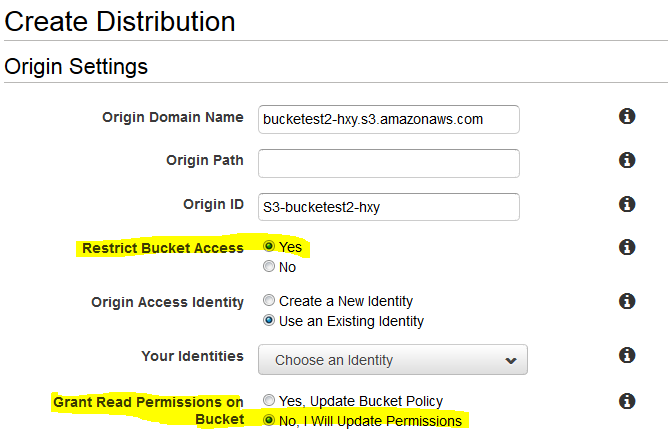
Solution:
Method 1: Add a bucket policy in S3 to allow this CloudFront distribution to access it. Below is a policy example where the highlighted parts need to be replaced with your own information.
{
"Version": "2008-10-17",
"Id": "PolicyForCloudFrontPrivateContent",
"Statement": [
{
"Sid": "1",
"Effect": "Allow",
"Principal": {
"AWS": "arn:aws:iam::CloudFront:user/CloudFront Origin Access Identity E344H6KAFBMK0I"
},
"Action": "s3:GetObject",
"Resource": "arn:aws:s3:::elastictcoutputthumb/*"
}
]
}
Method 2: Recreate the distribution. In the new distribution, select “Yes” for “Grant Read Permissions on Bucket” and “Update bucket policy”. This way, after the distribution is created, the S3 bucket policy will be automatically updated.
Scenario 2. Standard S3 Origin
If CloudFront does not use “Restrict Bucket Access”, and objects in S3 are not set to public access, an “Access Denied” error will also occur.
Solution:
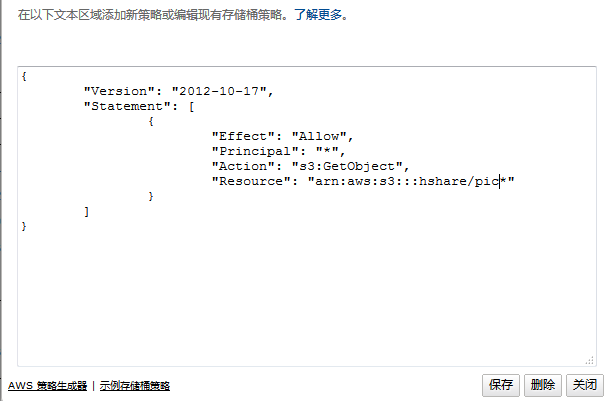
You can achieve this by setting the S3 bucket’s bucket policy or by setting the Object ACL of objects in S3. For example, set the bucket policy via the AWS Console:
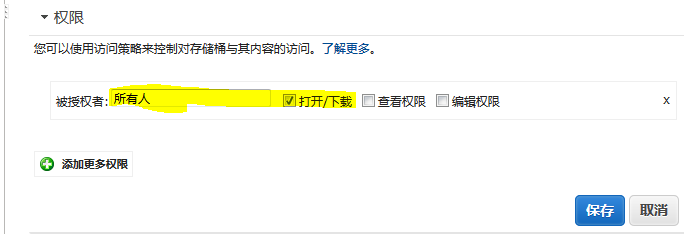
Set the Object ACL of S3 objects via the AWS Console:
Note: If you want to learn more about S3 access control details, please refer to: http://docs.aws.amazon.com/AmazonS3/latest/dev/s3-access-control.html
Error 2: Custom Domain Used But Not Configured in CloudFront
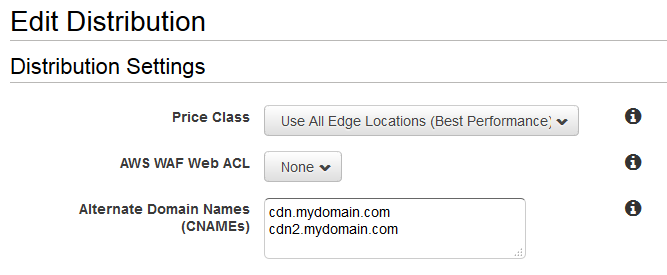
Sometimes users do not directly use the domain generated by the CloudFront distribution but instead use a custom domain and point it to the CloudFront domain via CNAME, for example, using cdn.mydomain.com CNAME to d1cbzf61pdxxxx.CloudFront.net. Additionally, if Route53 is used as DNS, you can use Alias instead of CNAME.
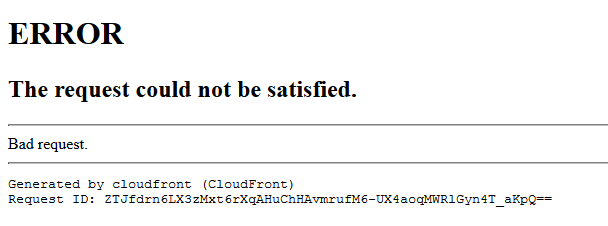
CloudFront stipulates that when a custom domain is used and configured to point to a CloudFront distribution domain via CNAME or Alias, the custom domain must be provided in the corresponding CloudFront distribution. If multiple custom domains are used, provide all of them. If not provided, an error similar to the one below will appear:
Solution:
You can configure Alternate Domain Names (CNAMEs) in the distribution via the AWS Console:
Error 3: Incorrect Access Path
After configuring CloudFront Behavior, users sometimes cannot provide the correct URL to access the desired resource. If the origin is S3, the returned error is usually as follows:
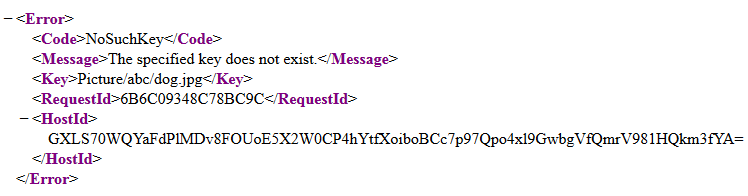
If the origin is a custom website, the returned error varies depending on the website, such as returning “Page Not Found” errors.
Solution:
Avoiding this error is simple: understand the mapping between the CloudFront Behavior URL and the source resource to determine if your URL is correct. Here are some examples:
Consider the following Behavior, where the corresponding Origin ID is S3-hxybucket/Picture:
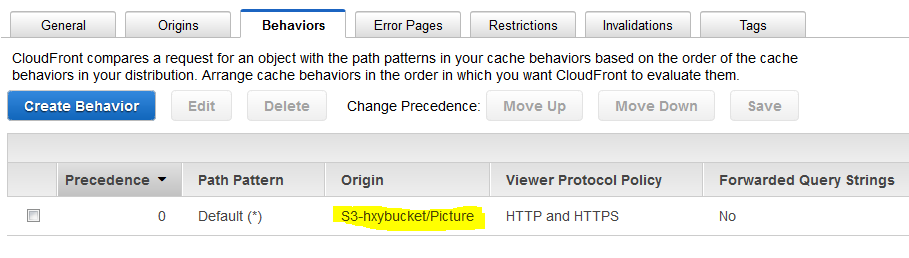
Checking the Origin reveals that the Origin Domain Name and Path is hxybucket.s3.amazonaws.com/Picture
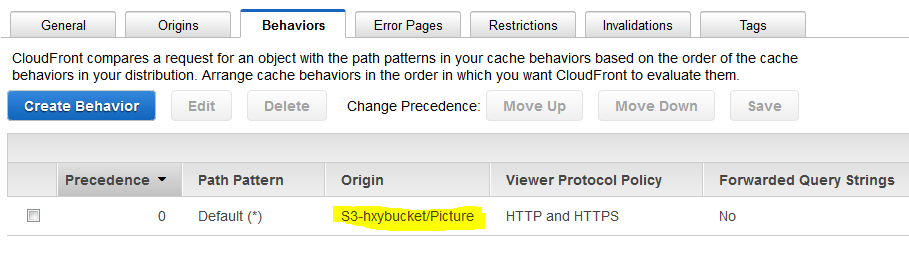
If accessed via d1cbzf61pdxxxx.CloudFront.net/dog.jpg, the corresponding source resource is hxybucket.s3.amazonaws.com/Picture/dog.jpg
If accessed via d1cbzf61pdxxxx.CloudFront.net/jpg/dog.jpg, the corresponding source resource is hxybucket.s3.amazonaws.com/Picture/jpg/dog.jpg
In other words: Append the path after the CloudFront domain to the path corresponding to the Origin Domain Name and Path (note that there is a Path component besides the Domain Name). This results in the resource on the origin server, allowing users to verify if the URL used is correct.
Error 4: Improper HTTP Method Settings
When creating a Behavior, the default value for the “Allowed HTTP Methods” option is GET and HEAD. Sometimes users use other HTTP methods, such as POST. If the default value is still used, an error will occur, typically returning:
“This distribution is not configured to allow the HTTP request method that was used for this request. The distribution supports only cachable requests.”
Solution:
The solution is simple: reconfigure the “Allowed HTTP Methods” option in the Behavior to include the HTTP method being used.

Error 5: Restrict Viewer Access Set Without Using Signed URLs or Signed Cookies
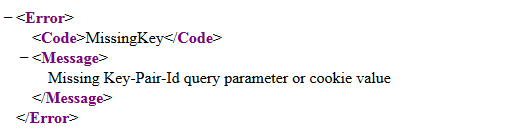
When creating a Behavior, the default value for “Restrict Viewer Access (Use Signed URLs or Signed Cookies)” is No. If the user changes it to Yes, resources corresponding to this Behavior must be accessed using Signed URLs or Signed Cookies. If accessed using a normal URL, the returned error is usually as follows:
Solution:
Method 1: Use signed URLs or signed cookies for access. Refer to: http://docs.aws.amazon.com/AmazonCloudFront/latest/DeveloperGuide/PrivateContent.html
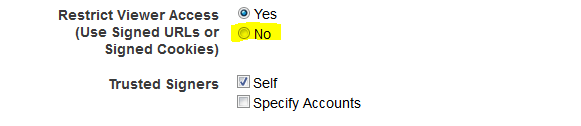
Method 2: Change the value of “Restrict Viewer Access (Use Signed URLs or Signed Cookies)” to No. As shown in the figure:
Error 6: Improper Object Caching Settings
Although the origin is accessible, users sometimes report that CloudFront does not accelerate access, and sometimes the performance is worse than without CloudFront. This is likely due to improper Object Caching settings.
Solution:
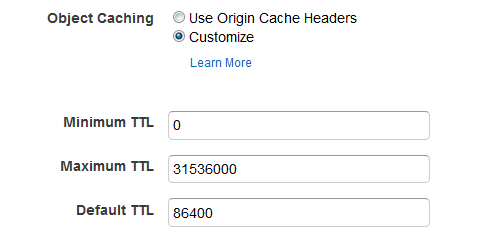
Object Caching has two options: “Use Origin Cache Headers” and “Customize”. The default option is the former. However, if “Use Origin Cache Headers” is selected by default, but the origin’s HTTP headers do not contain a Cache-control header, the returned content will not be cached. Therefore, users should choose carefully. When the origin’s response does not contain a Cache-control header, select “Customize”. The Default value in Customize will become the TTL time (unit is seconds).
Additionally, if the origin’s response contains Cache-control, and Object Caching is set to “Customize”, the returned content will definitely be cached at the CloudFront edge node. But which value will CloudFront use as the TTL? This is described in detail in the CloudFront documentation. See: http://docs.aws.amazon.com/AmazonCloudFront/latest/DeveloperGuide/Expiration.html