Introduction
AWS Simple Storage Service (Amazon S3) is a highly durable storage service, boasting 99.999999999% durability (eleven nines of durability).
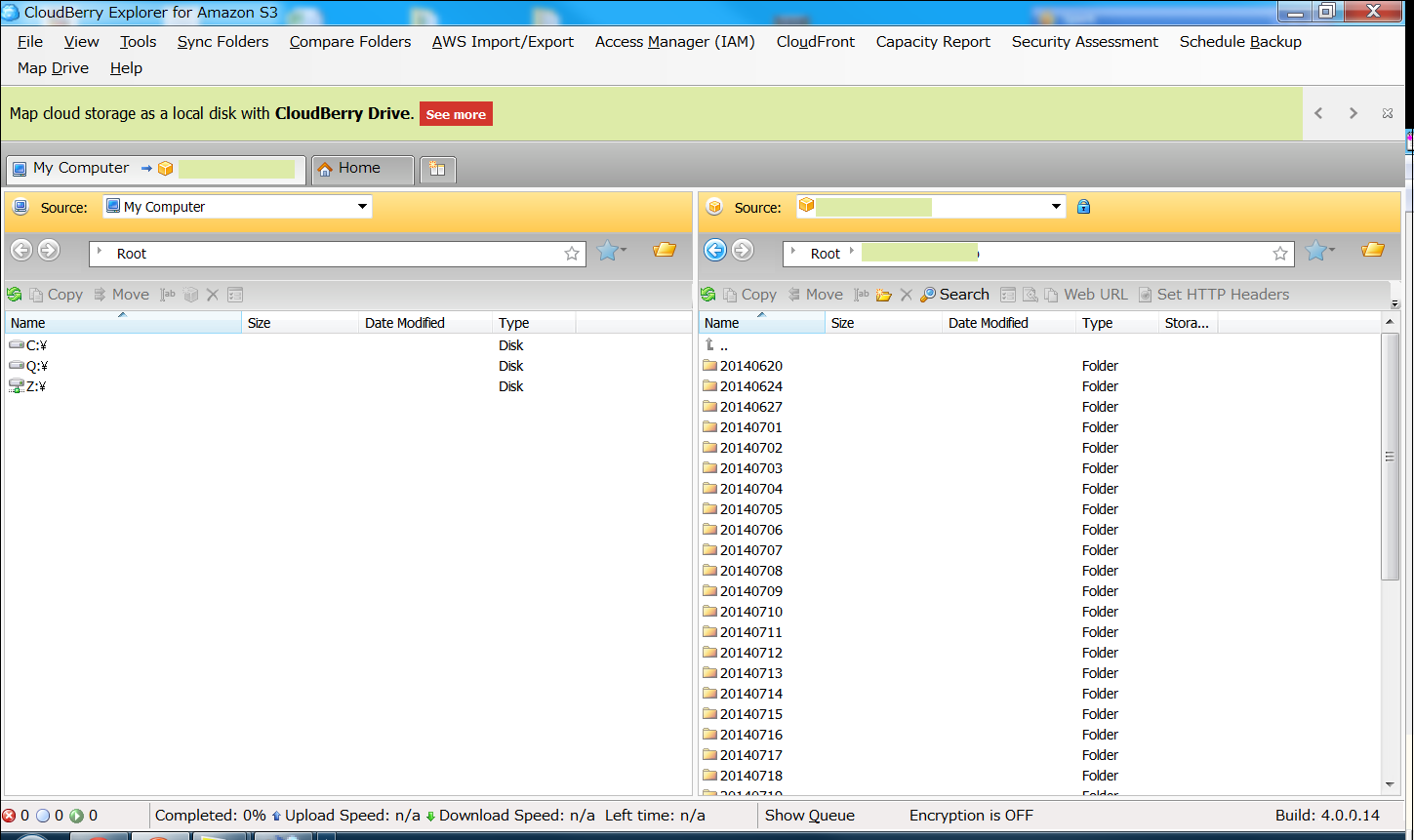
Use CloudBerry to upload and download files.
With CloudBerry Explorer, you can download data from Amazon S3 or upload client data to Amazon S3. Uploading and downloading data is as easy as using FTP software.
Installing CloudBerry Explorer
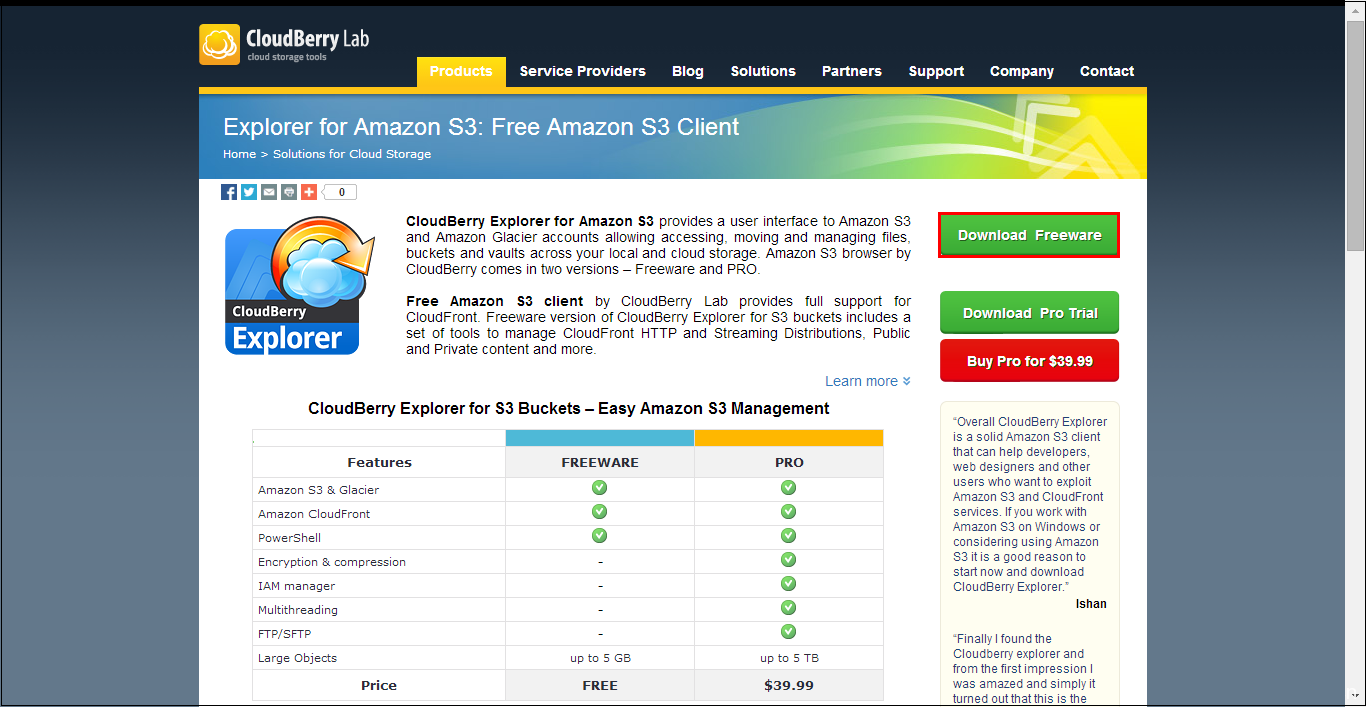
1. Download CloudBerry Explorer from the following address.
URL:http://www.cloudberrylab.com/free-amazon-s3-explorer-cloudfront-IAM.aspx?ad=menu
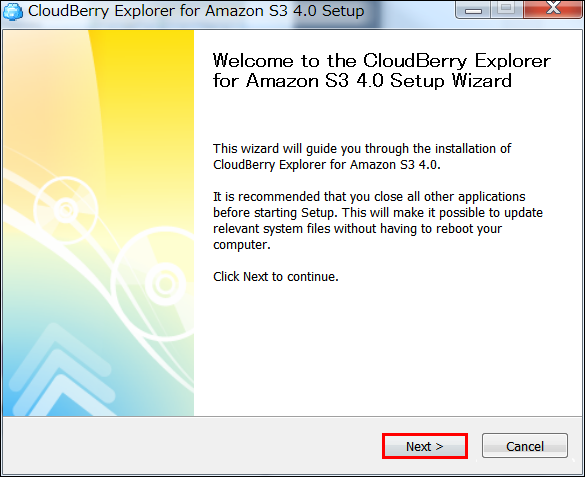
2. Double-click the downloaded CloudBerryExplorerSetup_v4.0.0.14_netv4.0.exe file and click “Next”.
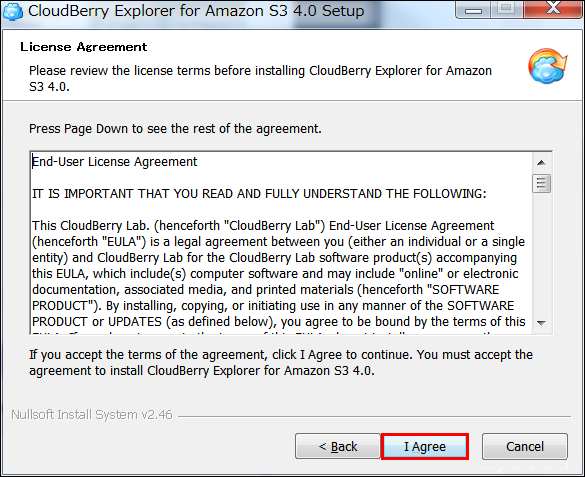
3. Click “I Agree”.
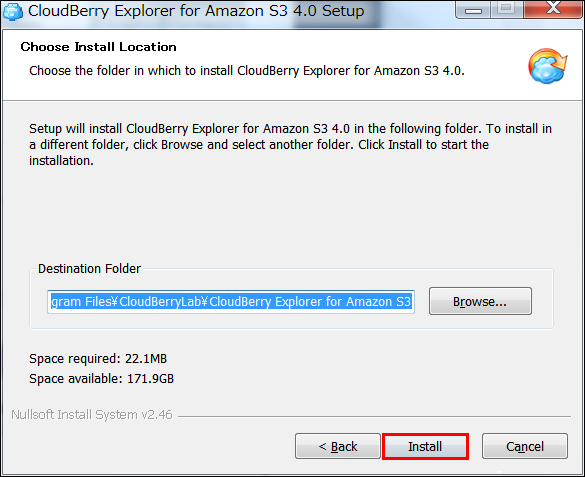
4. Click “Install”.
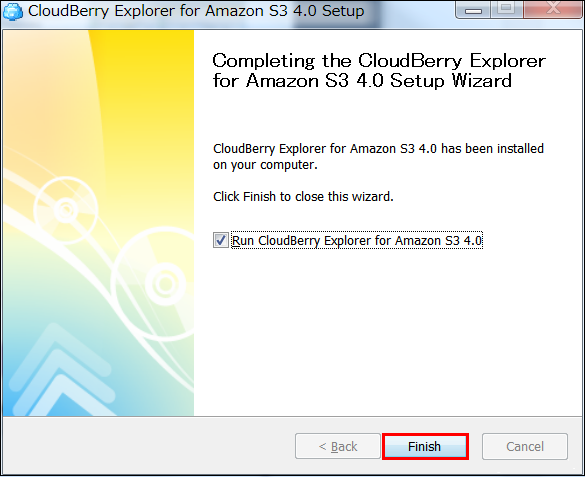
5. Click “Finish”.
Logging into CloudBerry Explorer
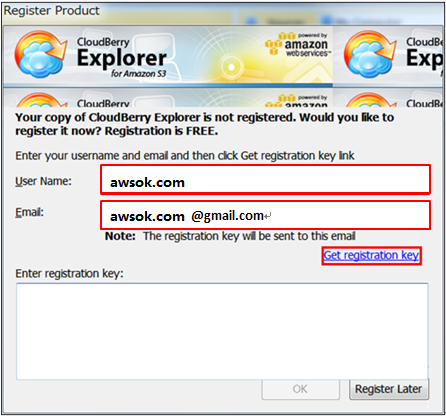
1. Enter any name in “User Name” and a valid email address in “Email”, then click “Get registration key”.
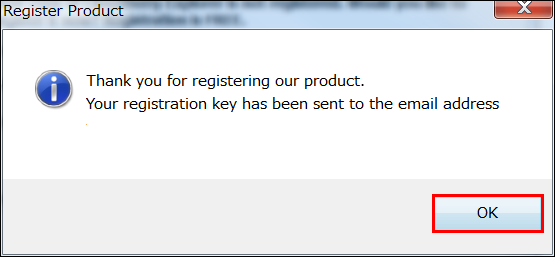
2. Click “OK”.
3. Log in to your email account and copy the registration key.
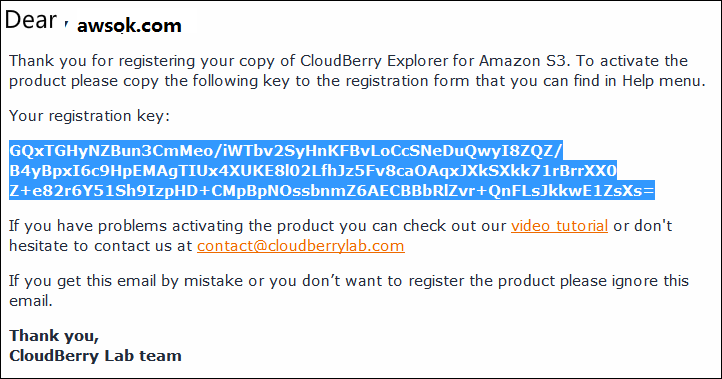
4. Paste it into “Enter registration key” and click “OK”.
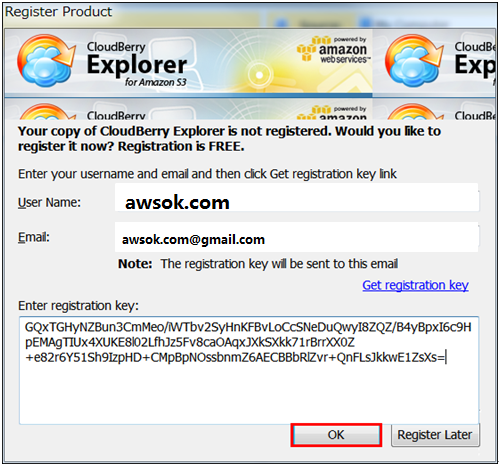
5. Click “OK”.
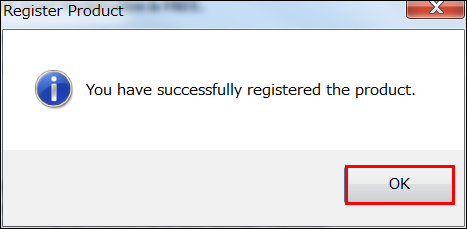
6. If you see the screen below, the setup is complete.
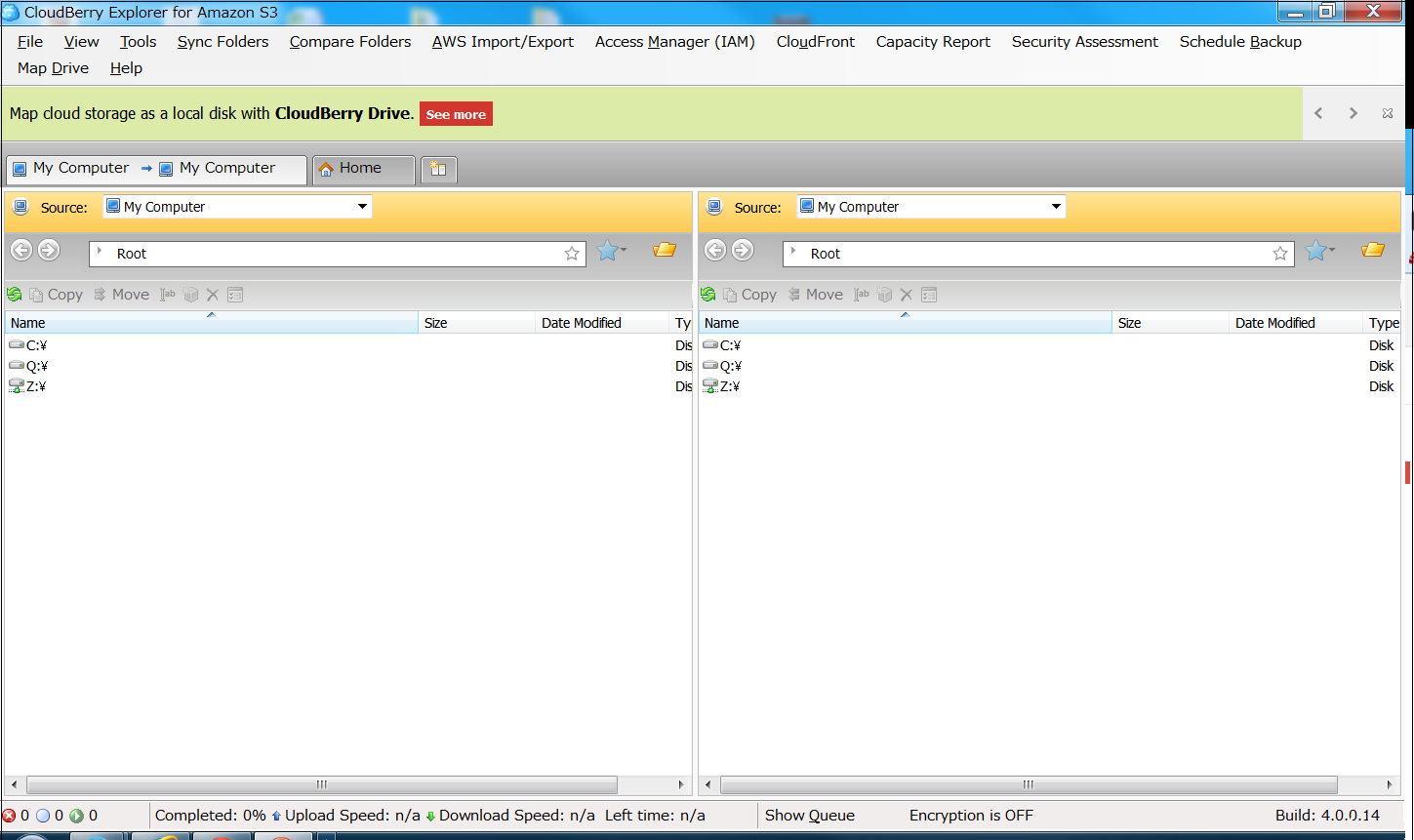
Connecting to Amazon S3 with CloudBerry Explorer
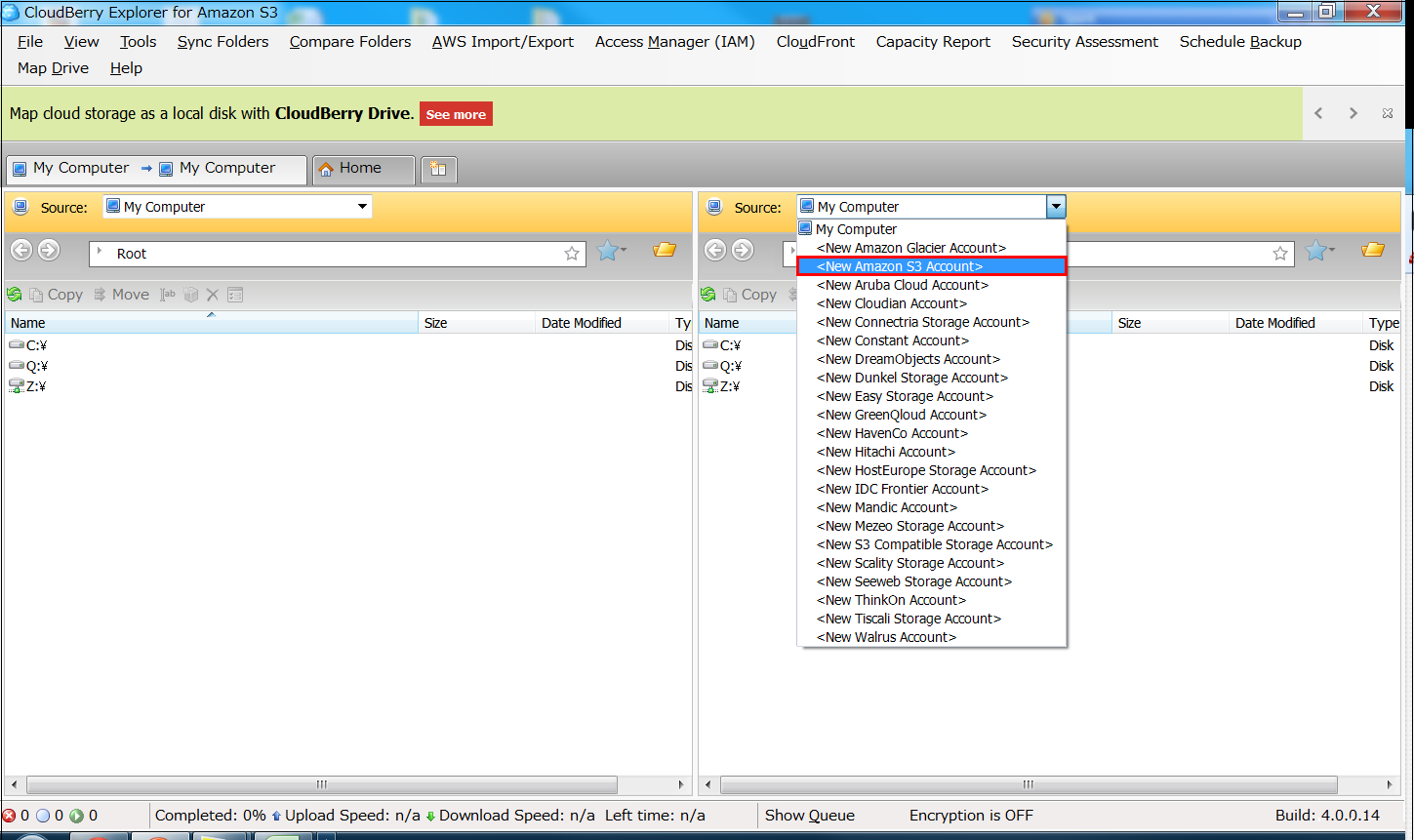
1. Click “New Amazon S3 Account”.
 2. Enter the “Display Name”, “Access key”, and “Secret key”, then click “Test Connection”.
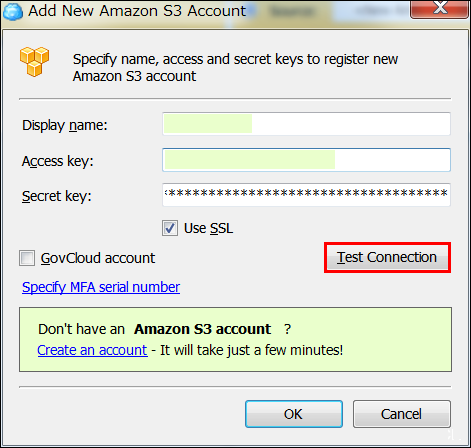 Note: The “Display Name” should not be an arbitrary name; instead, enter the Amazon S3 username, followed by that user’s “Access key” and “Secret key”.
The following screen will appear.
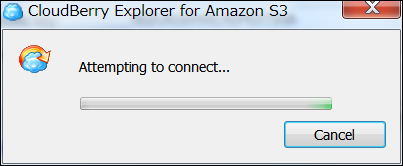 Note: Connecting to data centers in different regions may result in slightly slower response times. In this example, we are connecting from within China to an Amazon data center in Japan.
3. Click “Close”.
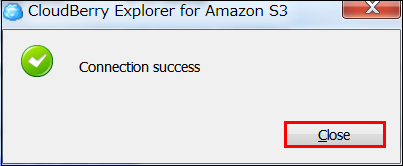 4. You can now upload and download files.