AWS Identity and Access Management (IAM) is a web service that enables AWS users to manage users and user permissions in AWS. This service is primarily designed for organizations with multiple users or systems using AWS products such as Amazon EC2, Amazon SimpleDB, and the AWS Management Console. With IAM, you can centrally manage users, security credentials (such as access keys), and control which AWS resources users are permitted to access.
Here, we will use the example of creating a user with read-only permissions to explore how to create an IAM user in AWS.
Creating an IAM User
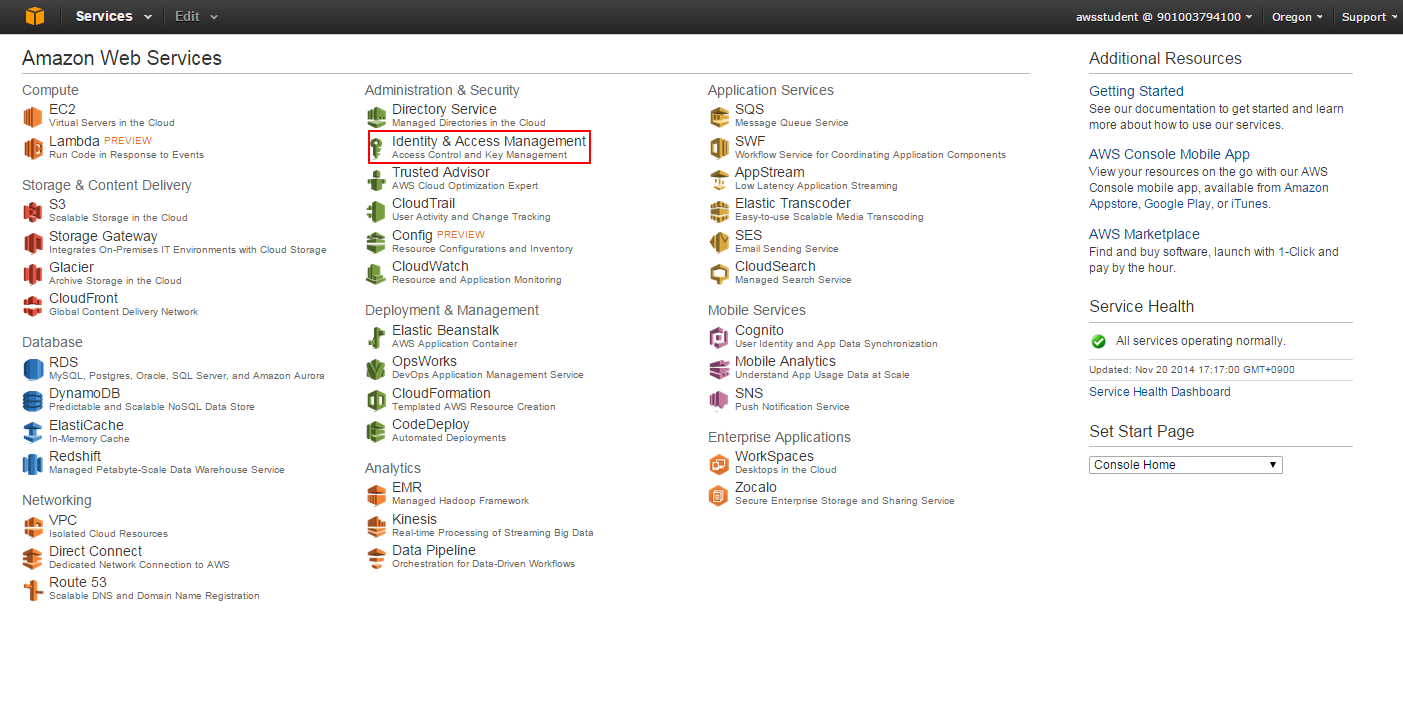
1.1 Log in to the AWS Management Console and click on “Identity and Access Management”.
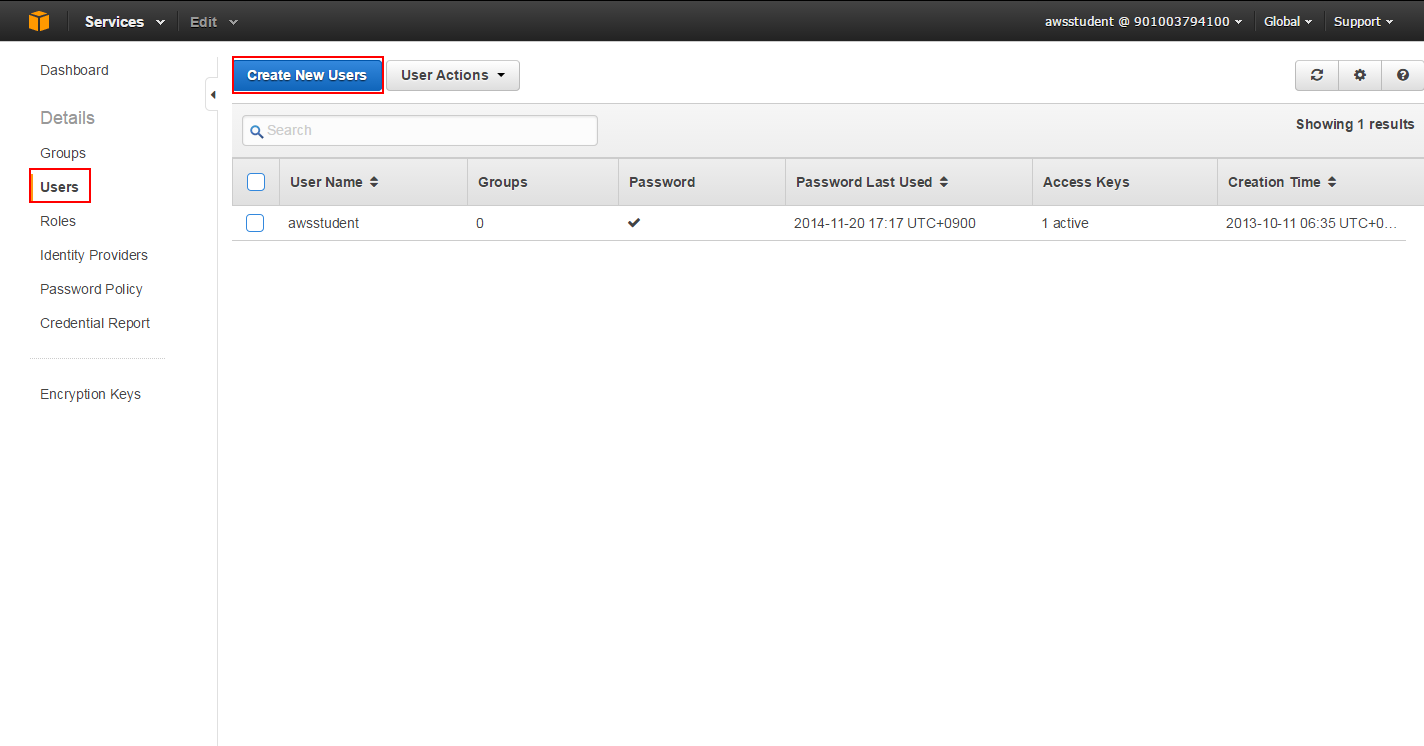
1.2 Click on “Users”, then click “Create New Users” to create a new user.
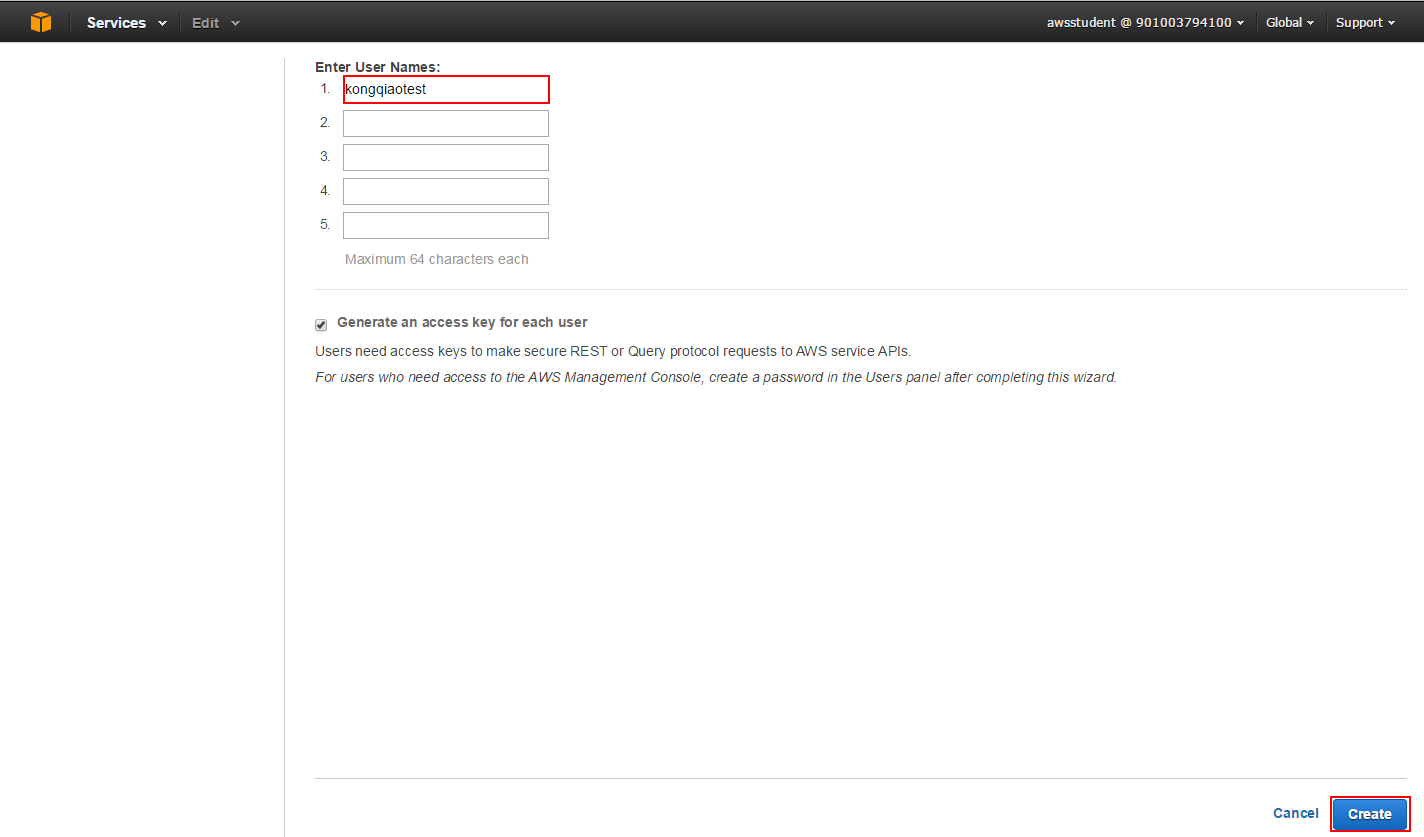
1.3 In the dialog box shown below, you can create up to 5 users at once. Enter the desired username in the top field; here we use “yunwei123test”. Click “Create”.
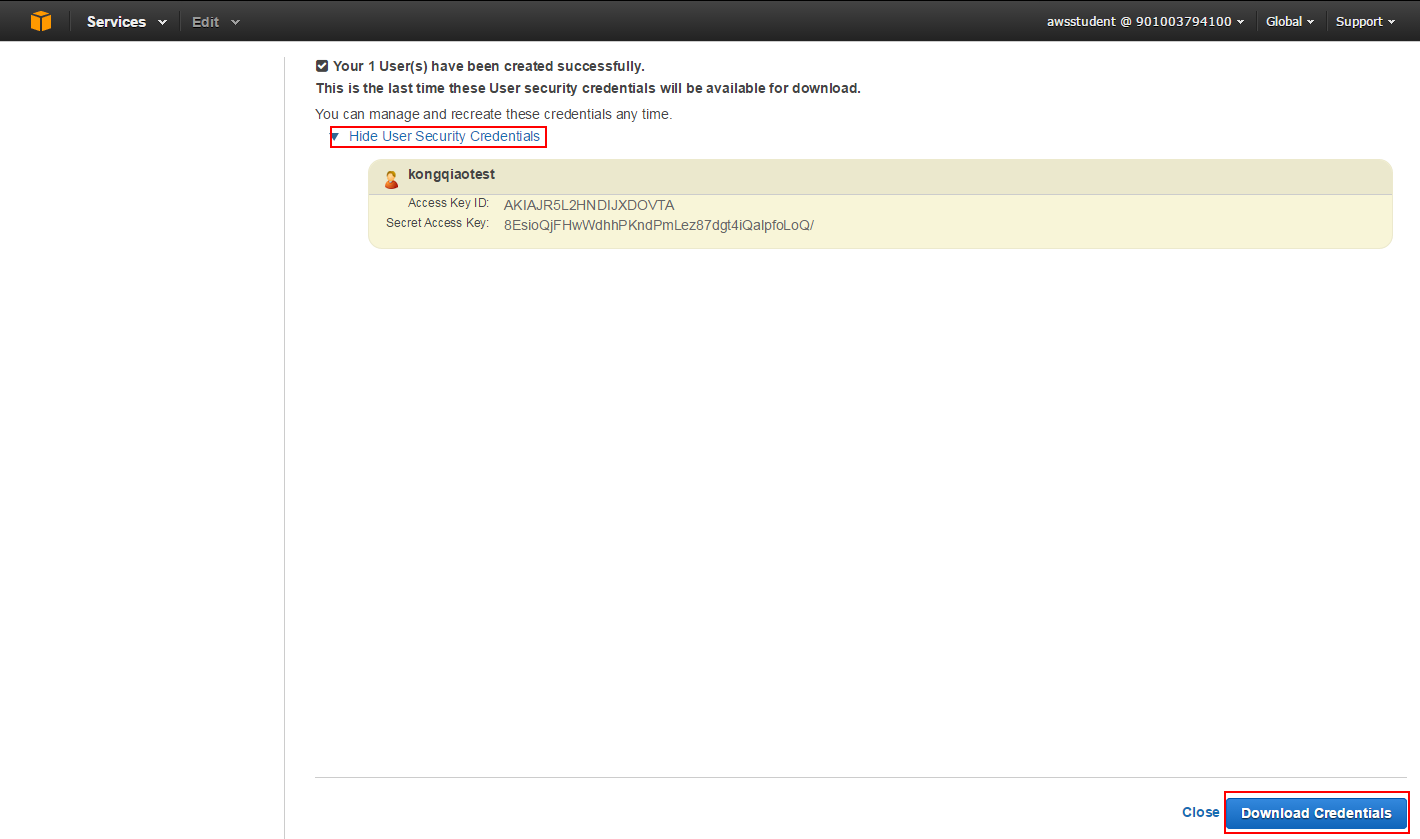
1.4 The window below indicates that the user has been created successfully. Click “Download Credentials”, then click “Close” to dismiss the window. The Credential.csv file contains the username and the access key and secret key used for API access. The secret key is only available during this initial creation; if you forget to download it or lose it, you will need to recreate it.
Setting Up a Login-Enabled User
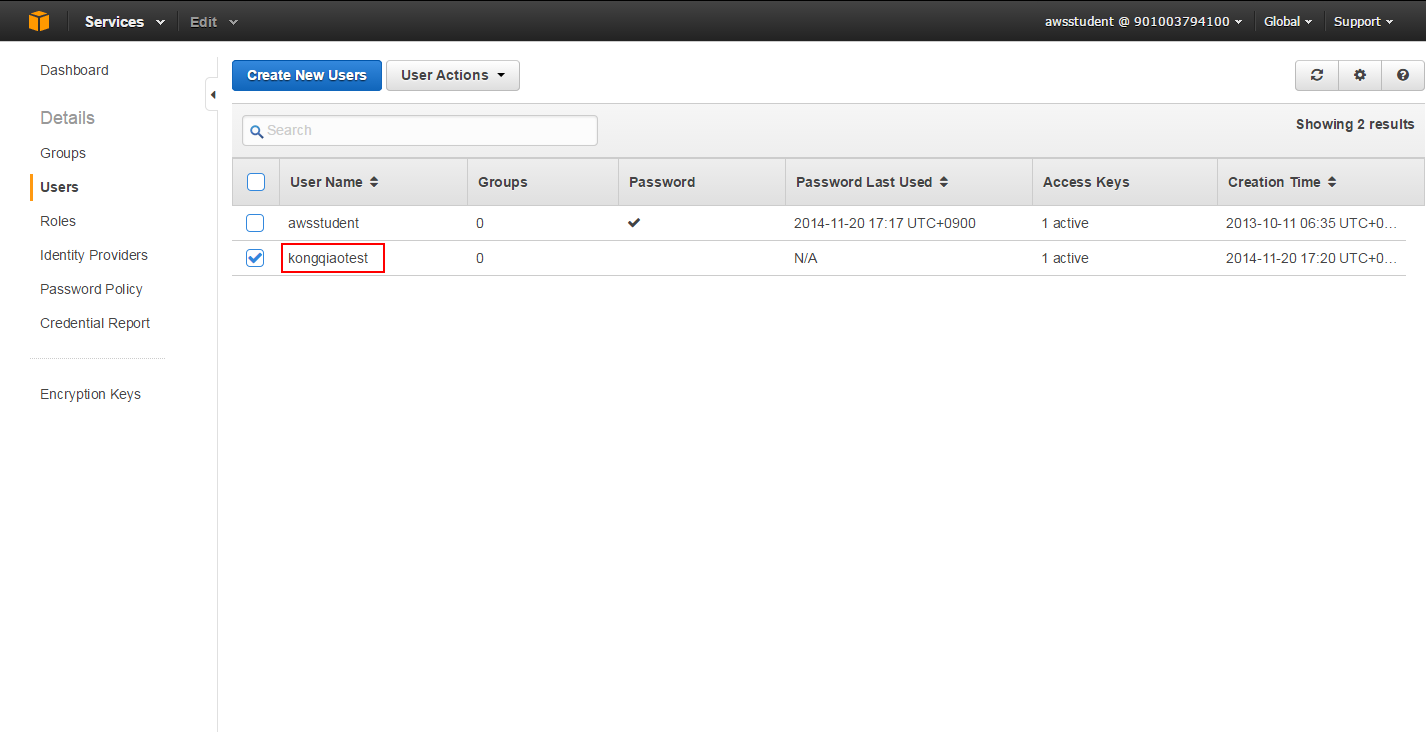
2.1 On the “Users” page, click on the newly created user.
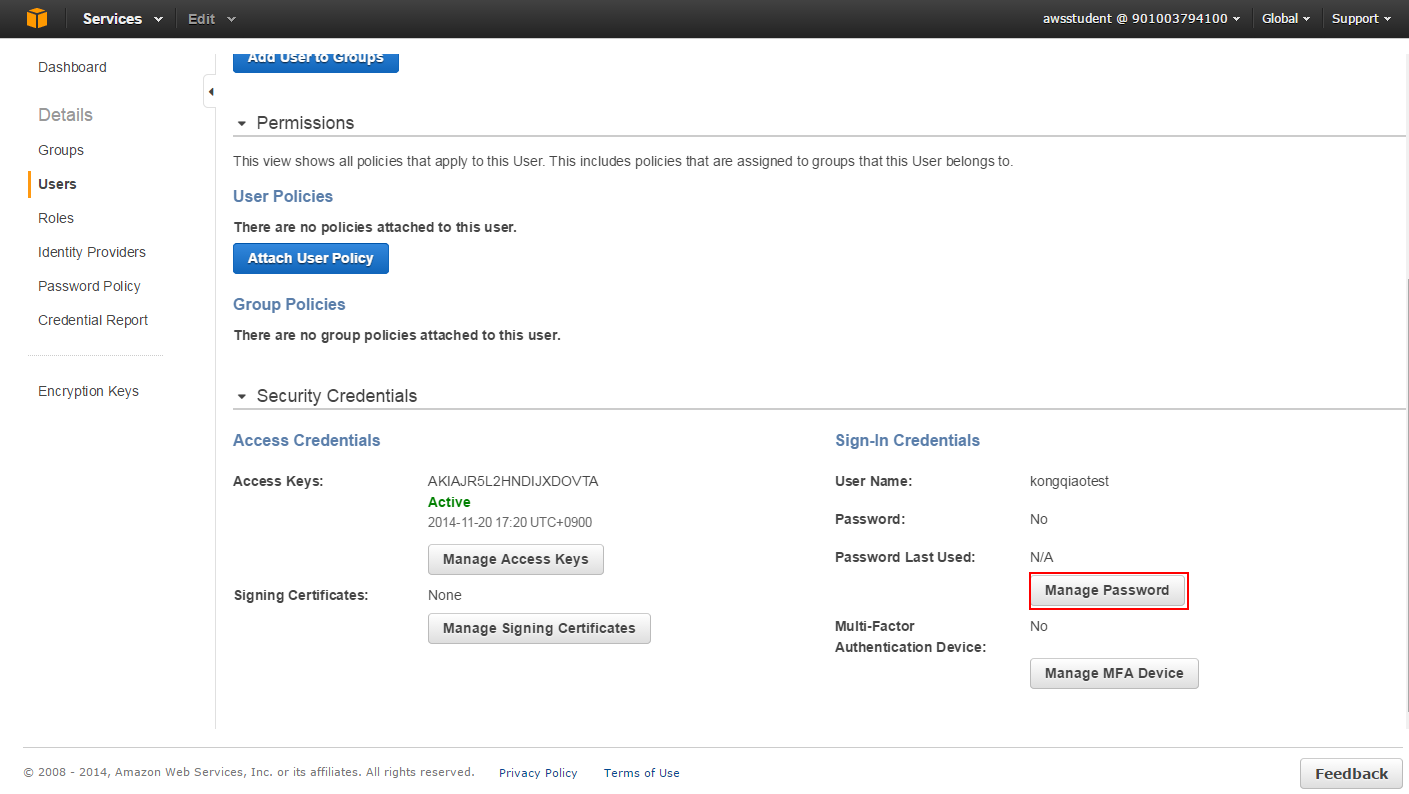
2.2 Select “Manage Password”.
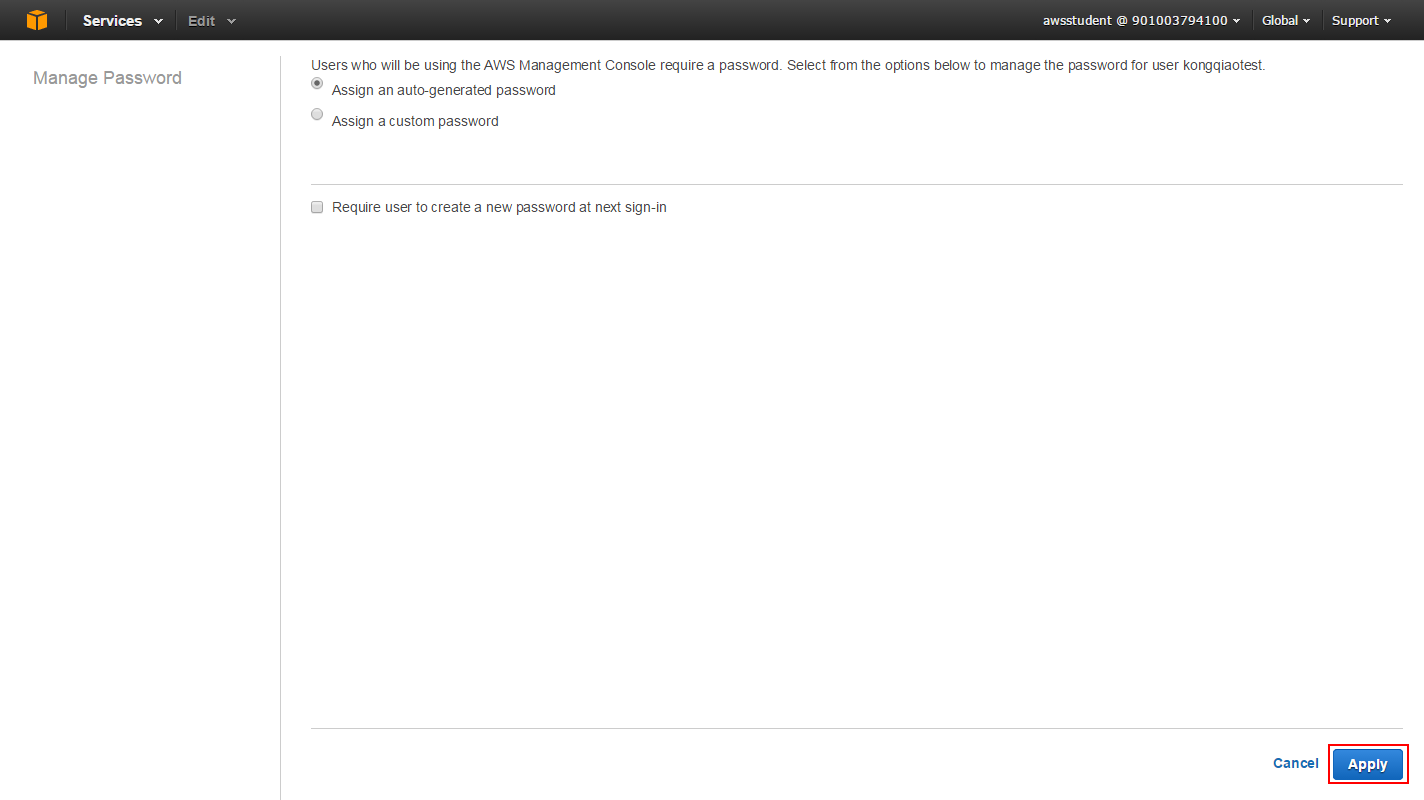
2.3 A window will appear; click “Apply”.
2.4 The password creation is now successful. Click “Download Credentials” to download the Credential.csv file.
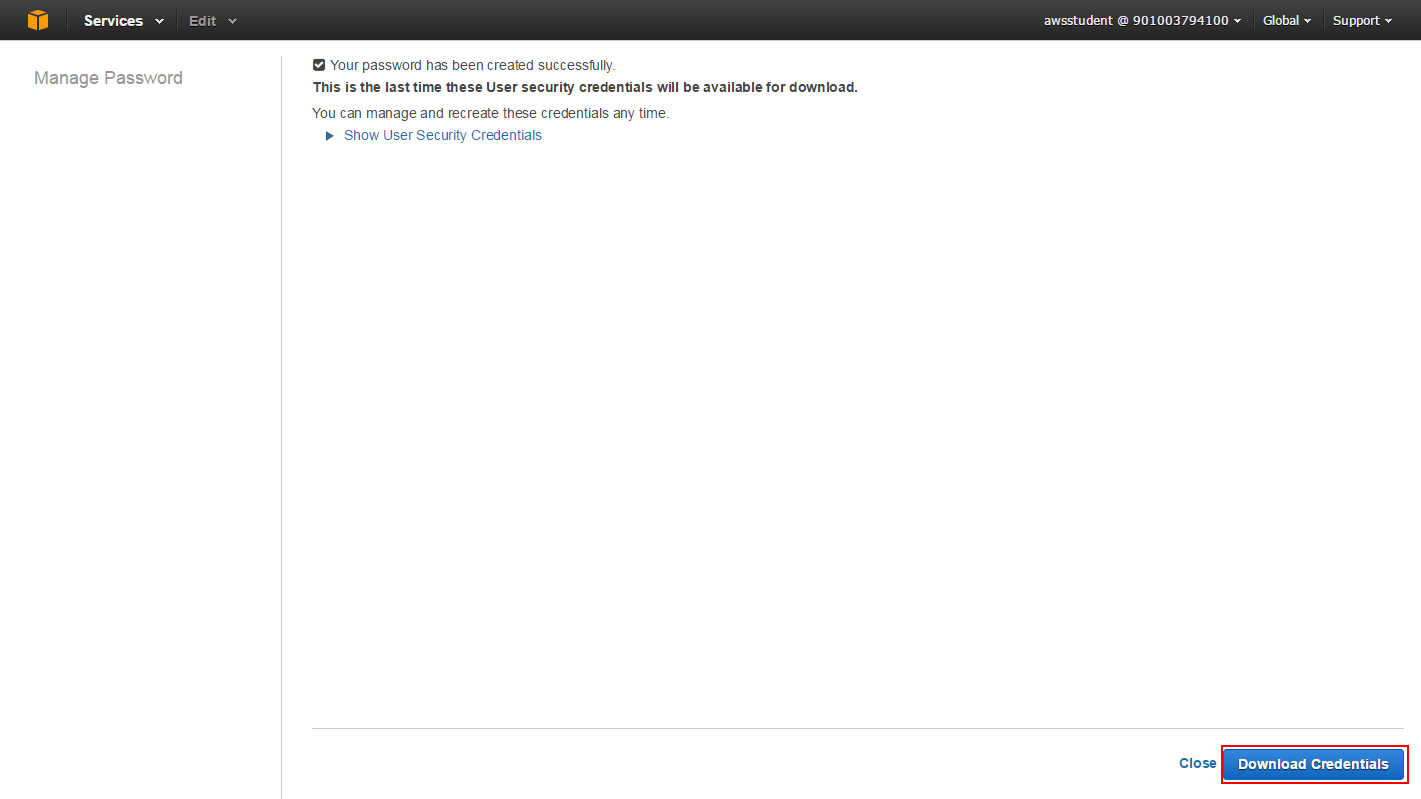
As shown below, the user’s login link and password are displayed. The Credential.csv file differs from the previous one; it includes the login URL. The password is also only available during this creation step; if you forget to download it or lose it, you will need to recreate it.

Configuring Permissions
At this point, any operation other than logging in will fail for the newly created user. Here, we set read-only permissions, but you can configure appropriate permissions based on your needs.
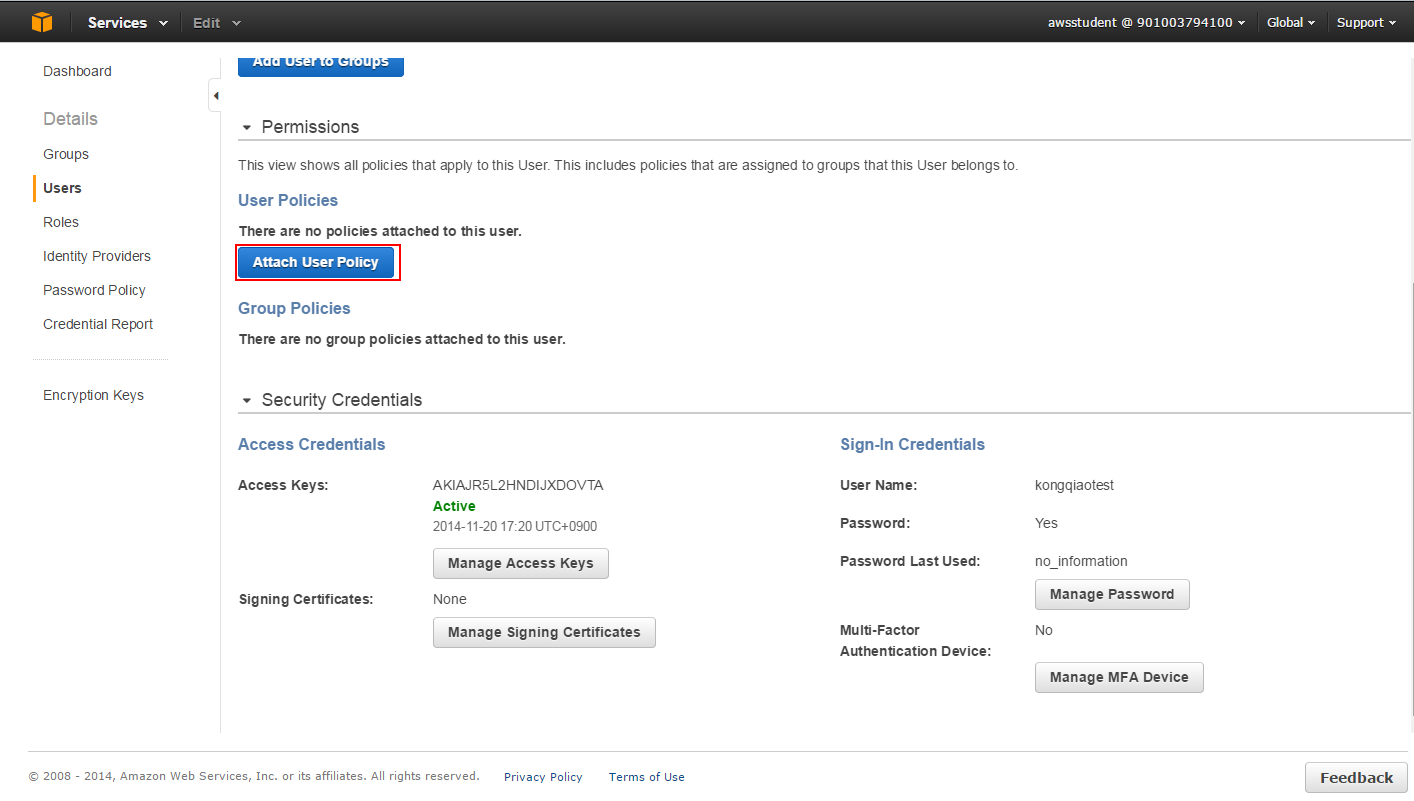
3.1 From the “Permissions” tab shown below, click “Attach User Policy”.
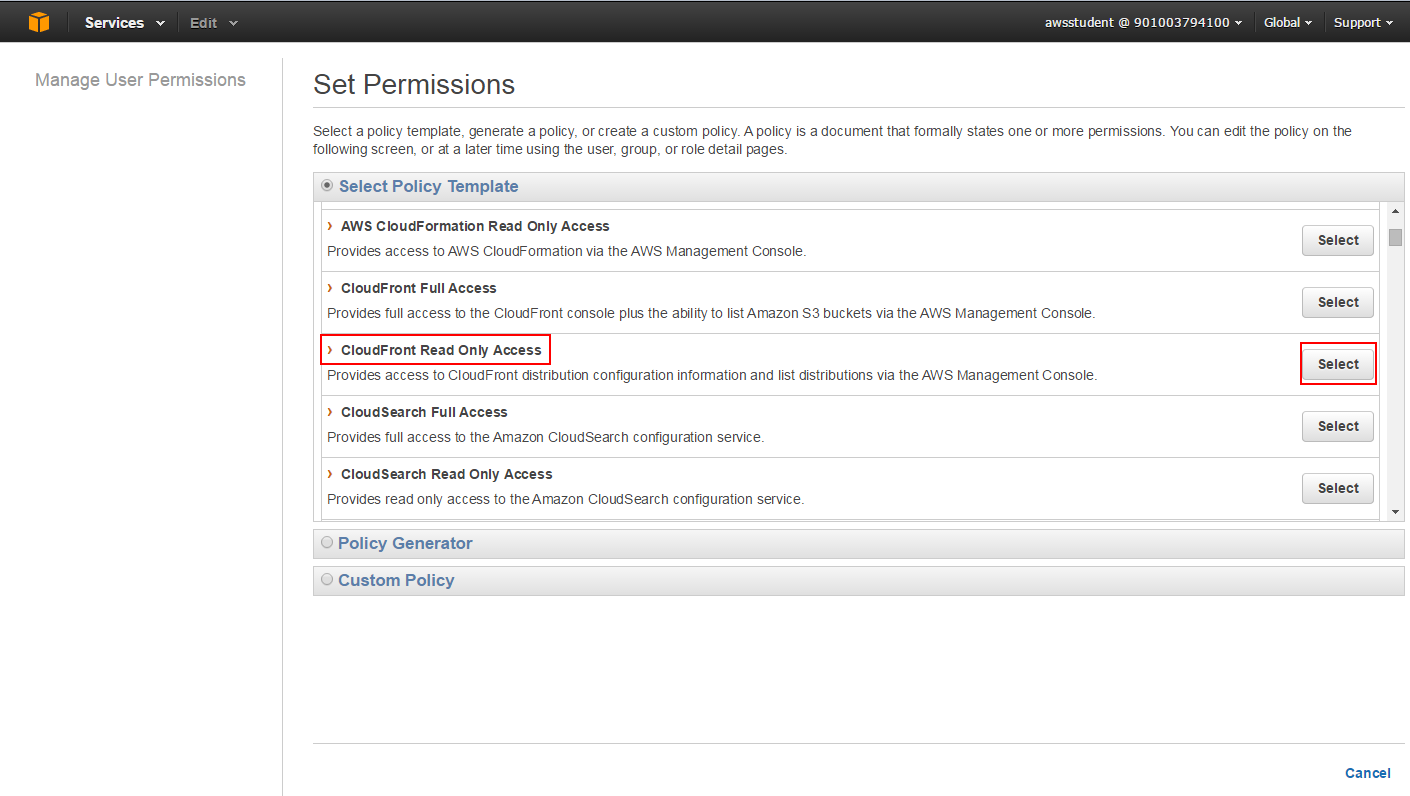
3.2 Select the permission policy; here we choose “Read Only Access”. Click “Select”.
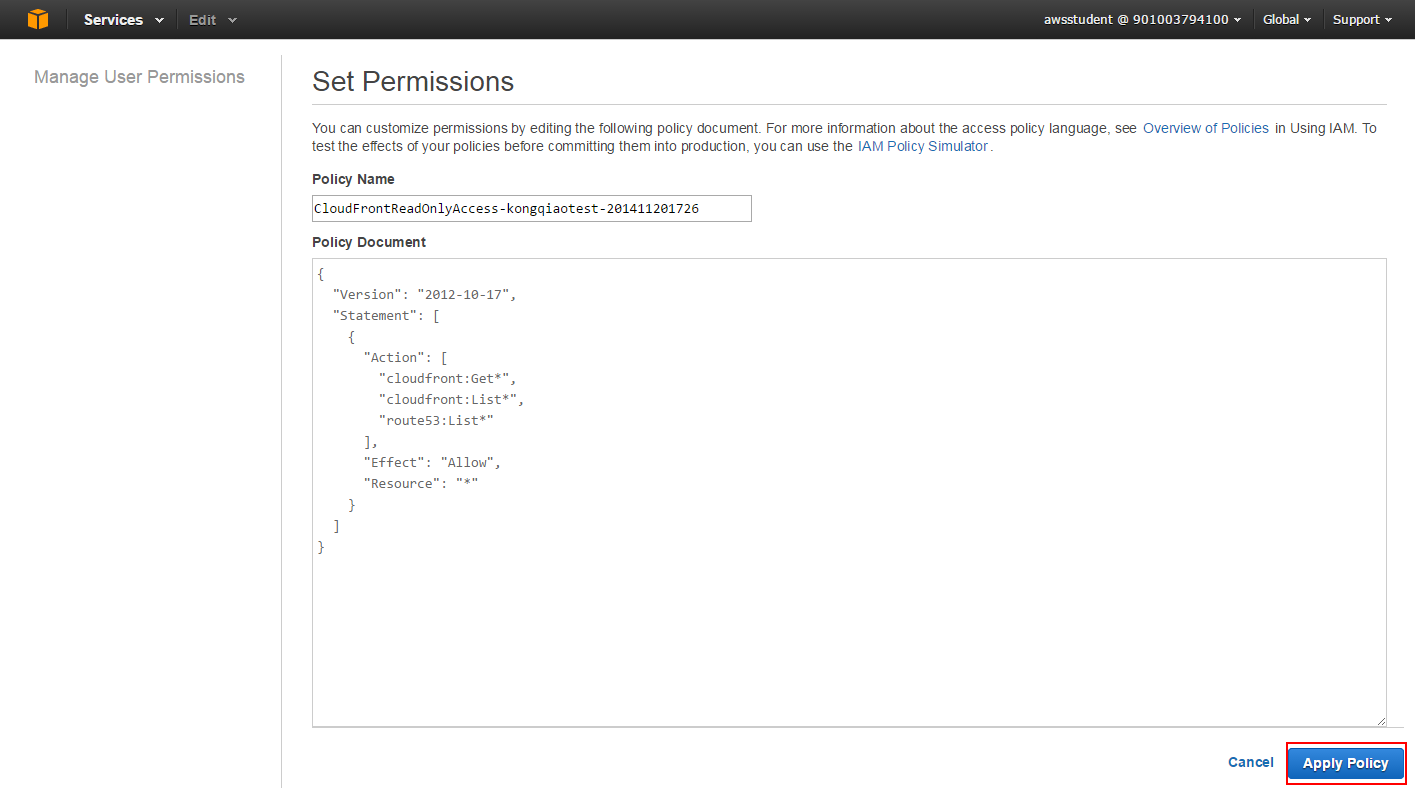
3.3 The content of the “policy” is displayed below. You can modify it if necessary; here, we directly click “Apply Policy”.
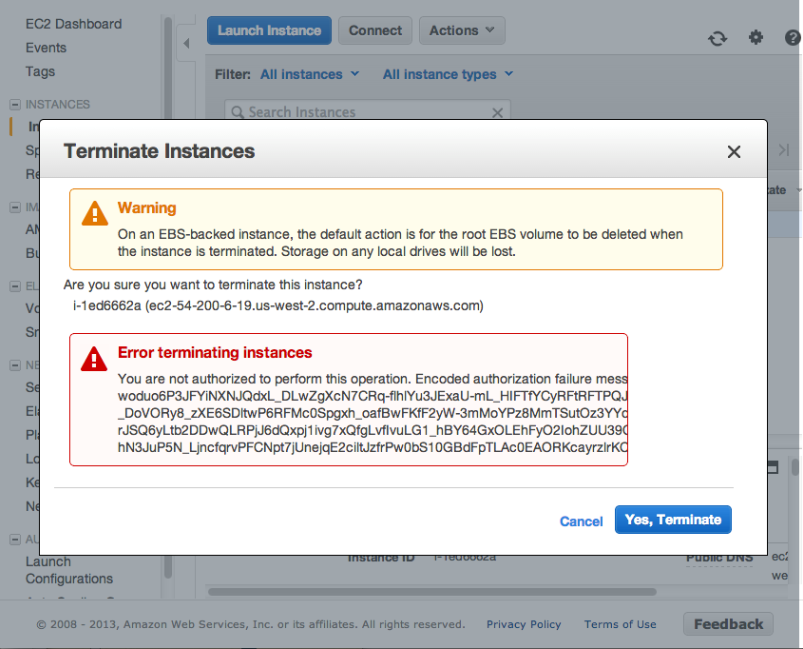
3.4 Perform a login test. After logging in, try to terminate an EC2 instance. You will see the following error message.
Deleting a User
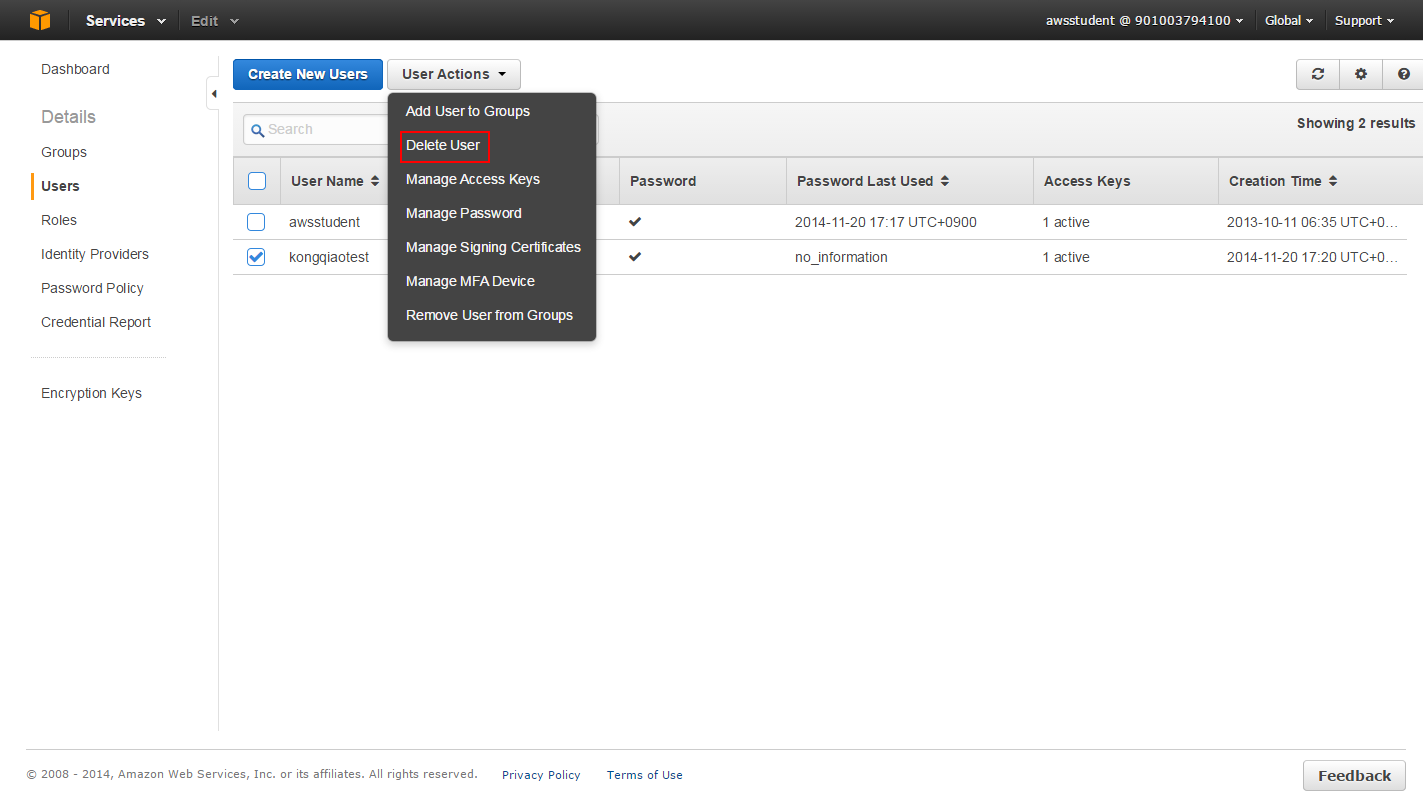
4.1 To delete a user, select the user and click “User Actions”, then select “Delete User” to remove the user.
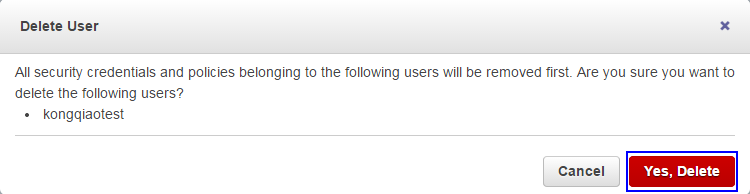
4.2 Click “Yes Delete” to confirm the deletion of the user.