AWS Config supports continuous monitoring of AWS resources, simplifying the process of evaluating, auditing, and recording resource configurations and changes. To achieve this, AWS Config uses a set of rules to define the required configuration state for AWS resources. AWS Config provides various AWS managed rules to address security issues, such as checking if your Amazon Elastic Block Store (Amazon EBS) volumes are encrypted, if resources are properly tagged, and if Multi-Factor Authentication (MFA) is enabled for the root account. You can also create custom rules using AWS Lambda functions to tailor compliance requirements.
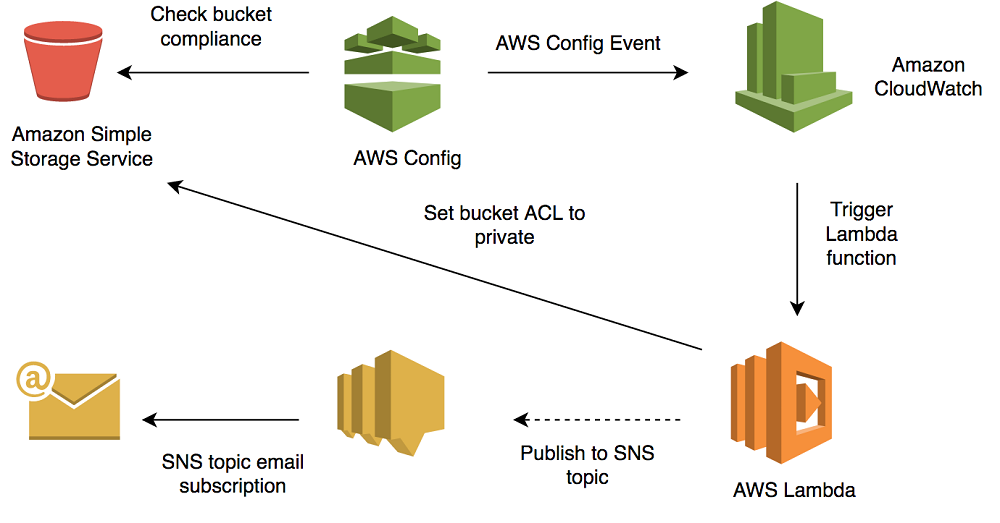
In this article, we will show you how to use AWS Config to monitor Amazon Simple Storage Service (S3) bucket ACLs and policies to identify violations that allow public read/write access. If AWS Config detects a policy violation, it triggers an Amazon CloudWatch Event rule to invoke an AWS Lambda function to correct the S3 bucket ACL, or notifies you via Amazon Simple Notification Service (Amazon SNS) about the violation allowing public read/write access. We will demonstrate this process in five main steps.
- Enable AWS Config to monitor Amazon S3 bucket ACLs and policies to detect violations.
- Create IAM roles and policies to grant the Lambda function permissions to read S3 bucket policies and send alerts via SNS.
- Create and configure CloudWatch Events rules to trigger the Lambda function when AWS Config detects violations of S3 bucket ACLs or policies.
- Create a Lambda function to audit S3 bucket ACLs and policies using the IAM role, correct ACLs, and notify your team of policy violations.
- Validate the monitoring solution.
Note: This article assumes your compliance policy requires that monitored buckets do not allow public read/write access. For example, if you intend to open a bucket for serving static content, you can start with this article and customize the solution according to your needs.
At the end of this article, we provide an AWS CloudFormation template that implements the solution described herein. You can use this template to quickly deploy the solution across multiple regions.
Important: Using certain deployed resources, including those deployed using the provided CloudFormation template, incurs charges. Using these rules in each region where AWS Config rules are provided incurs costs.
Architecture
The following is the architecture diagram we will implement:
Step 1: Enable AWS Config and Amazon S3 Bucket Monitoring
The following steps demonstrate how to set up AWS Config to monitor Amazon S3 buckets.
- Log in to the AWS Management Console and open the AWS Config console.
- If this is your first time using AWS Config, select Get Started. If you have used AWS Config before, select Settings.
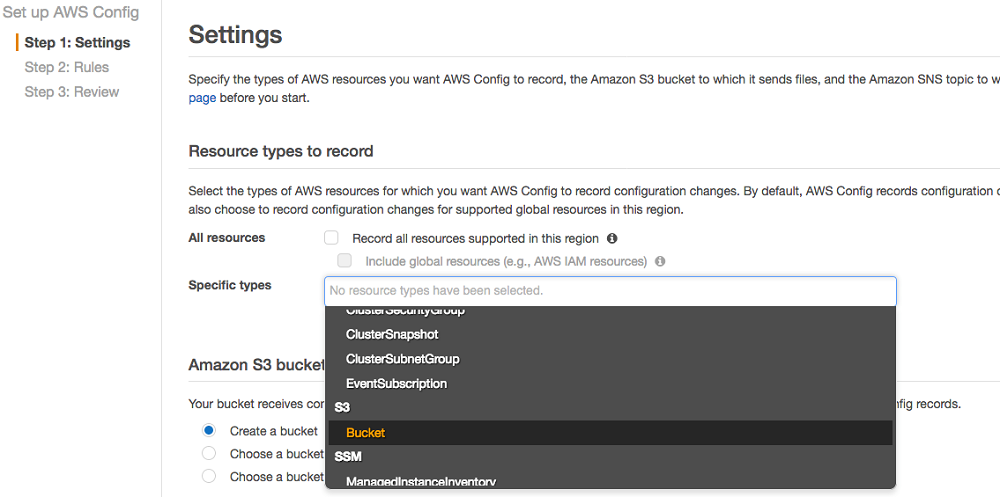
- On the Settings page, under Resource types to record, clear the All resources checkbox. In the Specific types list, select Buckets under S3.
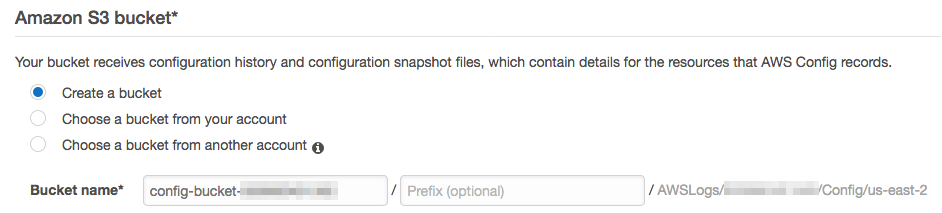
- Select the Amazon S3 bucket to store configuration history and snapshots. We will create a new Amazon S3 bucket.
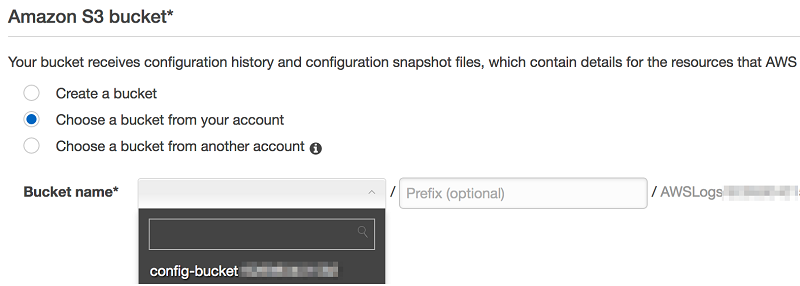
- If you prefer to use an existing Amazon S3 bucket in your account, select the Choose a bucket from your account radio button, then select the existing bucket from the dropdown menu.
- If you prefer to use an existing Amazon S3 bucket in your account, select the Choose a bucket from your account radio button, then select the existing bucket from the dropdown menu.
- Under Amazon SNS topic, select the checkbox next to Stream configuration changes and notifications to an Amazon SNS topic, and select the radio button next to Create a topic.
- You can also select a previously created and subscribed topic.
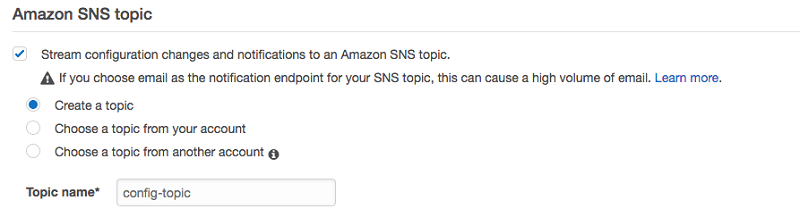
- If you create a new SNS topic, you need to subscribe to it to receive notifications. We will demonstrate this in later steps.
- You can also select a previously created and subscribed topic.
- Unless you already have a role to use, select Create a role under AWS Config role. We use the system-recommended role name.

- Select Next.
- Configure Amazon S3 bucket monitoring rules:
- On the AWS Config rules page, search for S3, select the s3-bucket-publice-read-prohibited and s3-bucket-public-write-prohibited rules, and click Next.
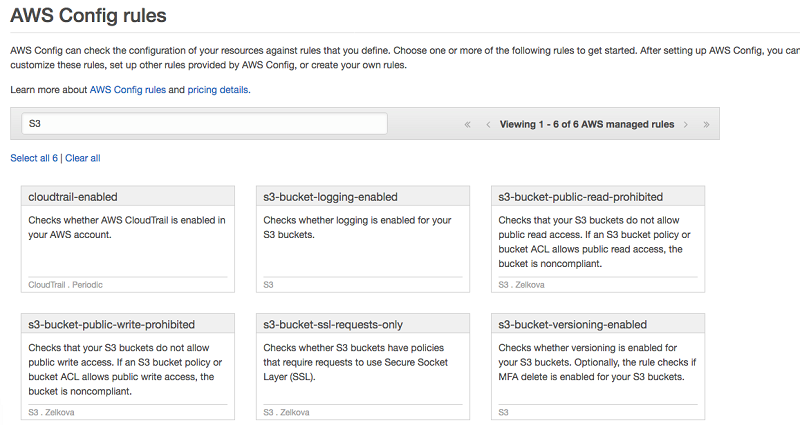
- On the Review page, select Confirm. AWS Config will now analyze your Amazon S3 buckets, capture their current configurations, and evaluate them against the selected rules.
- On the AWS Config rules page, search for S3, select the s3-bucket-publice-read-prohibited and s3-bucket-public-write-prohibited rules, and click Next.
- If you created a new Amazon SNS topic, open the Amazon SNS management console and locate the topic you created:

- Copy the ARN of the topic (the string starting with arn:), which you will need in later steps.
- Select the checkbox next to the topic, and under the Actions menu, select Subscribe to topic.
- Select Email as the protocol, enter your email address, and select Create subscription.
- After a few minutes, you will receive an email asking you to confirm the subscription for notifications related to this topic. Select the link to confirm the subscription.
Step 2: Create a Role for Lambda
Our Lambda function needs relevant permissions to inspect and modify Amazon S3 bucket ACLs and policies, log CloudWatch logs, and publish to the Amazon SNS topic. Now, we will set up custom AWS Identity and Access Management (IAM) policies and roles to support these operations and assign them to the Lambda function we will create in the next section.
- In the AWS Management Console, under Services, select IAM to access the IAM console.
- Create a policy with the following permissions, or copy the following policy:
- Create a role for the Lambda function:
- Select Lambda from the list of services that will use this role.
- Select the checkbox next to the policy you created earlier, and select Next: Review.
- Specify a role name, enter a description, and select Create role. In this example, we name the role LambdaS3PolicySecuringRole.
Step 3: Create and Configure CloudWatch Rules
In this section, we will create a CloudWatch rule to trigger the Lambda function when AWS Config determines that your Amazon S3 buckets are non-compliant.
- In the AWS Management Console, under Services, select CloudWatch.
- Under Events on the left, select Rules.
- Click Create rule.
- Under Event Source in Step 1: Create rule, select the dropdown and choose Generate custom event pattern.
- Copy the following pattern and paste it into the text box:
This pattern matches events generated by AWS Config when checking for public access to Amazon S3 buckets.
- We will add the Lambda target later. For now, select the Amazon SNS topic you created earlier, and select Configure details.
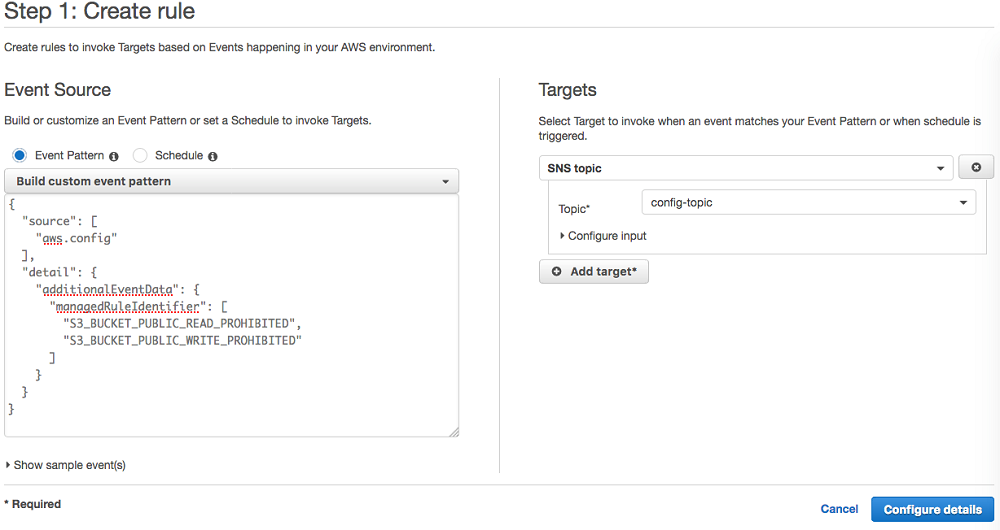
- Enter a name and description for the rule. In this example, we specify the name AWSConfigFoundOpenBucket.
- Click Create rule.
Step 4: Create Lambda Function
In this section, we will create a new Lambda function to check the ACLs and bucket policies of Amazon S3 buckets. If the bucket ACL allows public access, the Lambda function overrides it to private. If a bucket policy is found, the Lambda function creates an SNS message, adds the policy to the message body, and publishes it to the Amazon SNS topic we created. Bucket policies can be complex, and overriding them could lead to unintended loss of access; therefore, this Lambda function does not attempt to make any changes to your policies.
- Obtain the ARN of the Amazon SNS topic created earlier.
- In the AWS Management Console, under Services, select Lambda to enter the Lambda console.
- In the dashboard, select Create function. Alternatively, if you landed directly on the Functions page, you can also select the Create function button in the upper right corner.
- On the Create function page:
- Select Author from scratch.
- Provide a name for the function. We use AWSConfigOpenAccessResponder.
- The Lambda function we wrote is compatible with Python 3.6, so select Python 3.6 from the Runtime dropdown.
- Under Role, select Choose an existing role. Select the role you created in the previous section, and select Create function.
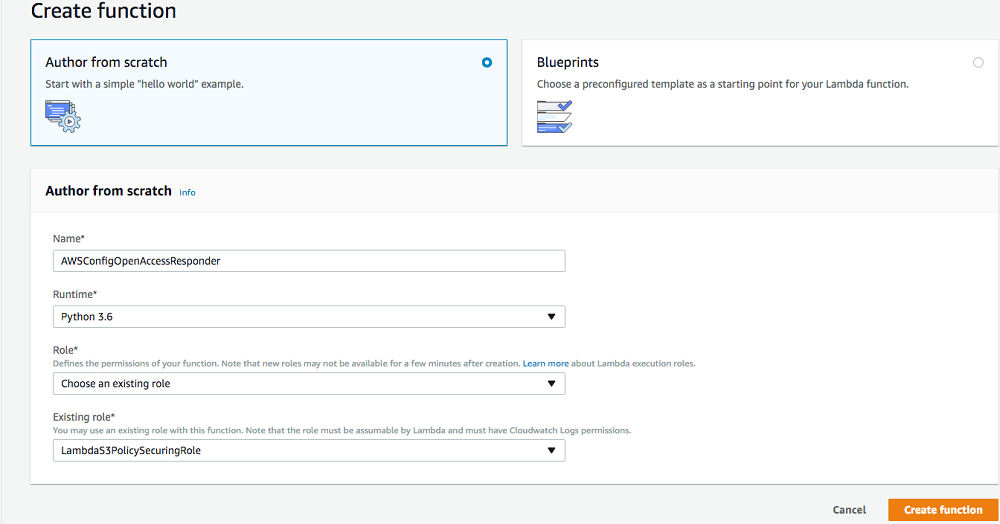
- Now, we add the CloudWatch event based on the rule created earlier.
- In the Add triggers section, select CloudWatch Events. The CloudWatch Events box should appear to the left of the Lambda function, along with a note saying Configuration required.
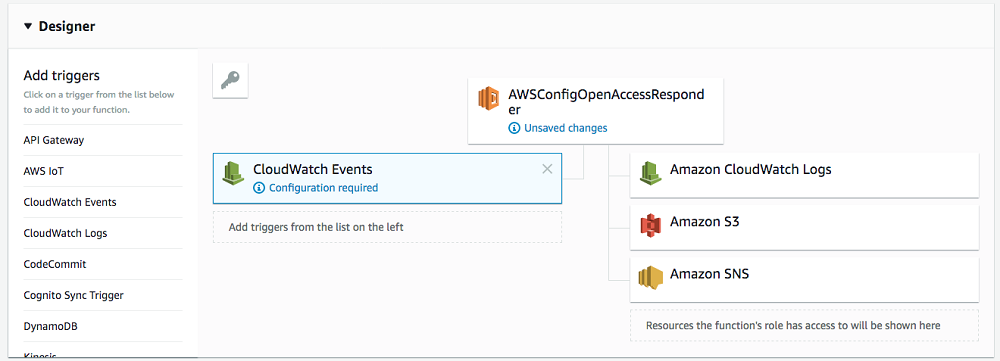
- In the Rule dropdown, select the rule you created earlier, and select Add.
- In the Add triggers section, select CloudWatch Events. The CloudWatch Events box should appear to the left of the Lambda function, along with a note saying Configuration required.
- Scroll up to the Designer section and select the name of your Lambda function.
- Delete the default code and paste the following code:
- Scroll down to the Environment variables section. This code uses an environment variable to store the ARN of the Amazon SNS topic.
- Enter TOPIC_ARN as the key.
- Enter the ARN of the Amazon SNS topic created earlier as the value.
- Under Execution role, select Choose an existing role, and select the role you created earlier from the dropdown menu.
- Leave other settings unchanged, and select Save at the top.
Step 5: Validate Results
By now, we have a Lambda function, an Amazon SNS topic, AWS Config monitoring Amazon S3 buckets, and a CloudWatch rule that triggers the Lambda function when bucket non-compliance is detected. Let’s test to ensure everything works correctly.
We have an Amazon S3 bucket named myconfigtestbucket created in a region monitored by AWS Config, along with its associated Lambda function. Since public read/write access is not set in the ACL or policy for this bucket, it is compliant.
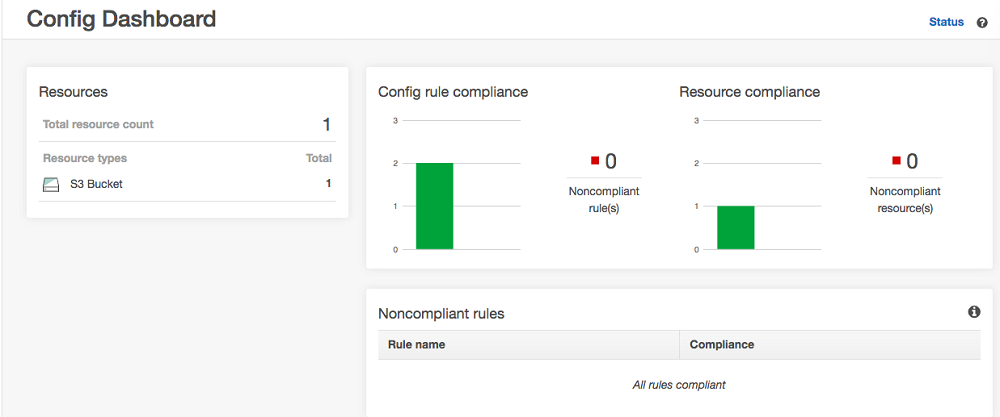
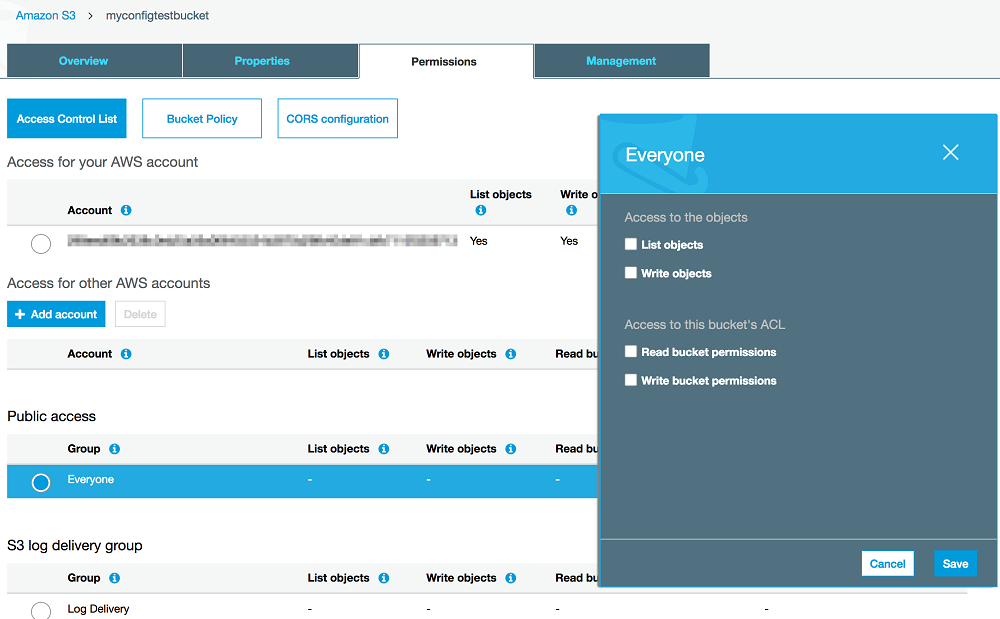
Let’s change the bucket ACL to allow public listing of objects:
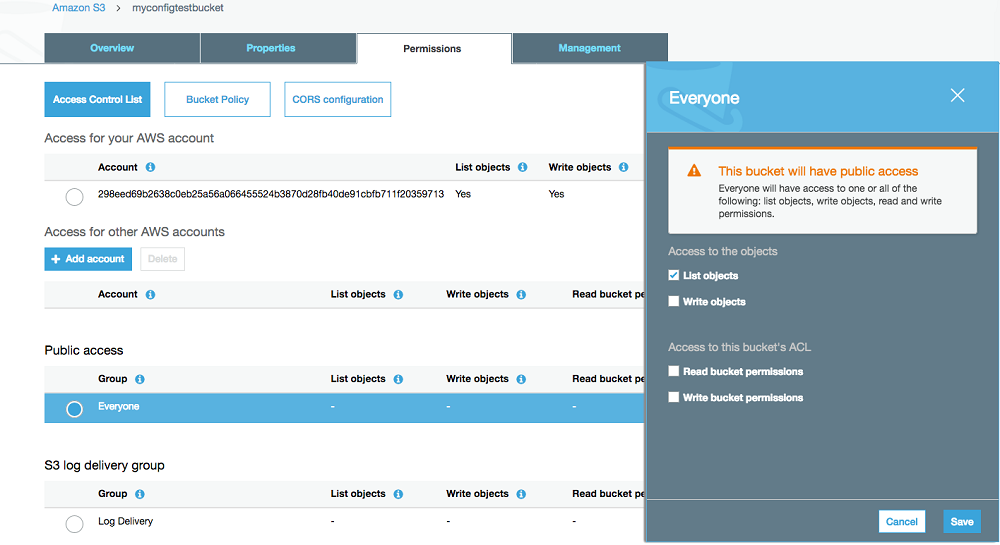
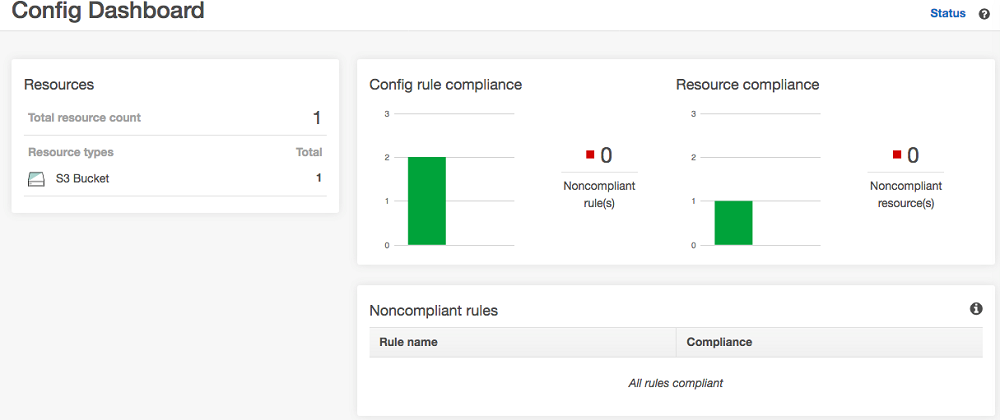
After saving, the bucket becomes publicly accessible. After a few minutes, the AWS Config dashboard detects a non-compliant resource:
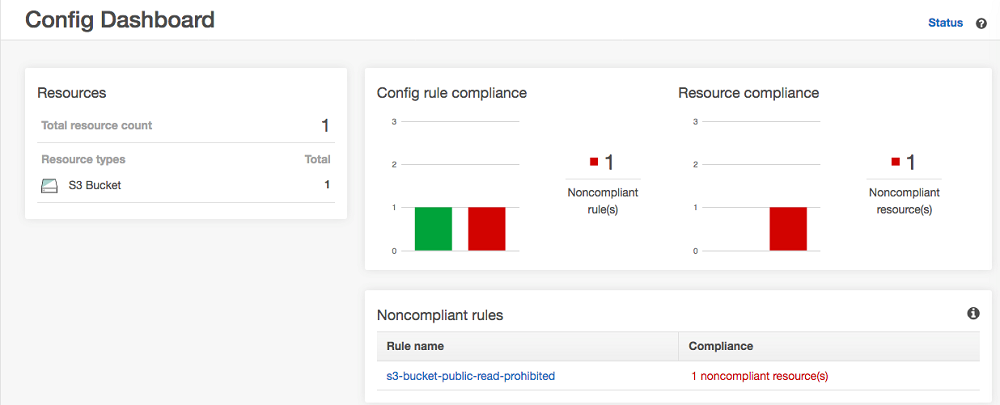
In the Amazon S3 console, we can see that after the Lambda function triggered by the previously created CloudWatch rule is invoked, objects are no longer publicly listed in the bucket.
Note that the AWS Config dashboard now shows no non-compliant resources:
Now, let’s configure a bucket policy that allows list access to try out the Amazon S3 bucket policy check:
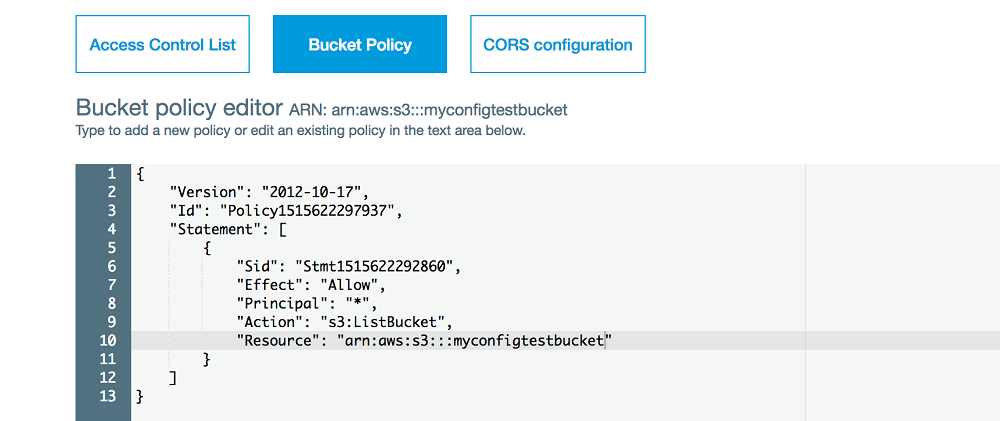
After setting this bucket policy for the myconfigtestbucket bucket, AWS Config detects that the bucket is no longer compliant after a few minutes. Because this is a bucket policy rather than an ACL, we publish a notification to the SNS topic we created earlier to inform us of the potential policy violation:
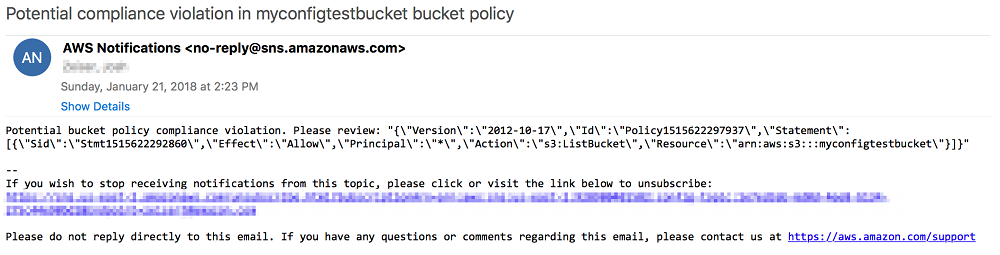
Once informed that the policy allows public listing of the bucket, we can now modify or delete the policy, after which AWS Config will detect that the resource is compliant.
Conclusion
In this article, we demonstrated how to use AWS Config to monitor Amazon S3 buckets for public read/write access via ACLs and policies. Additionally, we showed how to use Amazon CloudWatch, Amazon SNS, and Lambda to override public bucket ACLs or alert you when a bucket uses suspicious policies. You can use the CloudFormation template to quickly deploy this solution across multiple regions. With this method, you will be able to easily identify and protect public Amazon S3 bucket ACLs and policies. After deploying the solution to multiple regions, you can use the AWS Config aggregator to aggregate results. Read this article to learn more.