Home/Server & Website Managed Operations/OpenVPN Installation and Configuration Guide
Server & Website Managed Operations

OpenVPN Installation and Configuration Guide

1. What is a VPN?

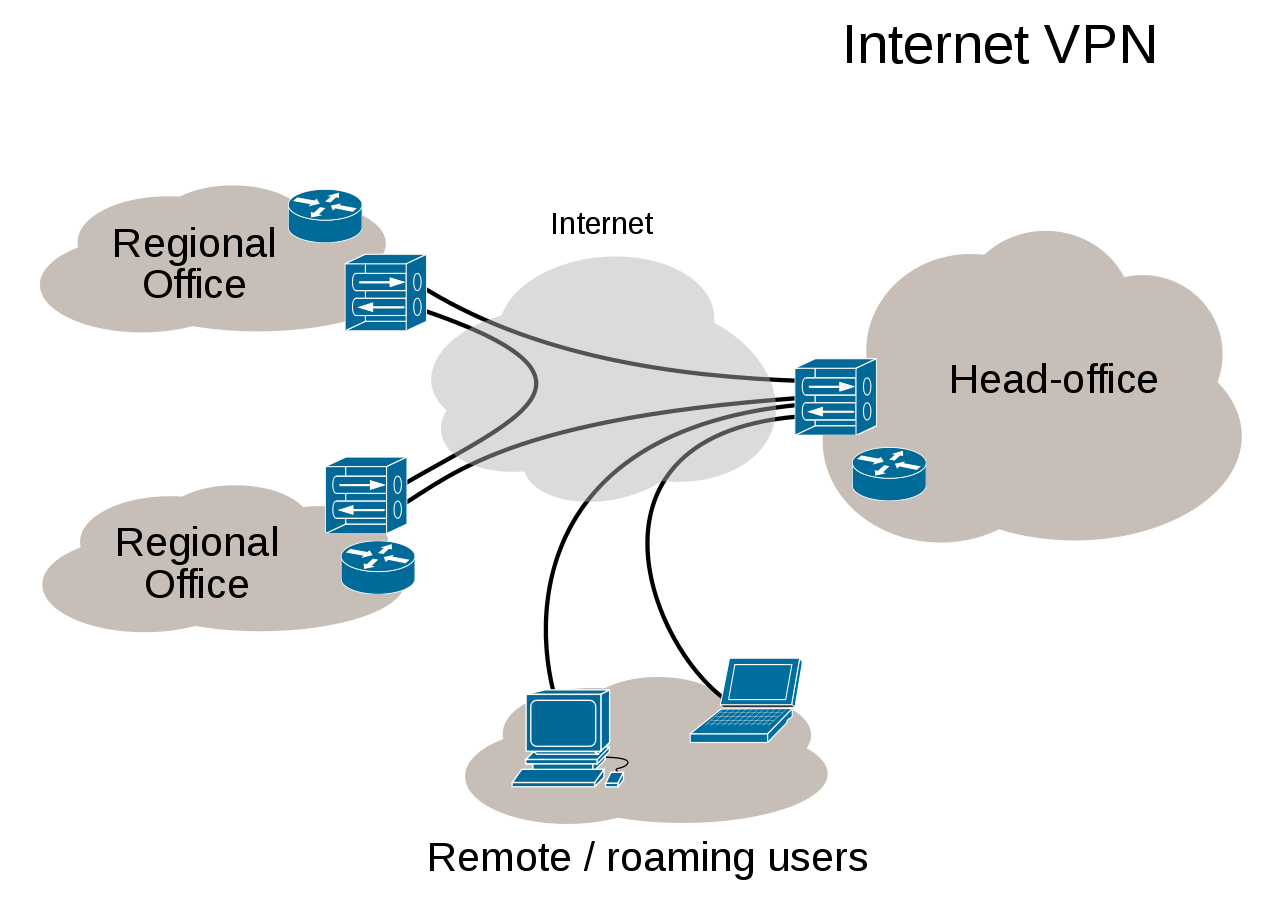
A VPN (Virtual Private Network) is a communication method commonly used to connect private networks of medium-to-large enterprises or organizations with one another. Messages within a virtual private network are transmitted over public network infrastructure (such as the Internet). It utilizes encrypted tunneling protocols to achieve security effects such as confidentiality, sender authentication, and message integrity. This technology allows for the transmission of reliable and secure messages over insecure networks (such as the Internet). It is important to note that whether messages are encrypted is controllable. Unencrypted virtual private network messages remain at risk of being intercepted. [Excerpted from Wikipedia]
a2ed3c22f3aec44fb1f39525b59adf8b

2. Security

Secure virtual private networks use encryptiontunneling protocols, providing confidentiality by preventing eavesdropping and sniffing. They also allow for sender authentication to prevent identity spoofing, while ensuring message integrity by preventing information from being modified.

Some virtual private networks do not use encryption to protect data. Although virtual private networks typically provide security, unencrypted virtual private networks are strictly speaking not “secure” or “trusted“. For example, a tunnel created between two hosts via the GRE protocol constitutes a virtual private network, but it is neither secure nor trusted. In addition to the aforementioned GRE protocol example, local plaintext tunneling protocols include L2TP (when not used with IPsec) and PPTP (when Microsoft Point-to-Point Encryption (MPPE) is not used).

3. Protocols

Common virtual private network protocols include:

4.Special Use Cases

Due to restrictions and blocking of overseas networks within mainland China, there has been a rise in the use of free or paid virtual private networks (VPNs) for connecting to overseas networks, a practice commonly referred to as “bypassing the Great Firewall.” Additionally, many foreign companies wishing to connect back to overseas websites often set up their own VPNs or subscribe to paid VPN services. Starting in January 2015, China began tightening its blockade on foreign VPN services. The VPN provider Astrill notified users that due to upgrades to the Great Firewall, devices using IPSec, L2TP/IPSec, and PPTP protocols could no longer access its service, with iOS devices being primarily affected. The Chinese Ministry of Industry and Information Technology has stipulated that companies providing VPN services in China must register; otherwise, they will not be protected under Chinese law.

5. Features of OpenVPN

Overview

OpenVPN allows participants in creating a VPN to perform authentication using public keys, digital certificates, or usernames/passwords. It extensively utilizes SSLv3/TLSv1 protocol functions from the OpenSSL encryption library. Currently, OpenVPN runs on Solaris, Linux, OpenBSD, FreeBSD, NetBSD, Mac OS X, and Windows, and includes many security features. It is not a web-based VPN software, nor is it compatible with IPsec or other VPN software.

Encryption

OpenVPN uses the OpenSSL library to encrypt data and control information: it leverages OpenSSL’s encryption and verification capabilities, meaning it can utilize any algorithm supported by OpenSSL. It offers optional HMAC functionality for packets to enhance connection security. Furthermore, hardware acceleration provided by OpenSSL can also improve performance.

Authentication

OpenVPN provides multiple authentication methods to verify the identities of both parties in a connection, including: pre-shared keys, third-party certificates, and username/password combinations. Pre-shared keys are the simplest but can only be used to create point-to-point VPNs. PKI-based third-party certificates offer the most comprehensive functionality but require additional effort to maintain a PKI certificate infrastructure. Starting with OpenVPN 2.0, username/password combination authentication was introduced; this method eliminates the need for client certificates, although a server certificate is still required for encryption.

Network

All OpenVPN communication occurs over a single IP port. The default and recommended protocol is UDP, though TCP is also supported. OpenVPN connections can traverse most proxy servers and function well within NAT environments. The server has the ability to “push” certain network configuration settings to clients, including: IP addresses and routing configurations. OpenVPN offers two types of virtual network interfaces: generic Tun/Tap drivers, which allow for the creation of Layer 3 IP tunnels or virtual Layer 2 Ethernet networks capable of transmitting any type of Layer 2 Ethernet data. Transmitted data can be compressed using the LZO algorithm. IANA (Internet Assigned Numbers Authority) has assigned official port 1194 to OpenVPN. Since version 2.0, each OpenVPN process can manage several concurrent tunnels simultaneously. The use of standard network protocols (TCP and UDP) makes OpenVPN an ideal alternative to protocols like IPsec, particularly when ISPs filter specific VPN protocols.

Security

OpenVPN inherently possesses many security features: it runs in user space, requiring no modifications to the kernel or network protocol stack; after initialization, it operates via chroot, relinquishing root privileges; and it uses mlockall to prevent sensitive data from being swapped to disk.
OpenVPN supports hardware encryption tokens, such as smart cards, through PKCS#11.

Comparison

PPTP
L2TP/IPSEC
OpenVPN
Overview The first VPN protocol introduced by Microsoft. It consumes few resources and is the most widely deployed. A more advanced VPN protocol that supports various platforms. It offers higher security but is less flexible and more prone to being blocked. An open-source VPN protocol with good encryption and adaptability. It is flexible and less likely to be blocked. Good performance can be achieved via UDP ports.
Encryption Supports 40-bit, 56-bit, and 128-bit encryption 256-bit encryption Customizable between 160-bit and 256-bit
Platform Support
  • Windows
  • Mac
  • Linux
  • iOS
  • Android
  • DDWRT
  • Windows
  • Mac
  • Linux
  • iOS
  • Android
  • Windows (Third-party software)
  • Mac (Third-party software)
  • Linux
  • iOS (Third-party software)
  • Android (Third-party software)
  • DDWRT
Connection Speed Very Fast Fast Fast
Ports 1723 TCP 500 UDP
1701 UDP
5500 UDP
Customizable and changeable as needed; any port for UDP/TCP is supported.
Anti-Blocking Easily blocked via protocol and port detection. Easily blocked via protocol and port detection. Difficult to block (based on standard TCP/IP protocols). The UDP mode is officially recommended, offering high speed and efficiency.

OpenVPN Installation and Configuration (Connecting Windows and Linux Clients to an OpenVPN Server)

1. OpenVPN Official Website

http://openvpn.net/, unfortunately, this site is blocked in China.

Windows Client https://community.openvpn.net/openvpn/wiki/OpenVPN-GUI, Download Link.

2. OpenVPN Installation

Source Code (Installer Package)

Download link: http://openvpn.net/index.php/open-source/downloads.html

RPM Installation (CentOS):

The following example uses the certificate mode on CentOS 5:

1) Installation (Client and server installation methods are identical)


a) Using RPM packages

                   rpm –ivh lzo–2.03–3.1.el6_5.1.x86_64.rpm openvpn–2.3.2–2.el6.x86_64.rpm pkcs11–helper–1.08–1.el6.rf.x86_64.rpm


b) Using yum (requires the rpmforge repository)

                   rpm –ivh http://apt.sw.be/redhat/el5/en/i386/rpmforge/RPMS/rpmforge-release-0.5.3-1.el5.rf.i386.rpm

                   yum makecache

                   yum install openvpn –y


                   The following 3 packages were installed (versions may be higher due to updates):

                   (1/3): lzo–2.03–3.1.el6.x86_64.rpm

                   (2/3): openvpn–2.2.2–1.el6.rf.x86_64.rpm

                   (3/3): pkcs11–helper–1.08–1.el6.rf.x86_64.rpm


2) Server Configuration

a) Certificate creation: Upload the key generation tool (easy-rsa.zip) to the default OpenVPN working directory, which is /etc/openvpn/, and extract easy-rsa.zip:

cd /etc/openvpn/

unzip easy–rsa.zip

cd /etc/openvpn/easy–rsa/2.0

chmod +x *


Alternatively, install using yum:

yum install easy-rsa -y

cd /usr/share/

cp -a easy-rsa/ /etc/openvpn/

cd easy-rsa/2.0/

The subsequent steps are similar to those above.


b) Configure server-side certificates:

cd /etc/openvpn/easy-rsa/2.0

source ./vars // Initialize environment variables

./clean-all // Clear the keys directory

./build-ca server // Create CA

./build-key-server server // Generate server certificate. Press Enter for all defaults, and ‘y’ for the last two prompts

./build-key client1 // Generate client certificate. Press Enter for all defaults, and ‘y’ for the last two prompts

./build-dh // Finally, generate Diffie-Hellman parameters

c) Add client certificates:

cd /etc/openvpn/easy-rsa/2.0

source ./vars // Initialize environment variables

./build-key client2 // Generate client certificate. Press Enter for all defaults, and ‘y’ for the last two prompts

d) Server configuration file: Create a `server.conf` file in the `/etc/openvpn/` directory. OpenVPN automatically recognizes files ending with `.conf`, allowing you to create multiple `.conf` files to listen on multiple ports (i.e., multiple instances).

port 1194

proto udp

dev tun

ca /etc/openvpn/easy-rsa/2.0/keys/ca.crt

cert /etc/openvpn/easy-rsa/2.0/keys/server.crt

key /etc/openvpn/easy-rsa/2.0/keys/server.key

dh /etc/openvpn/easy-rsa/2.0/keys/dh2048.pem

server 10.10.0.0 255.255.0.0

ifconfig-pool-persist ipp.txt

client-config-dir ccd

client-to-client

keepalive 10 120

comp-lzo

user nobody

group nobody

persist-key

persist-tun

status openvpn-status.log

log openvpn.log

verb 3

script-security 2

d) Start the OpenVPN server

# Create the ccd directory

cd /etc/openvpn/

mkdir ccd

# Start the OpenVPN service

service openvpn start

# Check listening ports

netstat –tunlp | grep openvpn

# You may see output similar to the following:

[root@node ~]# netstat –tunlp | grep openvpn

udp 0 0 0.0.0.0:1194 0.0.0.0:* 1625/openvpn

# Set OpenVPN to start on boot

chkconfig openvpn on

At this point, the server-side configuration is complete.

3) Client Configuration

Windows Client Download

a) Create client configuration file

Linux Configuration File Example:

cd /etc/openvpn

cat >> client1.ovpn << EOF

client

dev tun

proto udp

remote vpn.openvpnserver.com 1194

resolv-retry infinite

nobind

persist-key

persist-tun

ca ca.crt

cert client1.crt

key client1.key

log openvpn-client.log

comp-lzo

script-security 2

verb 3

EOF

Windows Configuration File Example:

client
dev tun
proto tcp-client
remote vpn.openvpnserver.com 1194
resolv-retry infinite
nobind
persist-key
persist-tun
ca ca.crt
cert client1.crt
key client1.key
comp-lzo
script-security 2
verb 3

b) Upload certificates

As indicated by the client configuration file, three files are involved: ca.crt, client1.crt, and client1.key. These three files are located in the server’s /etc/openvpn/easy-rsa/2.0/keys/ directory.

Copy the following three files from the server’s /etc/openvpn/easy-rsa/2.0/keys/ directory:
ca.crt
client1.crt
client1.key
along with the client1.ovpn file mentioned above, into: /etc/openvpn/

Therefore, in the client’s (Linux) /etc/openvpn/ directory, there should be a total of 4 files: ca.crt, client1.crt, client1.key, and client1.ovpn.

Win64 System Directory:
C:Program Files (x86)OpenVPNconfig
Win32 System Directory:
C:Program FilesOpenVPNconfig

c) Start the client

Linux:

# Start

cd /etc/openvpn

openvpn client1.ovpn &

# After starting, under normal circumstances, you will see output similar to the following:

[root@node home]# ifconfig tun0

tun0 Link encap:UNSPEC HWaddr 00–00–00–00–00–00–00–00–00–00–00–00–00–00–00–00

inet addr:10.18.1.98 P–t–P:10.10.1.97 Mask:255.255.255.255

UP POINTOPOINT RUNNING NOARP MULTICAST MTU:1500 Metric:1

RX packets:2848 errors:0 dropped:0 overruns:0 frame:0

TX packets:2842 errors:0 dropped:0 overruns:0 carrier:0

collisions:0 txqueuelen:100

RX bytes:881475 (860.8 KiB) TX bytes:924210 (902.5 KiB)

# Set up startup on boot

cat >> /etc/rc.local << EOF

cd /etc/openvpn

openvpn client1.ovpn &

EOF

Windows:

Windows 7 and 8.1 require running as Administrator.

Double-click the icon Running the OpenVPN client as Administrator on Windows to run;

A red openvpn3-1 indicates that it is not connected to the server;

A yellow openvpn3-2 indicates that it is connecting to the OpenVPN server;

A green openvpn5 indicates that it has successfully connected to the OpenVPN server;

openvpn4

The log entry Wed May 13 14:44:19 2015 Successful ARP Flush on interface [23] {CACC8C9F-1609-484A-8606-2A2748A7A868} in the image above indicates a successful connection, and the icon will turn green.

FREE CHECKUP

Free server checkup

We will send a problem checklist and remediation advice within one business day — no obligation to engage.

135 410 16684
Weekdays Mon – Fri 10:00 – 22:00 (UTC+8) · 7×24 emergency response
Call now
CONTACT

Contact Us

How can we help?

* Required